The best AI video upscaler tools use deep learning models to reconstruct missing pixel data, turning blurry or low-resolution footage into sharp, high-definition video. Whether you're rescuing old home movies or prepping content for a 4K screen, these tools can save you from expensive reshoots.
Key Takeaways
- AI video upscaling uses neural networks to add detail that wasn't in the original footage, not just stretch pixels.
- Resolution output matters, but frame rate and file format support are equally important factors to check before choosing a tool.
- Cloud-based tools like Fiddl.art's ai video upscaler let you process footage without needing a powerful local GPU.
- Free tools often cap resolution at 1080p, while premium options push to 4K at 60fps.
- Upscaling works best on footage with stable motion; heavy grain or extreme compression artifacts can limit results.
- Your final use case (social media, broadcast, personal archive) should drive which tool you pick.
Why Video Resolution Still Matters More Than People Think
You've probably noticed that older footage looks rough when you play it on a modern TV or monitor. A clip that looked fine on a 720p screen from 2010 can appear soft and washed-out on a 4K display. This isn't just an aesthetic problem. If you're a content creator, filmmaker, or someone managing a digital archive, low-resolution footage creates real practical barriers.
Social platforms like YouTube and Instagram reward higher-quality uploads with better compression handling and more favorable placement in feeds. Broadcast and streaming platforms often have minimum resolution requirements. And if you're selling footage as stock video, anything below 1080p is often disqualified outright.
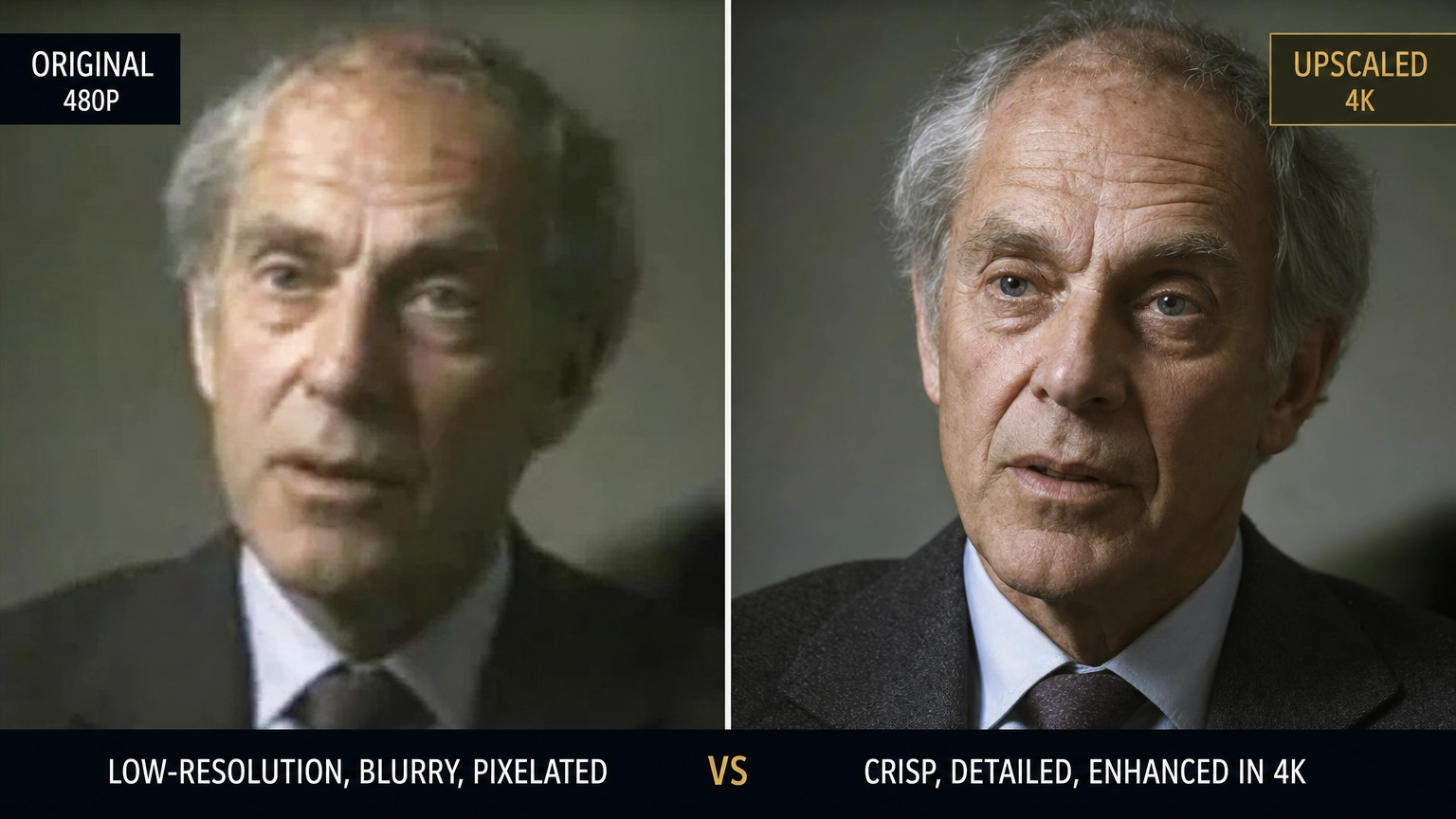
The old fix was to either reshoot the content (expensive) or accept the quality loss (frustrating). AI upscaling is the third option that has changed this calculus significantly. Instead of simply stretching pixels, modern AI models analyze each frame, predict what detail should be there based on training data, and reconstruct the image at a higher resolution. The result is sharper edges, more defined textures, and more natural motion.
How AI Upscaling Actually Works Under the Hood
Understanding the mechanism helps you set realistic expectations. Traditional upscaling, what your TV does automatically, uses bicubic or bilinear interpolation. These are mathematical formulas that average surrounding pixels to fill in gaps. They're fast but produce soft, unnatural results at large jumps in resolution.
AI upscaling works differently. These models are trained on massive datasets of paired low-resolution and high-resolution images and video frames. During training, the model learns what a blurry edge on a face typically looks like at higher resolution, what tree leaves look like in detail versus in compressed form, and so on. When it processes your footage, it applies that learned knowledge to reconstruct realistic detail rather than just averaging pixels.
The most commonly used architectures in this space include Real-ESRGAN, Topaz Video AI's proprietary models, and various super-resolution transformers. Real-ESRGAN is popular in many cloud-based tools because it's open-source and handles a wide variety of content types. Transformer-based models tend to perform better on faces and text but require significantly more compute.
For anyone curious about how upscaling principles carry over from stills to video, reading up on ai image upscaler technology gives you a solid foundation for understanding what's happening frame by frame in video processing.
The Most Important Features to Compare
Not every tool advertises the same things, and marketing language can obscure what actually matters. Here's a breakdown of the features worth comparing side by side before you commit to any platform.
| Feature | What to Look For |
|---|---|
| Max output resolution | 4K (3840x2160) is the current standard benchmark |
| Frame rate options | 30fps minimum; 60fps support is a major advantage |
| Supported formats | MP4 and MOV are essentials; WebM is a bonus |
| Max clip length | Some tools cap at 10-30 seconds; others go to 60+ |
| Max file size | Under 100MB is limiting; 250MB+ is workable |
| Processing location | Cloud vs local GPU affects speed and privacy |
| Artifact handling | Some tools add sharpening artifacts; check samples |
| Credits or subscription | Pay-per-render vs monthly plan changes total cost |
One thing that often gets glossed over is artifact handling. Some upscalers make footage look over-sharpened, with halos around edges or an uncanny "painted" look on skin and hair. Always test with a short sample clip before processing your full project.
Fiddl.art's AI Video Upscaler: What Sets It Apart
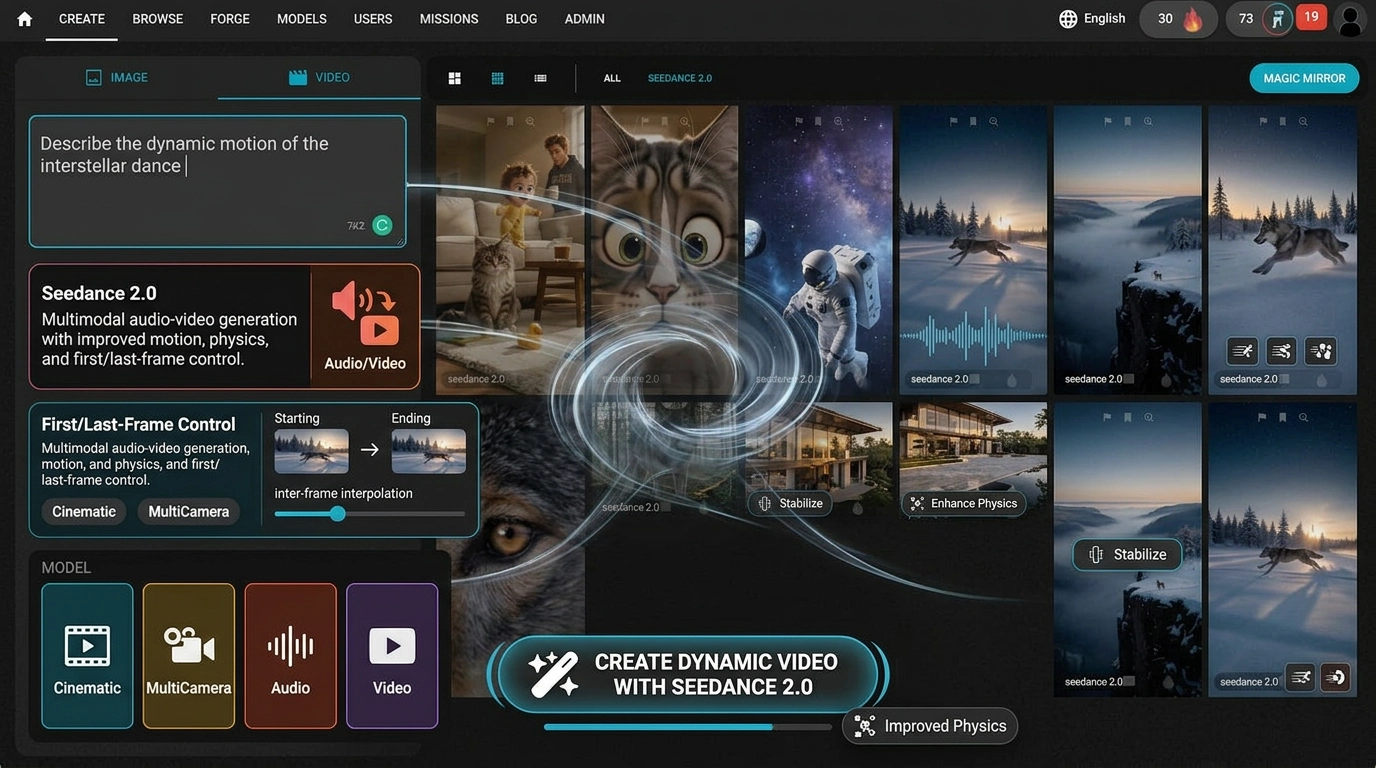
Fiddl.art is a creative platform built around AI-generated content, but its suite of creative tools goes well beyond generation. The platform's AI video upscaler is powered by Replicate, which means it runs on the same infrastructure used by developers and production teams who process video at scale and is further enhanced through their ai video generator capabilities.
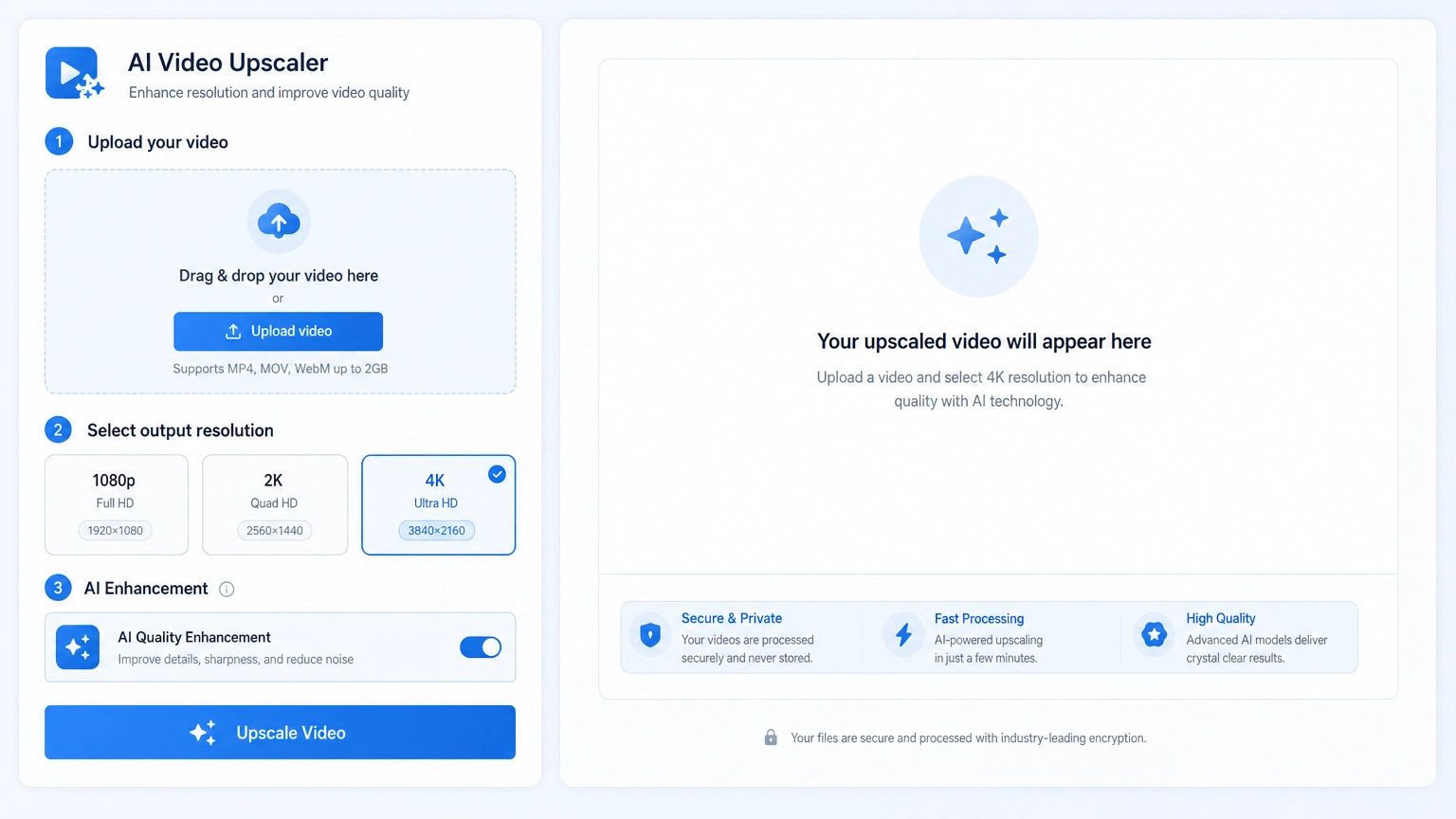
Here's how the workflow looks in practice:
- Upload your clip: Accepts MP4, MOV, or WebM files up to 60 seconds long and up to 250 MB in size.
- Choose your output settings: Pick from 1080p, 2K, or 4K resolution, then select either 30fps or 60fps.
- Process and download: The upscaled video renders and appears in your results queue when complete.
The credit system is based on Replicate's output-second rate plus a Fiddl markup, rounded up to whole credits. This means you only pay for what you actually render, which is more cost-effective for occasional use than a monthly subscription you might not fully use.
What makes Fiddl particularly interesting for creative users is the broader ecosystem. You can earn Fiddl Points by completing missions, publishing your work, and getting others to engage with your creations. Those points can be spent on renders, including video upscaling jobs. If you're active on the platform, it's genuinely possible to offset some of your processing costs just through regular creative activity.
Other Tools Worth Knowing About
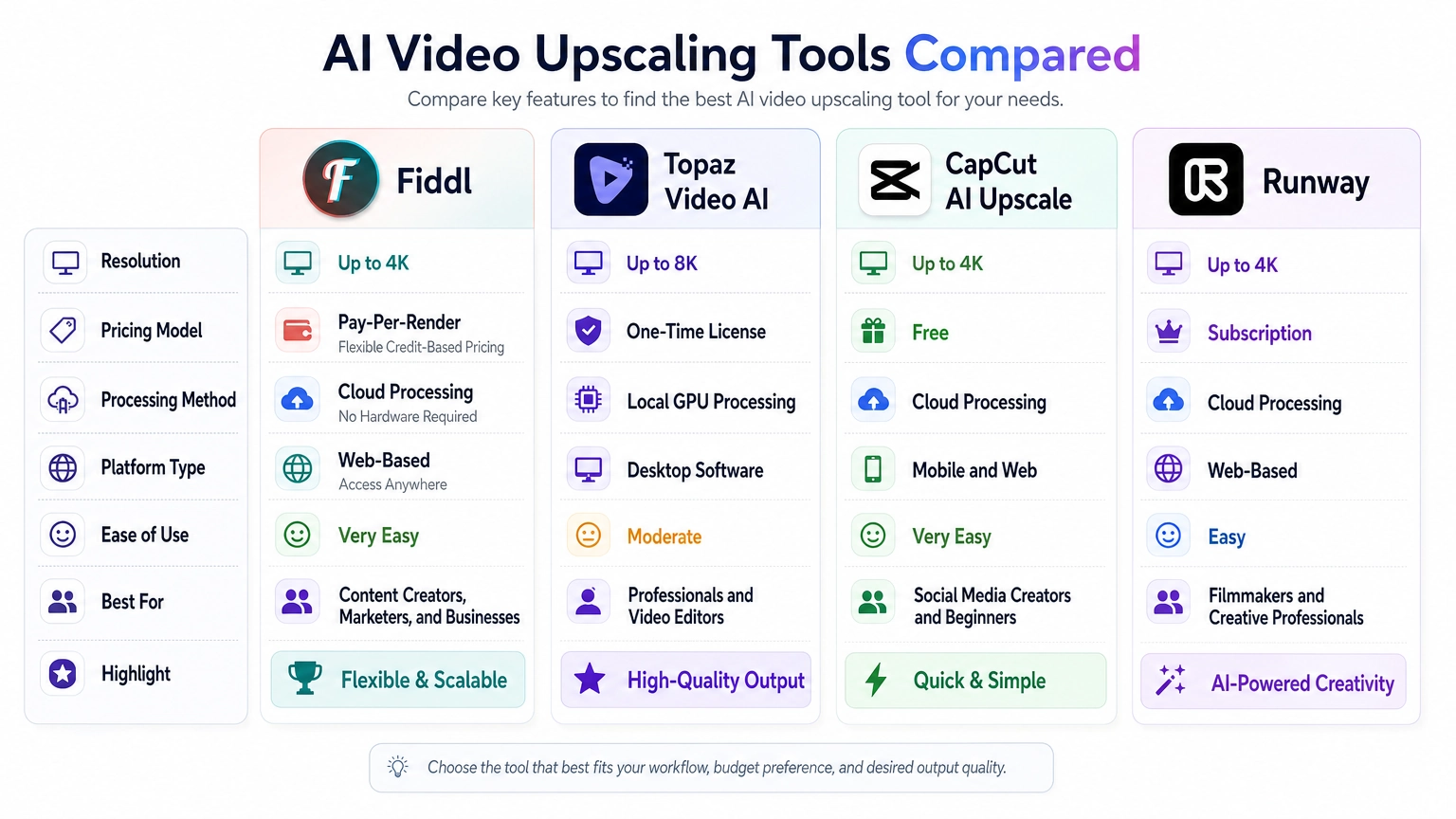
Fiddl isn't the only option out there, and depending on your workflow, a different tool might fit better. Here's an honest look at the main alternatives.
Topaz Video AI
This is the gold standard for local processing. You install it on your machine, and it runs entirely on your GPU. The output quality is exceptional, especially on faces and film grain. The trade-off is that you need a powerful NVIDIA GPU (RTX 3070 or higher is recommended for 4K work), and the software costs around $300 upfront or roughly style=background:#12121200 per year for updates. It's best suited for professionals who process video regularly and already have the hardware.
VideoProc Converter AI
A more affordable desktop option that bundles upscaling into a broader video conversion and editing suite. It handles batch processing well and supports a range of formats. Quality is solid at 1080p and acceptable at 4K, though it doesn't match Topaz at the highest settings.
CapCut's AI Upscale
Built into the popular editing app and free to use within certain limits. It's convenient for social media creators who already use CapCut, but the resolution ceiling is 1080p and clip length is capped at shorter durations.
Runway ML
More of a full creative suite than a dedicated upscaler, but it includes video enhancement tools. Pricing is subscription-based and can get expensive if you're processing large amounts of footage. Worth considering if you also need other AI video features.
What Type of Footage Responds Best to Upscaling
AI upscaling isn't a universal fix. Some footage responds dramatically well; other clips see minimal improvement or even degradation. Knowing which category your content falls into saves you time and credits.
Footage that upscales well:
- Stable shots with minimal motion blur
- Talking-head videos or interview footage
- Nature and landscape clips with clear textures
- Old family videos from the early 2000s (usually compressed but not badly corrupted)
- Screen recordings captured at lower resolution
Footage that may not upscale as cleanly:
- Fast-motion sports or action clips with heavy motion blur
- Heavily compressed video with visible blocking artifacts (high compression damages data that AI can't recover)
- Film grain from analog sources (AI may interpret grain as noise and smooth it out, altering the look)
- Very short clips under 5 seconds (models need enough frames to work with)
If your project involves creating new video content rather than upscaling existing footage, it's worth knowing that tools like an ai video generator can produce content at higher native resolutions, which reduces or eliminates the need for upscaling downstream.
Things to Know
- File format matters before you upload. If your source file is in an older format like AVI or FLV, convert it to MP4 first using a free tool like HandBrake. Some upscalers reject uncommon formats outright.
- Upscaling doesn't restore corrupted frames. If parts of your video have digital corruption (blocky frozen frames or color banding), upscaling won't fix those sections and may make them more visible.
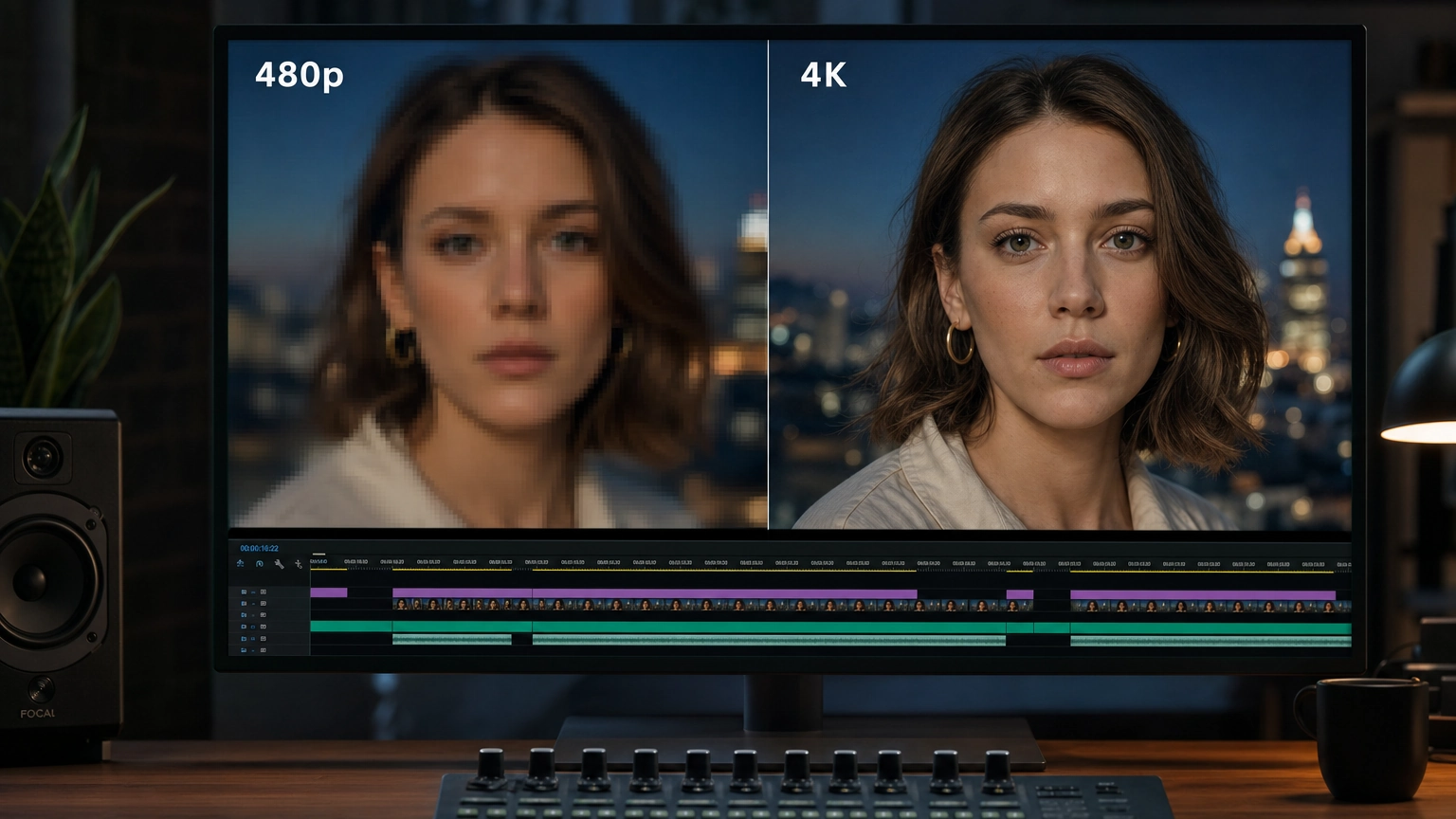
- 4K output doesn't always mean 4K quality. A 480p source upscaled to 4K will look better than the original but won't match natively shot 4K footage. Manage expectations accordingly.
- Frame rate interpolation is a separate process. Boosting from 30fps to 60fps involves AI generating intermediate frames, not just upscaling resolution. Tools that do both simultaneously are doing two separate inference tasks.
- Cloud tools protect your hardware but not always your data. Check the privacy policy of any cloud-based upscaler before uploading personal or sensitive footage.
- Batch processing is worth looking for. If you have more than a handful of clips to process, tools with batch upload queues save significant time compared to processing one clip at a time.
Ready to Rescue Your Best Footage?
Pick one clip that represents your most common use case, whether that's an old family video, a social media recording, or a client project that needs upgrading. Upload it to Fiddl.art's upscaler, select 4K output at 60fps, and compare the result against the original on your best display. That single test will tell you more than any spec sheet can. If the result meets your quality bar, you'll know exactly where to spend your rendering credits going forward.
Frequently Asked Questions
Q: What resolution should I choose when upscaling for YouTube?
YouTube recommends uploading at 1080p minimum, but 4K output gives you the best compression handling on the platform.
When you upload a 4K file, YouTube's encoder has more data to work with, which results in a better-looking 1080p stream for viewers on non-4K devices. It sounds counterintuitive, but uploading 4K even if your target audience watches in 1080p is a real quality improvement worth doing.
Q: How long does AI video upscaling take?
Processing time depends on clip length, resolution output, and whether the tool runs locally or in the cloud, but most cloud tools handle a 30-second clip in two to five minutes.
Local tools like Topaz can be faster or slower depending on your GPU. Cloud tools like Fiddl.art abstract away hardware entirely, so your processing speed is consistent regardless of your computer.
Q: Can I upscale a video that's already in 1080p to 4K?
Yes, you can upscale 1080p footage to 4K, and AI models handle this jump well because there's more source data to work with than starting from 480p.
The result won't be identical to natively captured 4K, but it will display more cleanly on 4K screens than a 1080p file that your TV or monitor is stretching on its own.
Q: Is AI video upscaling free anywhere?
Some tools like CapCut offer free upscaling within their app, but they typically cap output at 1080p and limit clip length.
Paid or credit-based tools give you access to 4K output and longer clips. Fiddl.art's credit system lets you earn points through platform activity, which can partially offset costs if you're a regular user.
Q: Does upscaling work on videos taken on old phones?
Yes, and this is actually one of the strongest use cases for AI upscaling since phone footage from 2010 to 2015 is often 720p or lower with heavy compression.
AI models handle this type of footage well because the compression patterns are predictable and the content (people, faces, everyday scenes) closely matches training data. Results on old phone clips are often noticeably better than on older film or analog conversions.
The Bottom Line on Best AI Video Upscaler
Choosing the right tool comes down to your hardware situation, how often you need to process footage, and what resolution output you actually need. If you have a high-end GPU and process video constantly, Topaz Video AI remains the top local option. If you want a cloud-based tool that requires no hardware investment and fits into a broader creative workflow, Fiddl.art's offering is worth serious consideration, especially given the credit-earning mechanics that can reduce your long-term costs.
The best AI video upscaler for you is the one that matches your actual workflow, not just the one with the highest specs on paper. Test with a real clip from your library, compare the output on your actual display setup, and make your decision based on what you see.