Practical guide · Updated 2026-10-29
How to extend an image for a wider or square layout
Cropping removes part of an image; extending asks AI to invent what could sit outside its existing frame. Use extension when a portrait needs a wider banner or a product needs more room in a square layout. The new area is generated content, so treat it as a proposal rather than a recovered part of the original photograph.
Open AI Image ExtenderBefore you start
Start with a source whose important subject is intact. Decide the target layout before generating, leaving space where a headline or interface might sit. Avoid expecting the tool to reconstruct a missing logo, hand, or product component accurately from a cropped fragment.
Step by step
Upload the source
Open the image extender and upload the photograph. Keep the original file so you can check the subject after the edit.
Choose the target shape
Use Square, Tall, or Wide below the presets to choose the target shape. Customize contains the full list of supported aspect ratios. Choose Custom if you want to describe how the new area should look.
Keep the direction simple
Ask for more of the existing background with consistent perspective and lighting. If you need empty space for text, say where it should go rather than asking the model to write the headline into the image.
Generate and inspect the join
Review the estimate before generating. Compare the result with the source, especially along the boundary where the original scene meets the newly generated area.
Before and after
AI-created source photos, processed with the tool's configured model. Results vary with the input.
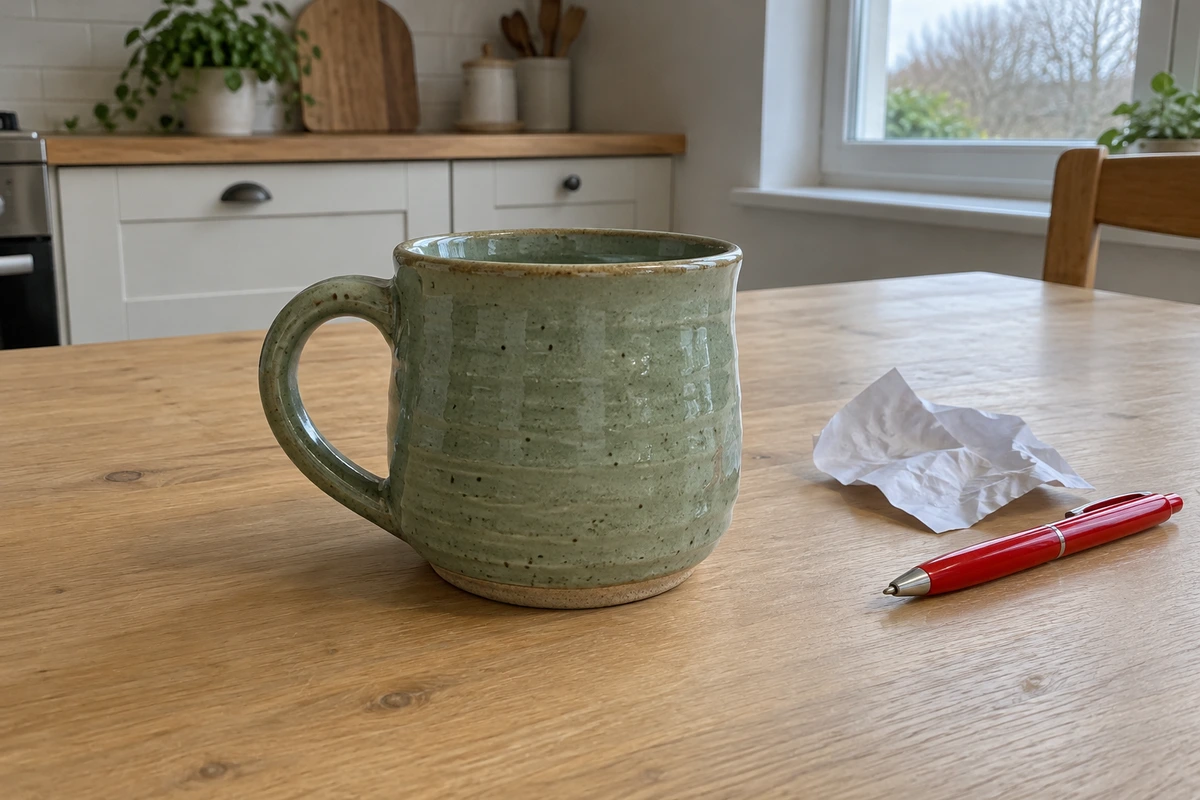 Before
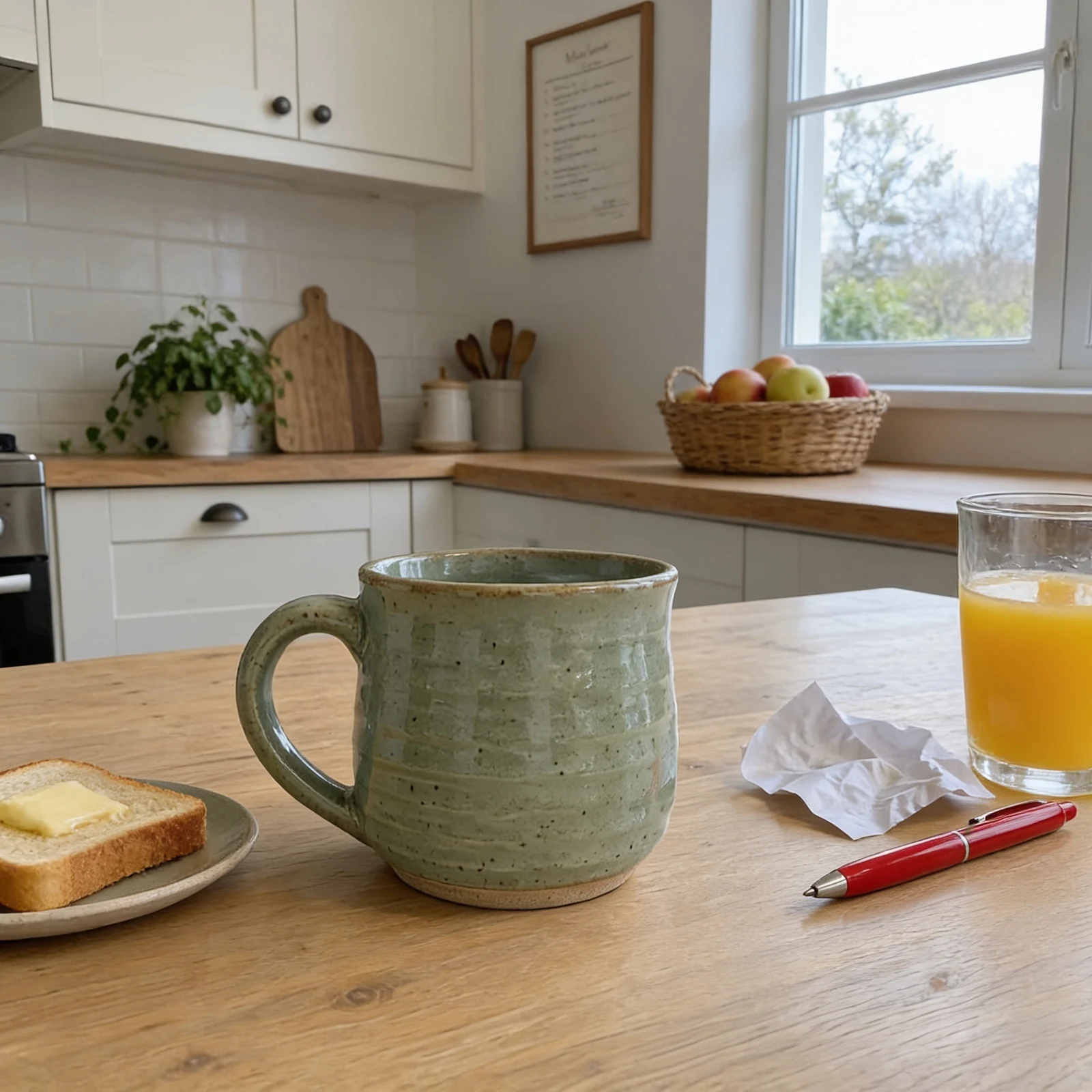 After
AfterModel and settings
bytedance/seedream-4.5 · Make it square
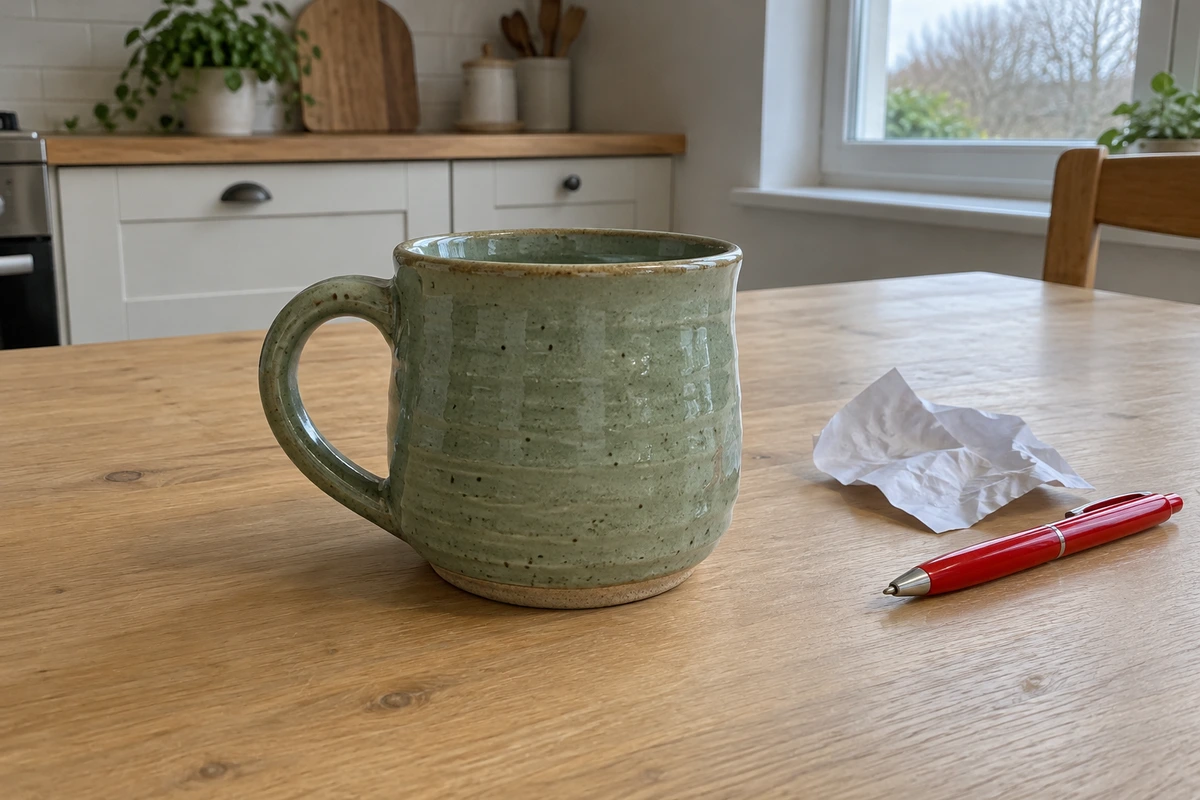 Before
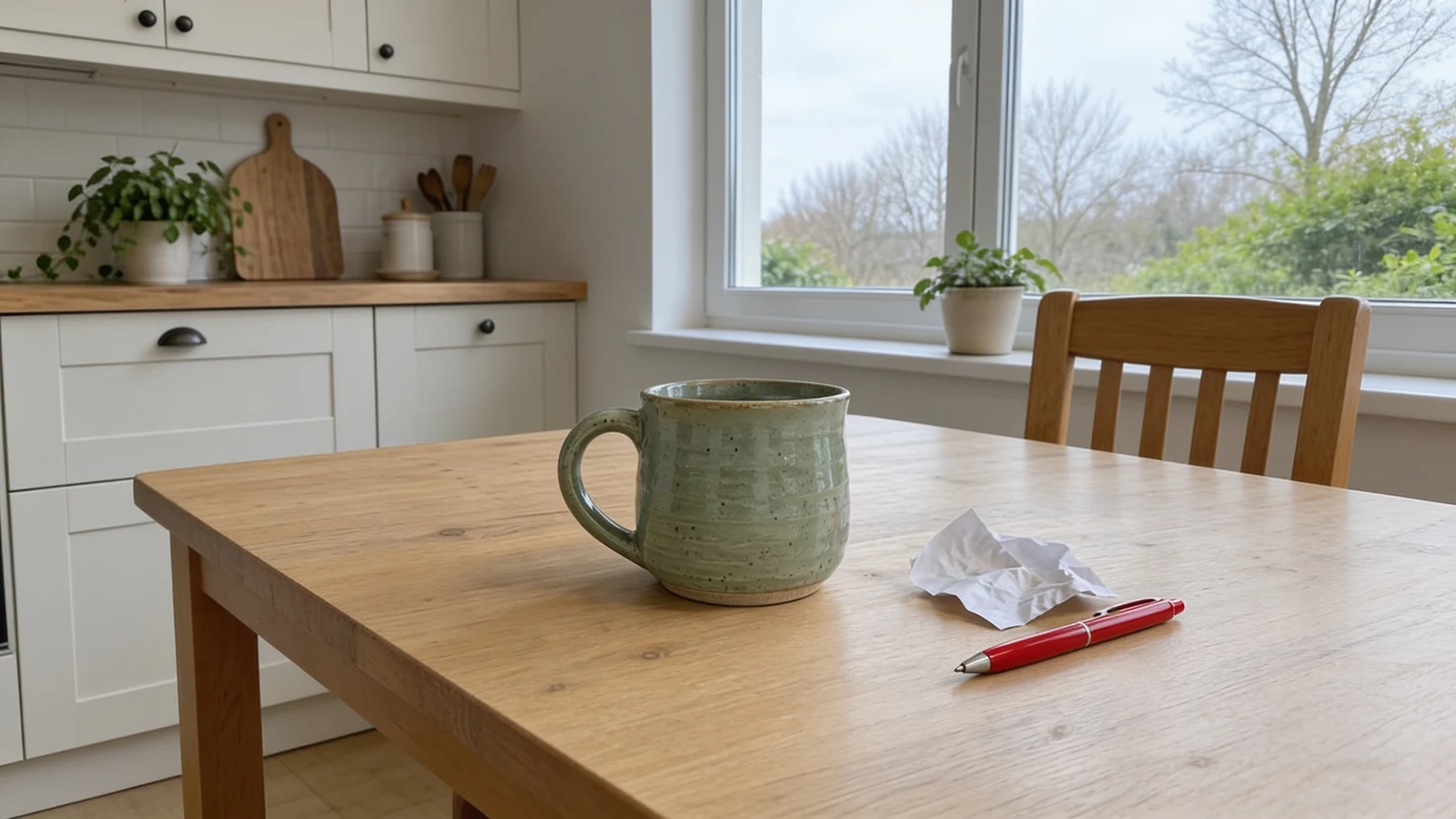 After
AfterModel and settings
bytedance/seedream-4.5 · Make it wide
What to check in the result
Follow straight lines such as shelves, table edges, tiles, and horizons across the extended area. Repeated patterns, bent geometry, and extra objects often reveal an otherwise convincing edit. Check that the model did not enlarge or move the subject when it added the surrounding space.
If the result needs another attempt
If the new area looks busy, ask for a simpler continuation with no additional objects. Try a smaller change of aspect ratio when the requested canvas would require inventing most of the scene. Use upscaling when the framing is already right and you only need more pixels; extension solves a different problem.
Generation does not start until you choose the tool's processing action. Availability, free allowances, and point estimates appear in the tool; review them before starting.
Try AI Image Extender