ai image extender
AI Image Extender
Extend the edges of an uploaded image into a new canvas size while preserving the original subject, lighting, style, and composition.
Tool summary
- Input
- Image upload required, up to 1 input image
- Model
- seedream4.5
- Default aspect ratio
- 16:9
- Output
- Extend image
Uncrop Images Without Stretching
The AI Image Extender is built for photos that need more canvas, not a warped resize. Upload a picture, choose the target aspect ratio, and the tool prompts the model to outpaint new edge detail while preserving the original subject, lighting, texture, and composition.
Resize Photos for Social Posts, Ads, and Thumbnails
A single image often needs to work across many formats: square marketplace thumbnails, 4:5 feed posts, 9:16 stories, 16:9 video covers, and ultra-wide website heroes. Instead of cropping away important detail, expand the background into the format you need.
Control What Appears in the Expanded Canvas
Use the optional prompt to guide the newly generated space. Ask for more sky, a wider studio surface, extra room for headline text, a continued wall texture, or a natural scenic background. Keep the prompt focused on the new canvas area so the original photo stays stable.
Outpainting for Product Photos and Creative Campaigns
Product teams can turn tight catalog shots into hero banners, ad layouts, and storefront images. Creators can reframe portraits, travel photos, and artwork for platform-specific crops while keeping the source image recognizable.
How the AI Image Extender Works
Upload one image, pick the target size, and optionally add a short prompt to guide the new space. Your result matches the aspect ratio you chose and fills in believable surrounding detail instead of stretching your photo.
Tips for Better Uncrop Results
Start with a clear image, choose the final platform size before generation, and describe only what should appear beyond the current edges. The tool keeps your original photo anchored and unchanged, so avoid prompts that ask the model to redesign the main subject.
AI Image Extender examples
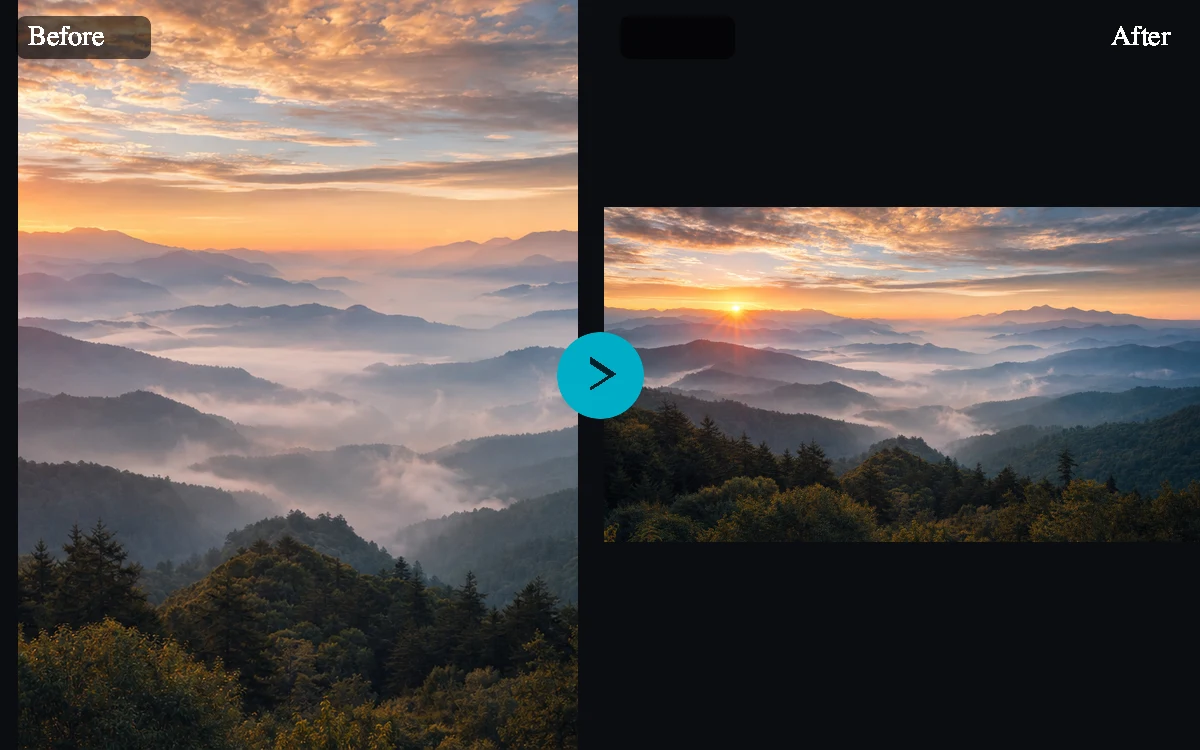
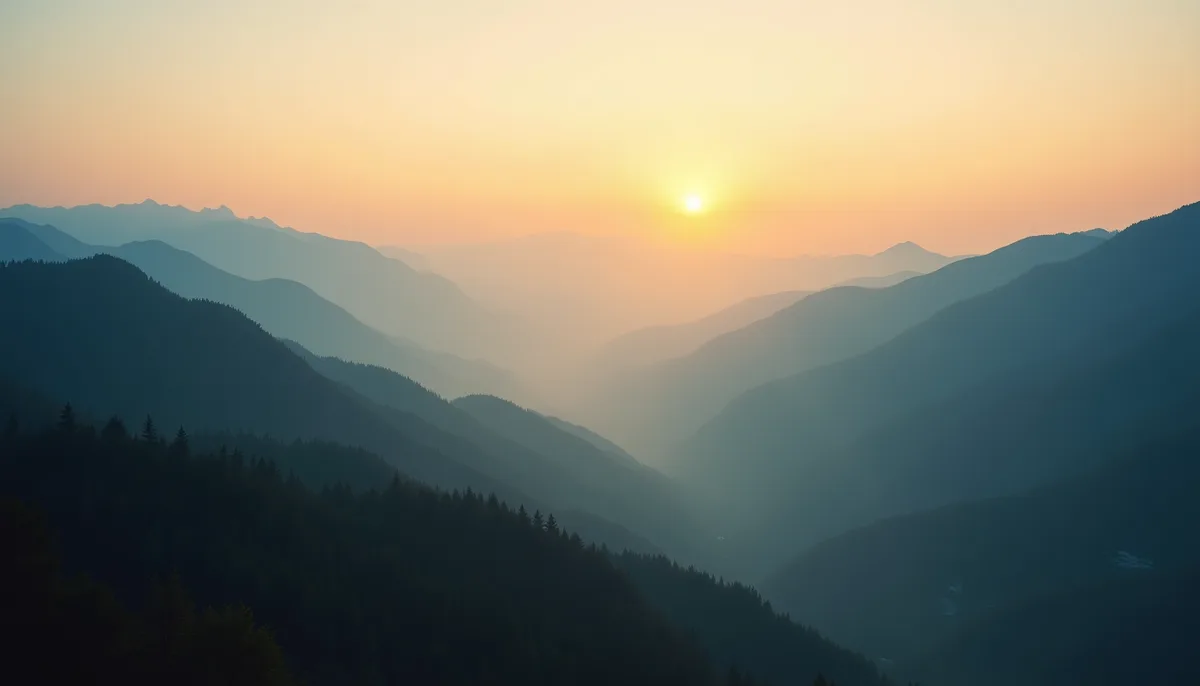
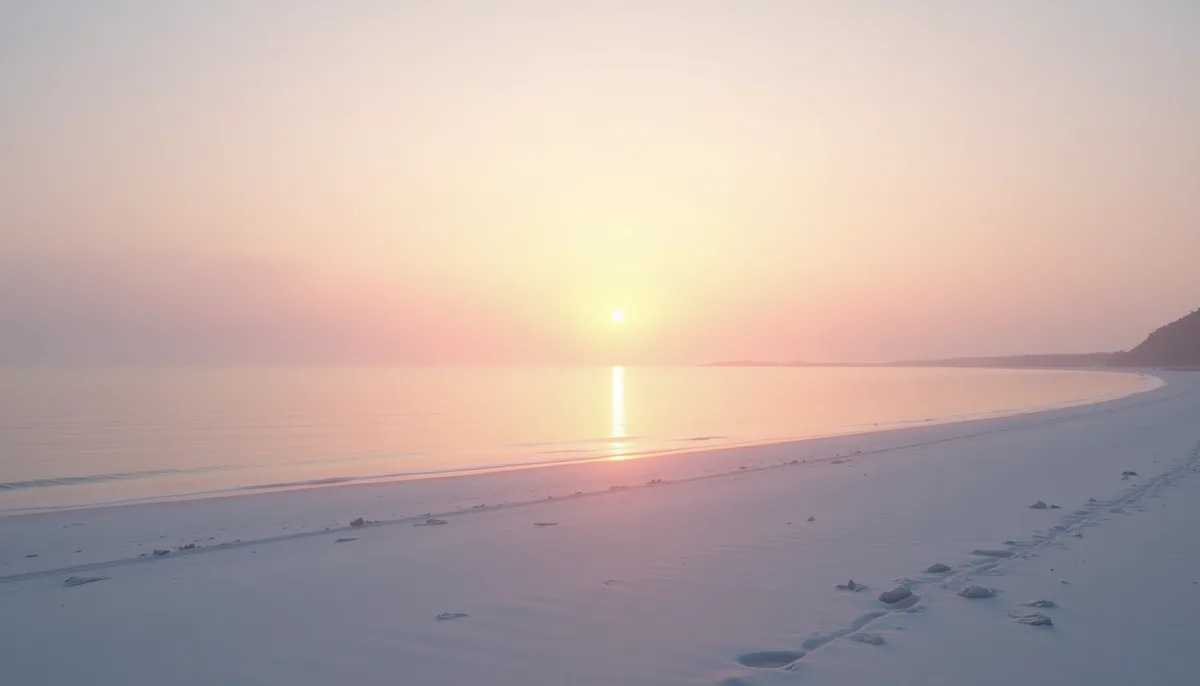
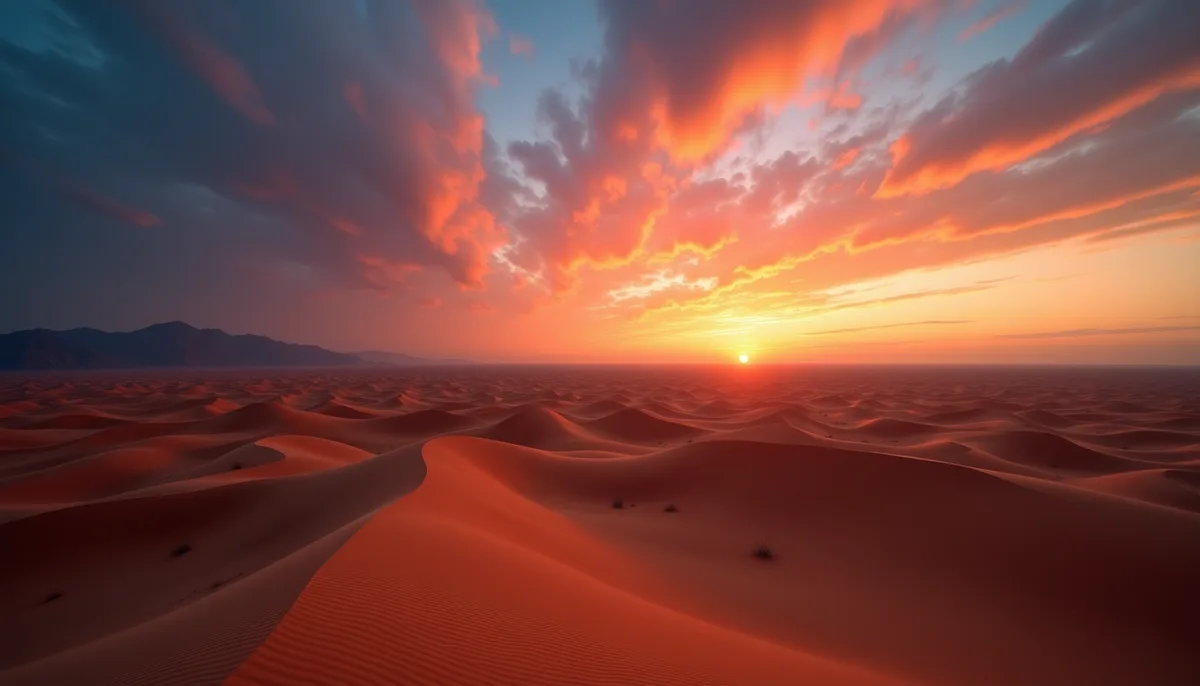
Example presets
- Make it verticalFill a tall 9:16 frame for Stories, Reels, Shorts, and TikTok.
- Make it wideFill a 16:9 landscape frame for YouTube thumbnails, covers, and banners.
- Make it squareFill a balanced 1:1 frame for feeds, profiles, and marketplace listings.
Controls and settings
- Target sizeSupports 1:1, 4:5, 9:16, 16:9, 21:9 with 16:9 as the default.
- OutputsGenerate 1 to 4 variants. Default: 1.
Tips for a better result
Start with the clearest source available, keep the main subject easy to identify, and choose settings that match the intended final size. Review the first output at full size before generating another variation, especially when the original contains small text, fine product edges, faces, or compressed detail.
Use image extending responsibly
Only upload images you have the right to edit. Avoid using outpainting to mislead viewers about news events, identity, product condition, or factual context.
Frequently asked questions
What is an AI image extender?
An AI image extender expands an uploaded photo into a larger or differently shaped canvas. Instead of stretching pixels, it generates new surrounding detail that matches the original image.
Is uncrop image the same as image extender?
They describe the same core task. Uncropping restores or invents space beyond the current image edges, while image extending or outpainting expands the canvas to a new aspect ratio.
Will the tool stretch my original image?
The prompt is designed to avoid stretching or warping the uploaded image. It asks the model to preserve the original content and generate new detail only in the expanded area.
Which aspect ratios can I choose?
You can choose from 1:1 square, 4:5 portrait, 9:16 vertical, 16:9 landscape, and 21:9 wide banner target sizes for common social, ecommerce, thumbnail, and banner workflows.
Can I describe what should appear in the new space?
Yes. Add a short prompt for the newly generated area, such as more sky, a wider studio backdrop, a continued street scene, or empty space for headline text.
Will my original photo change?
No. The tool keeps your uploaded photo anchored and unchanged inside the new frame and only generates the surrounding area, so people, products, logos, and important composition detail stay intact.
What images work best for AI outpainting?
Clear photos with visible edge context usually work best. Images with consistent lighting, simple backgrounds, natural perspective, and uncluttered subject edges give the model better clues for the expanded canvas.
Can I use the AI Image Extender for product photos?
Yes. Product photos can be extended into banners, marketplace crops, and ad formats. Keep the prompt focused on the background or surface so the product itself remains recognizable.
Does this replace a full image editor?
No. This page is intended for fast AI outpainting and aspect-ratio reframing. Detailed retouching, masking, and pixel-level corrections may still need a dedicated editor.