AI Object Remover
AI Object Remover
Erase distractions from your photos.
How it works
Upload a source photo
Start with one clear image from your device or an existing Fiddl image you can use.
Describe what should disappear
Name the object, person, mark, cable, sticker, shadow, or clutter and include where it appears in the image.
Generate and review
Create one or more private cleanup variations, compare the repaired area, then open or download the strongest result.
Before you start
- Files to upload
- Start with a clear JPG, PNG, or WebP with the whole subject visible. A sharper original gives the model more useful detail.
- Access and cost
- Sign in to upload and process your file. Available free runs or trial images depend on the tool and your account. Review the points estimate before starting; choosing a style does not start processing.
- Check and download
- Compare the result with the original at full size before downloading. AI edits can change faces, lettering, product details, and textures; keep the version that represents your subject accurately.
Tool summary
- Input
- Image upload required, up to 1 input image
- Model
- gpt-image-2
- Default aspect ratio
- 9:16
- Output
- Remove object
Example presets
Choose an example look, or describe your own. Custom: Describe exactly what you want.
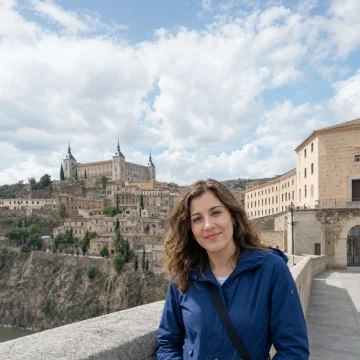 Remove a photobomberRemove the person in the background on the left and rebuild the street scene naturally.
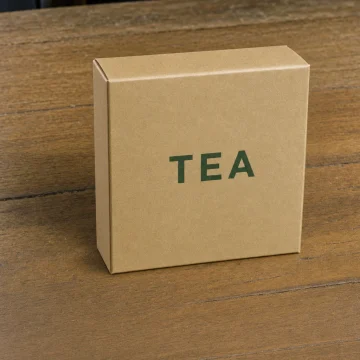 Clean product photoRemove the small price sticker and dust specks from the product box while keeping all packaging text intact.
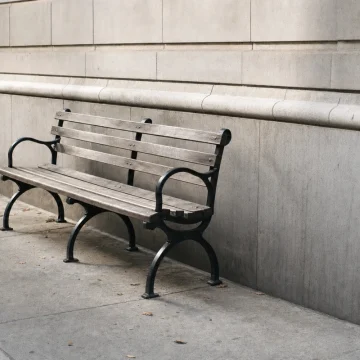 Erase street clutterRemove the trash bin near the curb and continue the sidewalk, curb shadow, and wall texture realistically.
 Remove a wire or cableRemove the black cable crossing the table and restore the wood grain and soft shadow underneath.
Controls and settings
- Background fillChoose from Natural fill, Clean surface, Product-safe repair, Outdoor scene repair.
- Preserve imageChoose from Strict preservation, Balanced cleanup, Commercial polish.
- Edge detailChoose from Clean edges, Fine detail, Soft background.
- Keep original framingKeep the original crop and framing exactly as close as the model allows.
- Aspect ratioSupports 1:1, 4:5, 3:4, 4:3, 16:9, 9:16 with 9:16 as the default.
- VariationsGenerate 1 to 4 variants. Default: 1.
Tips for a better result
Start with the clearest source available, keep the main subject easy to identify, and choose settings that match the intended final size. Review the first output at full size before generating another variation, especially when the original contains small text, fine product edges, faces, or compressed detail.
Responsible object removal
Use object removal for cleanup, restoration, design iteration, and photos you have permission to edit. Do not use it to falsify evidence, alter identity documents, misrepresent products, remove ownership marks, or create deceptive claims.
Prefer to work with an agent?
Continue this task, explore variations, or ask for advice. Your current goal, choices, and saved image references go into a new chat. You decide what to create next.
Before and after
AI-created source photos, processed with the tool's configured model. Results vary with the input.
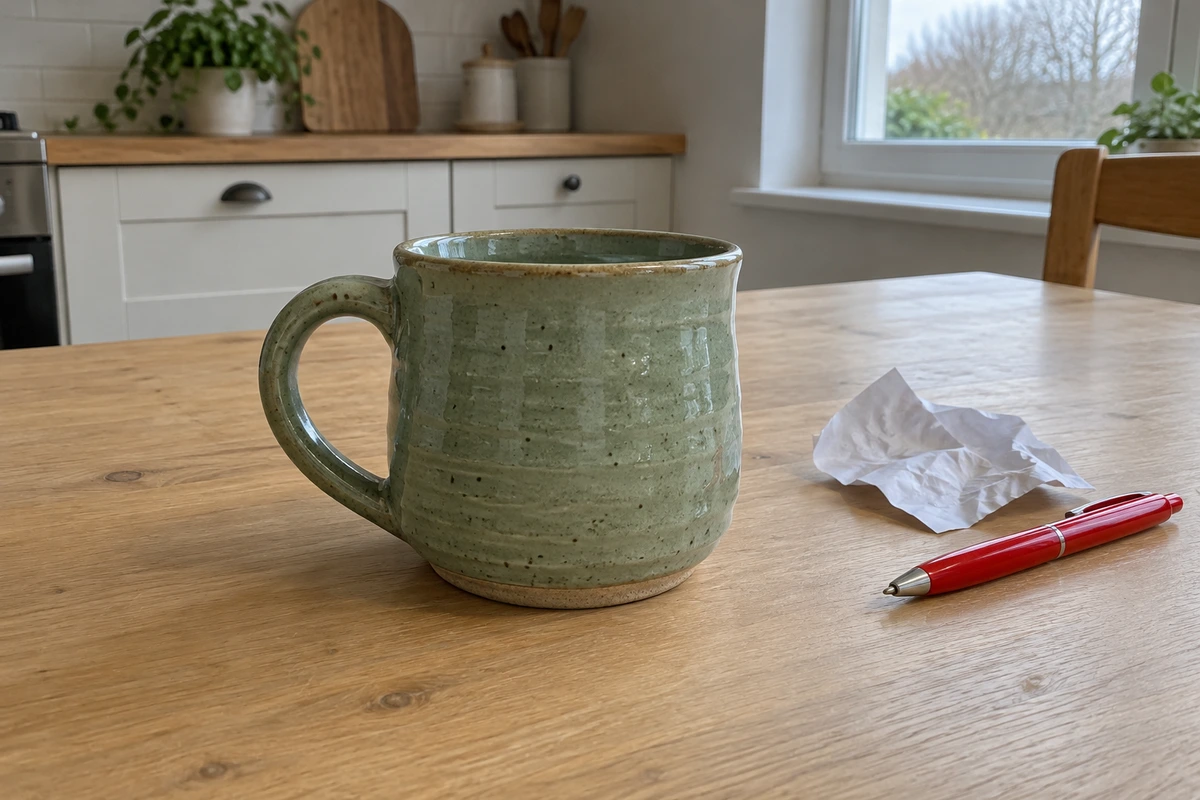 Before
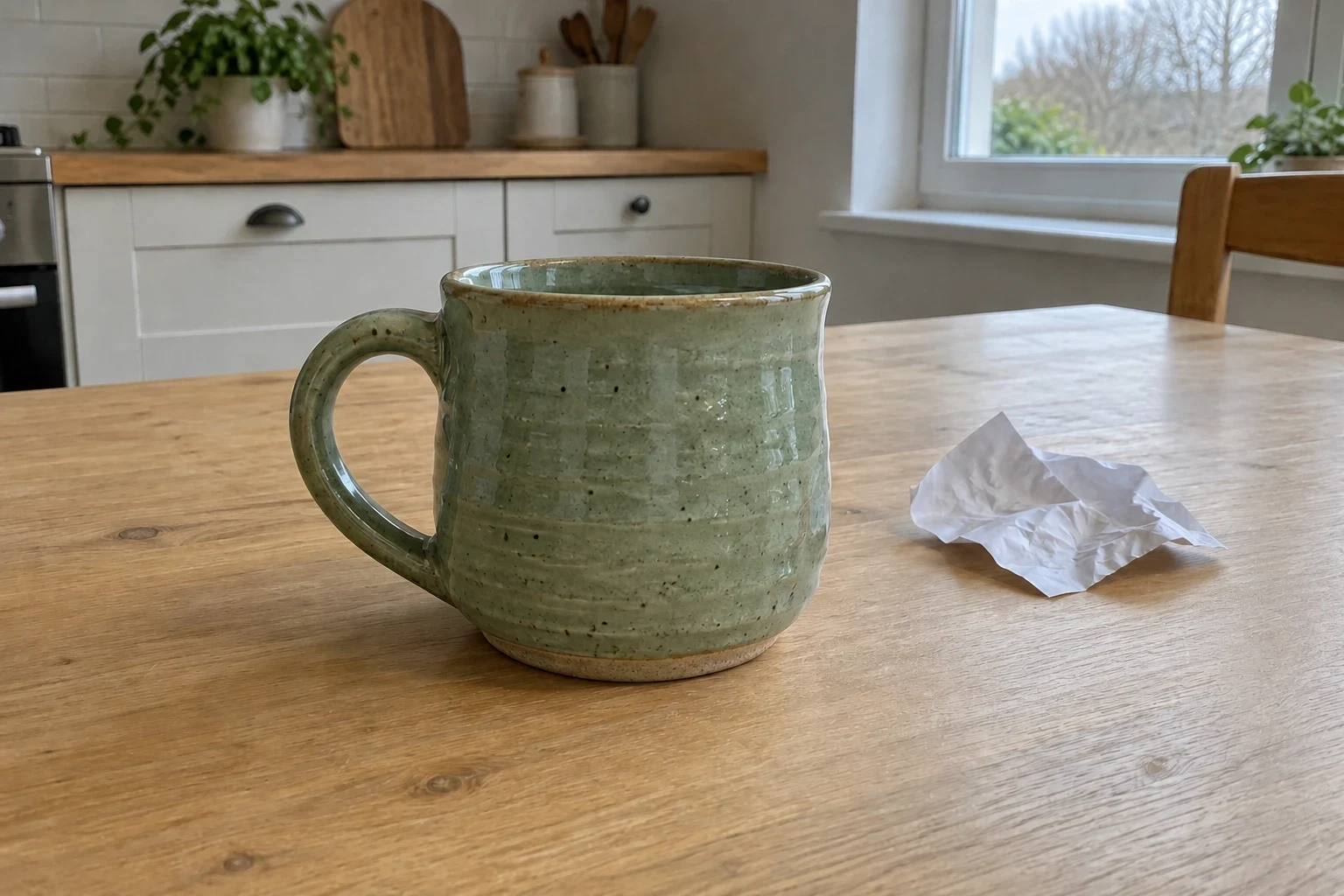 After
AfterModel and settings
openai/gpt-image-2 · Remove the red pen
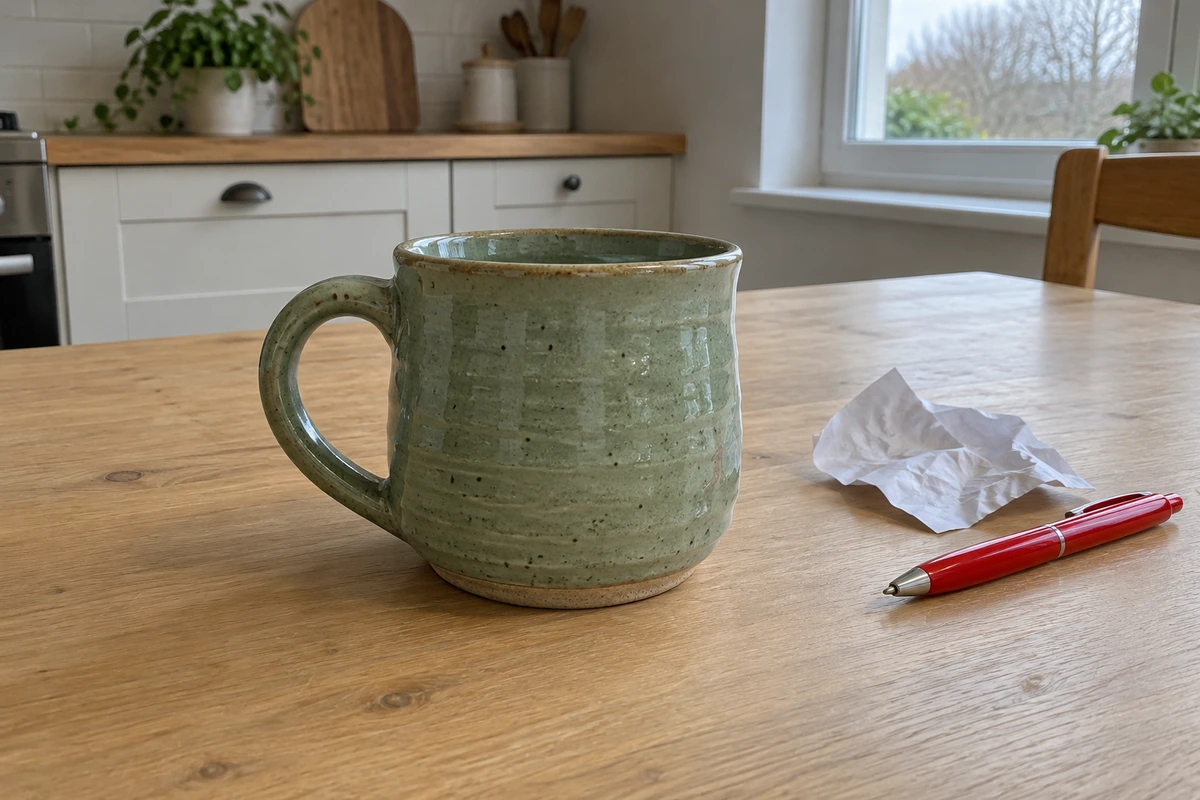 Before
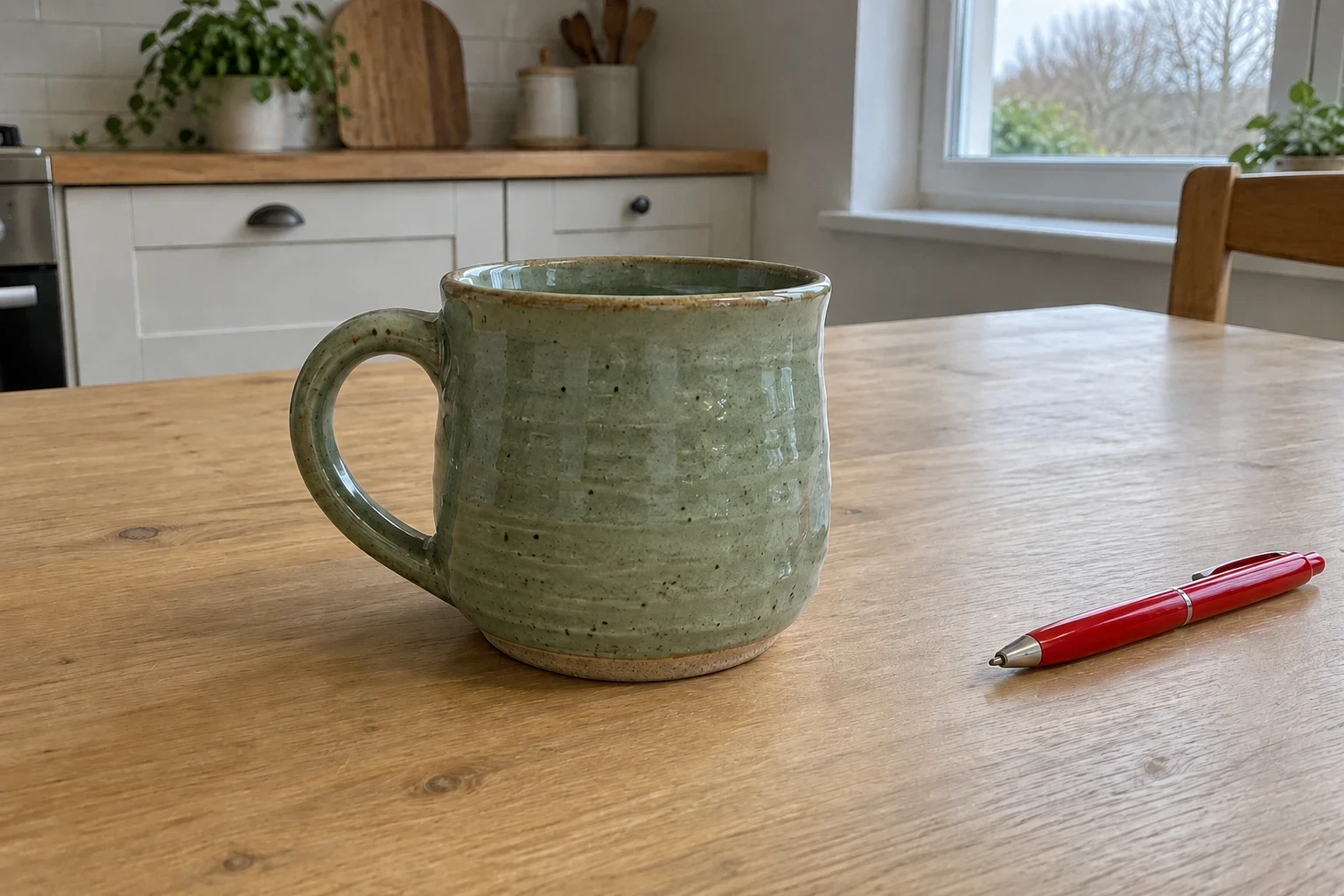 After
AfterModel and settings
openai/gpt-image-2 · Remove the paper
Step-by-step guide: How to remove an unwanted object from a photo
More about this tool
Remove unwanted objects from photos with guided AI editing
The AI Object Remover is built for practical image cleanup: upload a photo, describe exactly what should be removed, and choose how strictly the rest of the image should be preserved. The goal is a natural-looking cleanup, not a restyled image.
Built for precise photo cleanup, product shots, and backgrounds
Object removal works best when the target is clearly named. A prompt like "remove the red traffic cone at the bottom right" gives the tool stronger context than a generic request. Presets help with common jobs such as removing photobombers, cleaning product images, repairing outdoor scenes, and erasing thin wires or cables.
Keep the original image recognizable
Object removal preserves framing, subject identity, lighting, color, shadows, texture, and product details. That makes this a focused image cleanup tool rather than a broad image generator.
Cleanup that fits right into your workflow
Remove distractions, review the cleaned-up result, and download it or open it in Create to keep working. Your photo stays the same image, just without the clutter.
Use case
Remove photobombers, trash cans, signs, wires, and small background distractions while keeping the main subject and composition intact.
Use case
Clean stickers, dust, props, glare marks, packaging blemishes, and table clutter without rewriting important product details.
Use case
Tidy exterior and interior photos by removing bins, cords, vehicles, wall marks, or temporary objects before publishing a listing.
Use case
Remove placeholder elements from concept images so teams can compare cleaner variants before committing to a final edit.
Frequently asked questions
What is an AI Object Remover?
An AI Object Remover is an image editing tool that removes selected objects, people, marks, or distractions from a photo and fills the missing area using surrounding visual context.
What kinds of objects can this remove?
It handles common cleanup targets such as background people, trash cans, signs, wires, product stickers, dust, wall marks, glare spots, props, and small distractions.
Do I need to upload an image?
Yes. This tool is configured as a required-upload edit workflow because object removal needs a source image to preserve and repair.
Will the rest of my photo change?
The prompt is designed to preserve framing, lighting, color, subject identity, text, and product details. Generative edits can still vary, so users should review outputs before publishing.
Can it remove people from the background?
Yes, the prompt presets include background people and photobombers. The user should only edit images they have rights to use and should avoid deceptive or harmful edits.
Can this remove watermarks or copyrighted marks?
No. This is not a watermark bypass tool. Use it to remove objects in images you own or have permission to edit.
Does this work without signing in?
You can set up your photo and describe the edit on the page, but you'll need to sign in or create an account to generate the cleaned-up result.
Where do finished images go?
When you're signed in, your finished images are saved to your Fiddl media history and linked to their own image pages.