Practical guide · Updated 2026-10-29
How to remove an unwanted object from a photo
Object removal replaces a distraction with a plausible continuation of the surrounding scene. It works best when the background gives the model clues about what should fill the gap. Removing a pen from a plain table is easier to review than removing a large person who covers most of a patterned wall.
Open AI Object RemoverBefore you start
Use the clearest original and identify exactly what should disappear. Name the object's color and position when several similar objects appear. Keep a copy of the source: reconstruction can change nearby details even when you only asked to remove one thing.
Step by step
Upload the photograph
Open the object remover and add the image. Complete sign-in if prompted; the upload does not start an edit automatically.
Describe the object to remove
Use the required text field to identify the distraction. For the mug example, 'Remove the red pen from the table; keep the mug and receipt unchanged' gives a clear target and preservation instruction.
Keep the rest of the request narrow
Use a preset if it matches the task, or keep your own description. Avoid combining removal with a new background, lighting change, and a different camera angle in the same first attempt.
Generate and compare the empty area
Check the estimate, generate, and inspect the area where the object used to be. Compare surrounding details before downloading the result.
Before and after
AI-created source photos, processed with the tool's configured model. Results vary with the input.
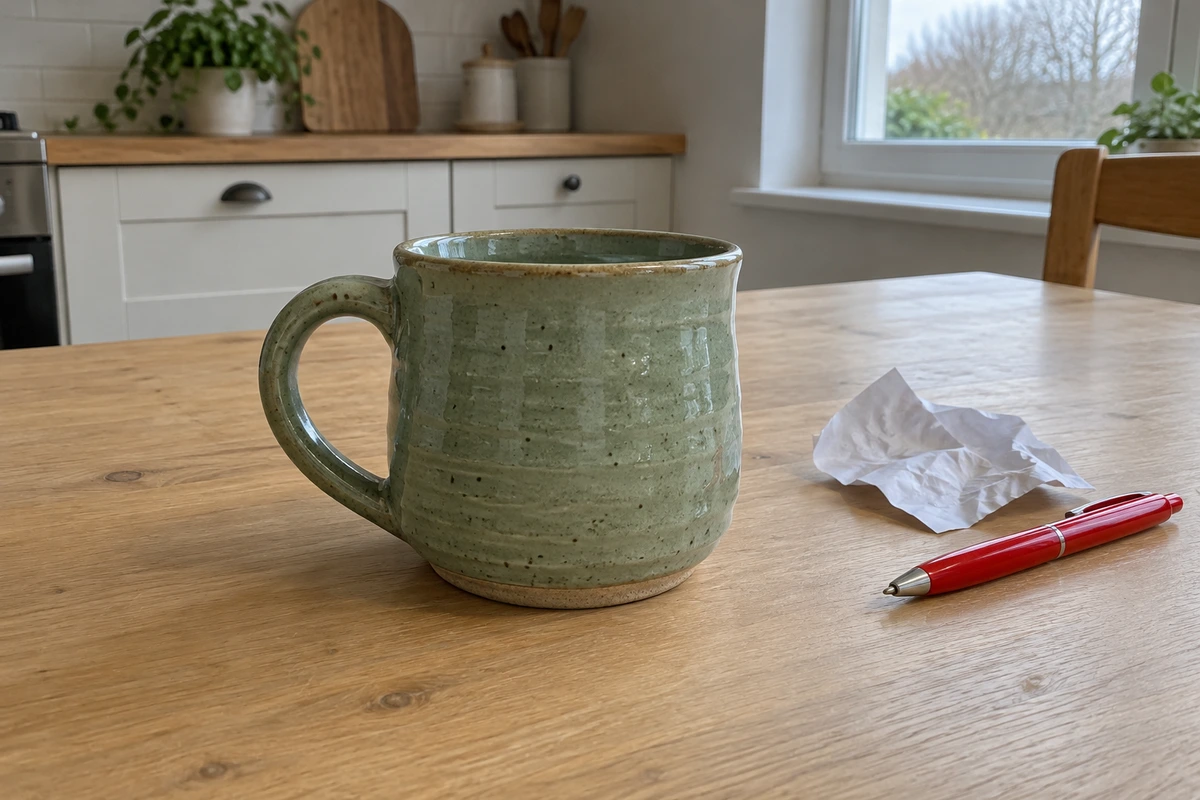 Before
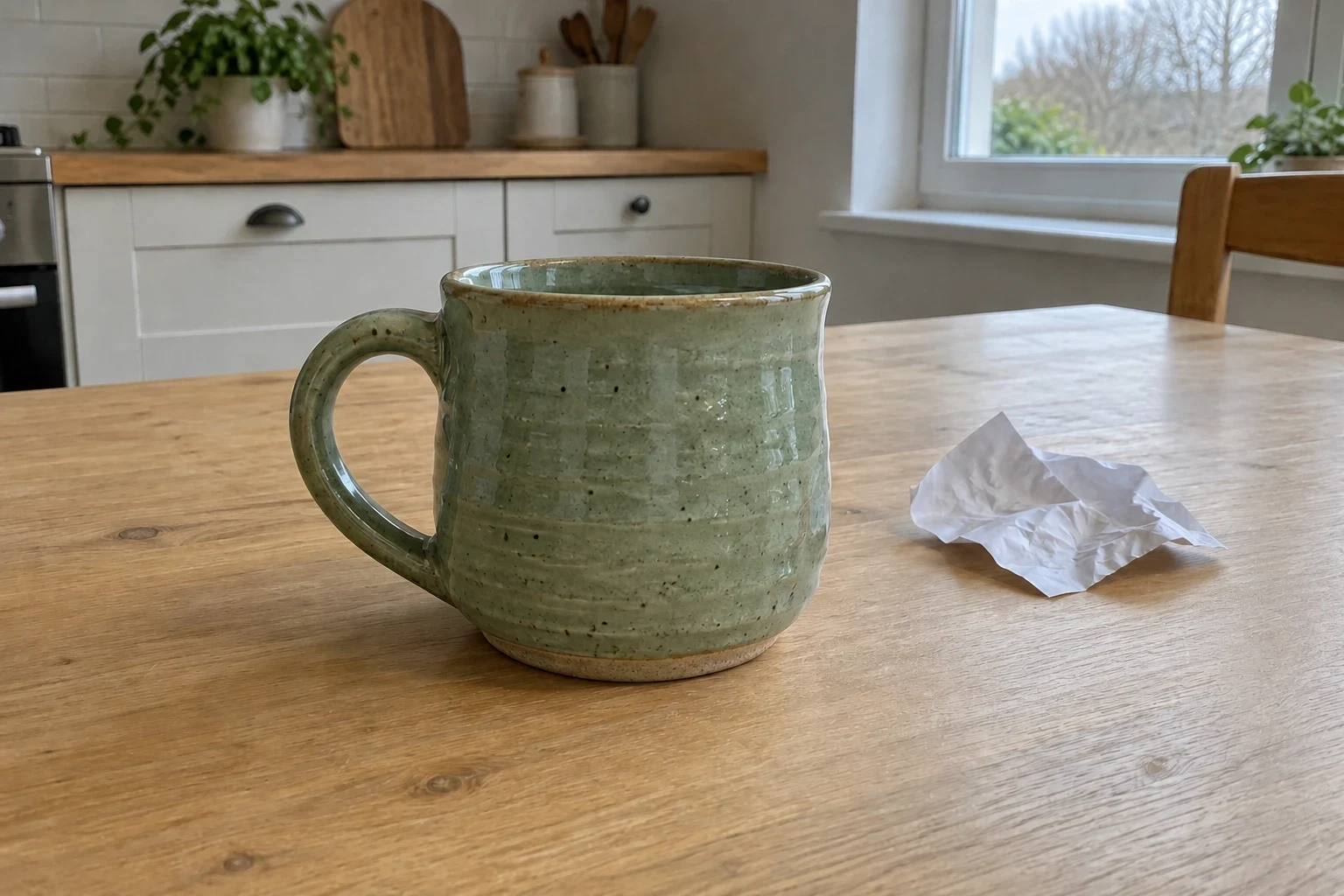 After
AfterModel and settings
openai/gpt-image-2 · Remove the red pen
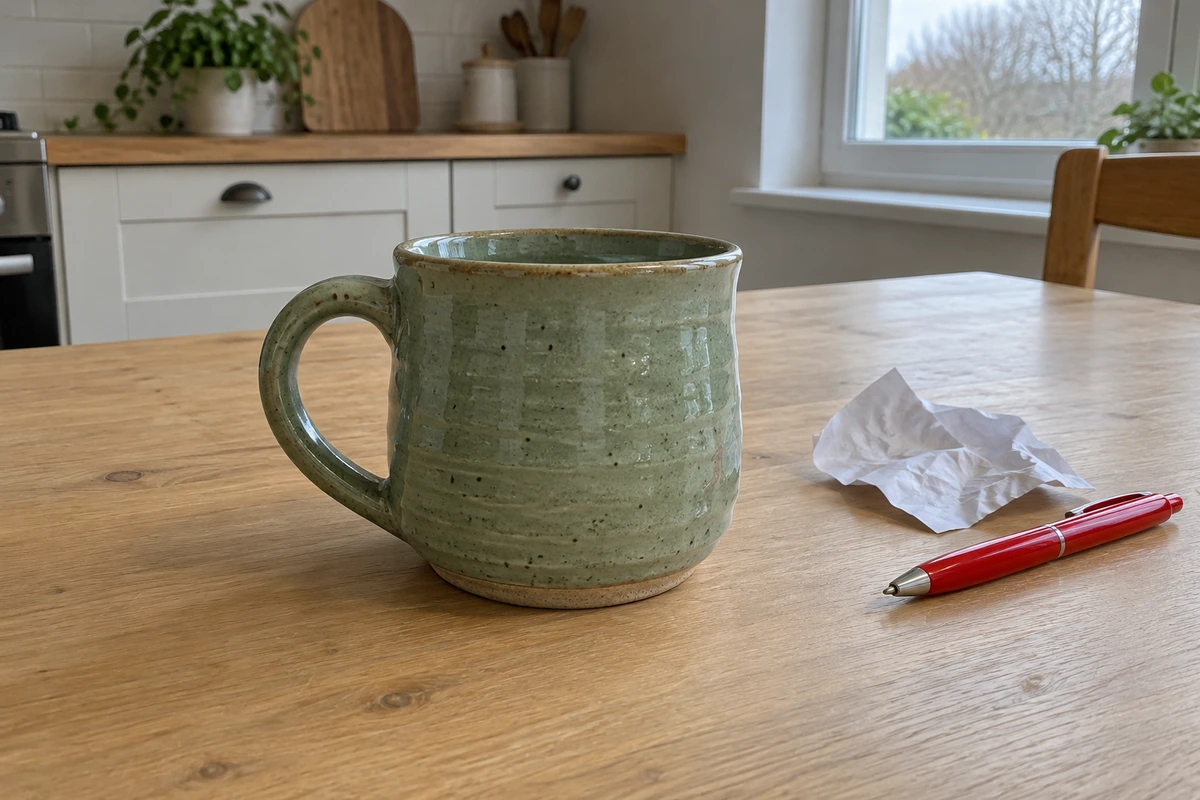 Before
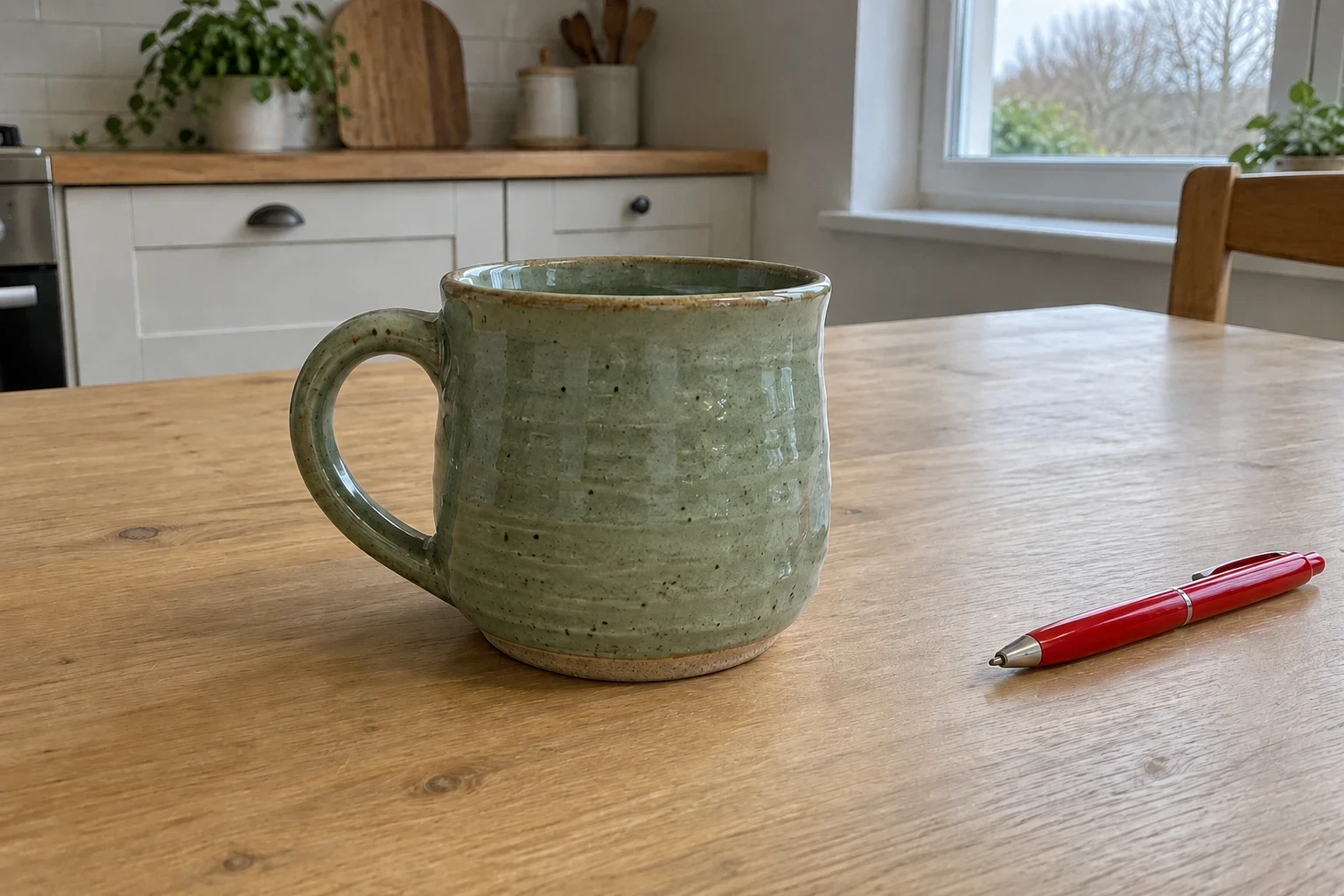 After
AfterModel and settings
openai/gpt-image-2 · Remove the paper
What to check in the result
Look for repeated texture, broken table edges, invented shadows, and reflections that still contain the removed object. Check whether the main subject moved or changed. For images used as evidence or documentation, keep the original and disclose the edit rather than presenting the reconstruction as an untouched photograph.
If the result needs another attempt
If the wrong object disappears, make the description more specific and mention what must stay. Removing a large object may require several attempts because the hidden background is unknown. Use the background remover when you want to isolate the whole subject; use the background changer when most of the surroundings need replacement.
Generation does not start until you choose the tool's processing action. Availability, free allowances, and point estimates appear in the tool; review them before starting.
Try AI Object Remover