Practical guide · Updated 2026-10-29
How to remove a photo background and save a transparent PNG
A transparent cutout lets you place a person or product into a presentation, store layout, or design without carrying the original rectangle of background along with it. The checkerboard in the preview represents transparency; it should not become part of the downloaded picture.
Open AI Background RemoverBefore you start
Use a clear source with the subject completely inside the frame. Fine hair, mesh, glass, and motion blur are harder to separate than an opaque object with a clean outline. A larger source can help the model distinguish those edges, but a larger file cannot fix a subject hidden behind another object.
Step by step
Upload the image
Open the background remover and add one photograph. Complete sign-in if prompted. Choose an image you have permission to process.
Run the removal
Check the allowance or points information shown by the tool, then choose Remove background. You do not need to describe a replacement scene.
Inspect the edges
Look around hair, handles, straps, and gaps between fingers. Use the preview background control in Customize to check against light and dark colors as well as the checkerboard.
Download the PNG
Use the result's download action. Keep the PNG format when placing the file in another app, because converting the cutout to JPEG removes its alpha transparency.
Before and after
AI-created source photos, processed with the tool's configured model. Results vary with the input.
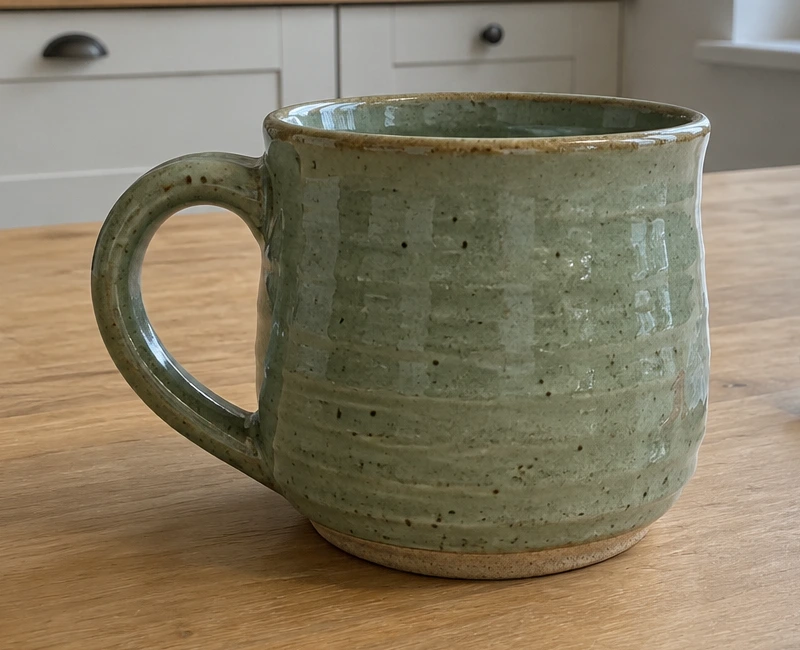 Before
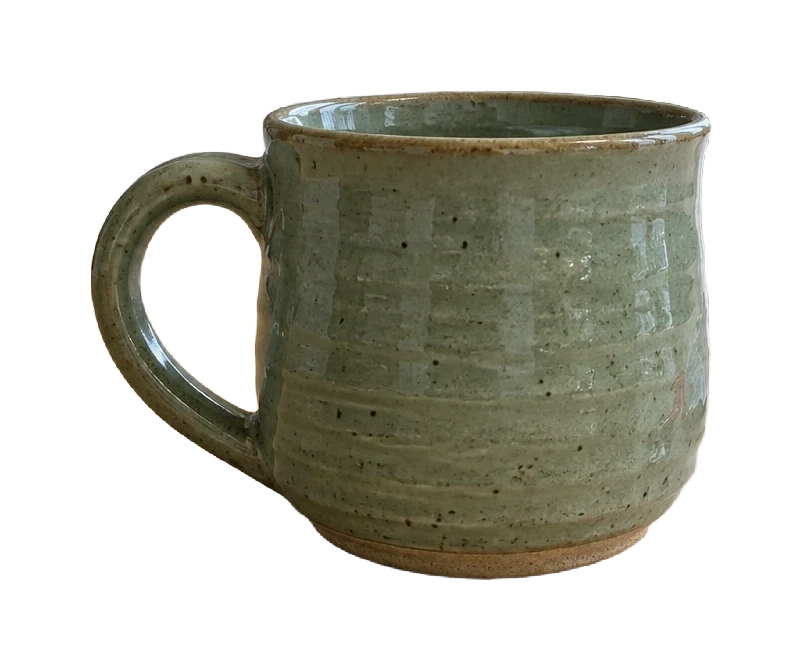 After
AfterModel and settings
bria/remove-background · PNG with transparency
 Before
 After
AfterModel and settings
bria/remove-background · PNG with transparency
What to check in the result
Check whether every intended part of the subject remains, including pale highlights that resembled the old background. Open the downloaded file in the destination app and place a colored shape behind it. This distinguishes a transparent image from one saved with a white background.
If the result needs another attempt
If fine strands disappear, try a sharper original with better contrast. Reflective and translucent materials may need manual edge refinement in a design editor. Use the background changer to create a new scene around the subject; the remover only separates it and does not generate a replacement backdrop.
Generation does not start until you choose the tool's processing action. Availability, free allowances, and point estimates appear in the tool; review them before starting.
Try AI Background Remover