Practical guide · Updated 2026-10-29
How to create a new background for a product photo
Use a new background when your product photograph is clear but its surroundings distract from the item. A plain listing image and a lifestyle image serve different purposes: one explains the product, while the other gives the buyer context. Keep those jobs separate when choosing a preset.
Open AI Product Background GeneratorBefore you start
Start with the whole product visible and enough room for a natural shadow. A simple source background gives the model less to untangle. Transparent glass, fine handles, and shiny metal need special attention during review because their appearance depends on the surrounding scene.
Step by step
Upload one product image
Open the product background generator, add the source, and sign in if prompted. Keep a copy of the original nearby so you can compare the result.
Select the background style
Choose a clean white background for a plain catalog composition, or a studio or lifestyle preset for a contextual image. Match the scene to the real size and purpose of the product.
Set the crop if necessary
Leave the preset defaults in place for a first attempt. Customize contains the aspect ratio and other controls. Leave extra space when the store may crop the image differently on mobile.
Generate after checking the estimate
Review the points estimate and generate explicitly. Compare the item in the result with the original before saving a new listing image.
Before and after
AI-created source photos, processed with the tool's configured model. Results vary with the input.
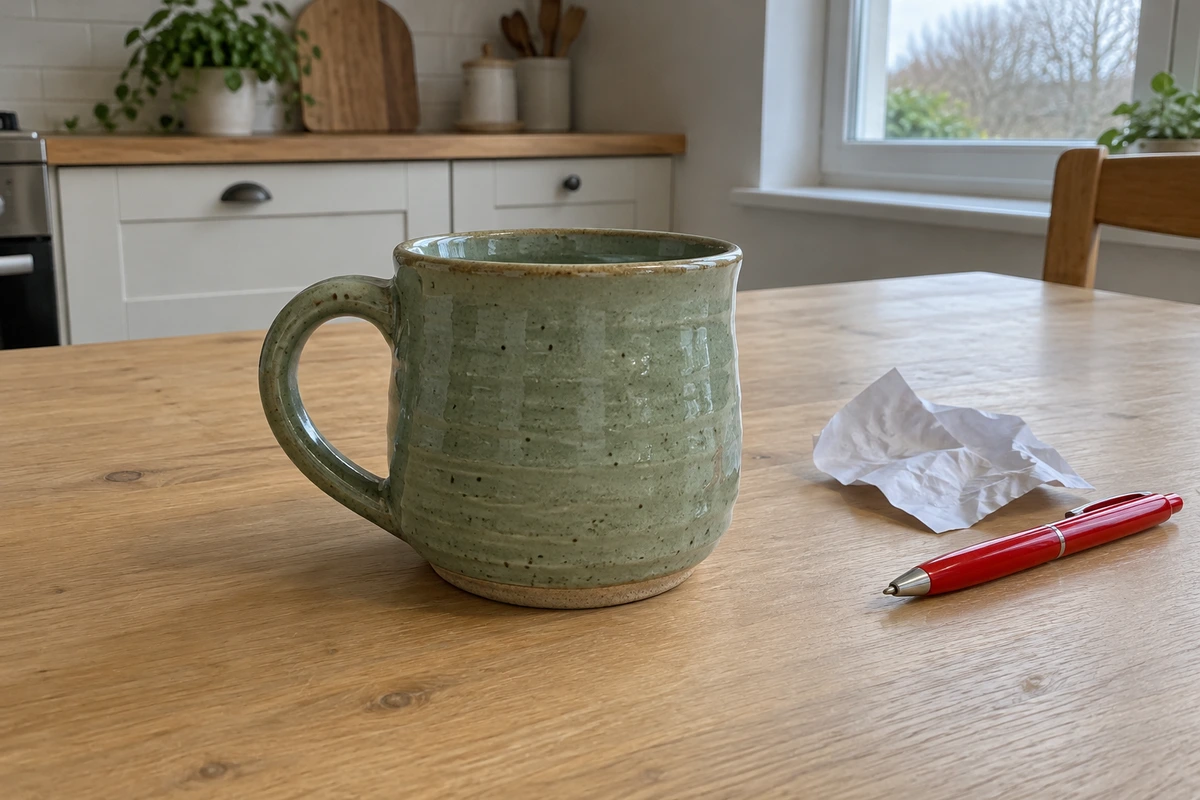 Before
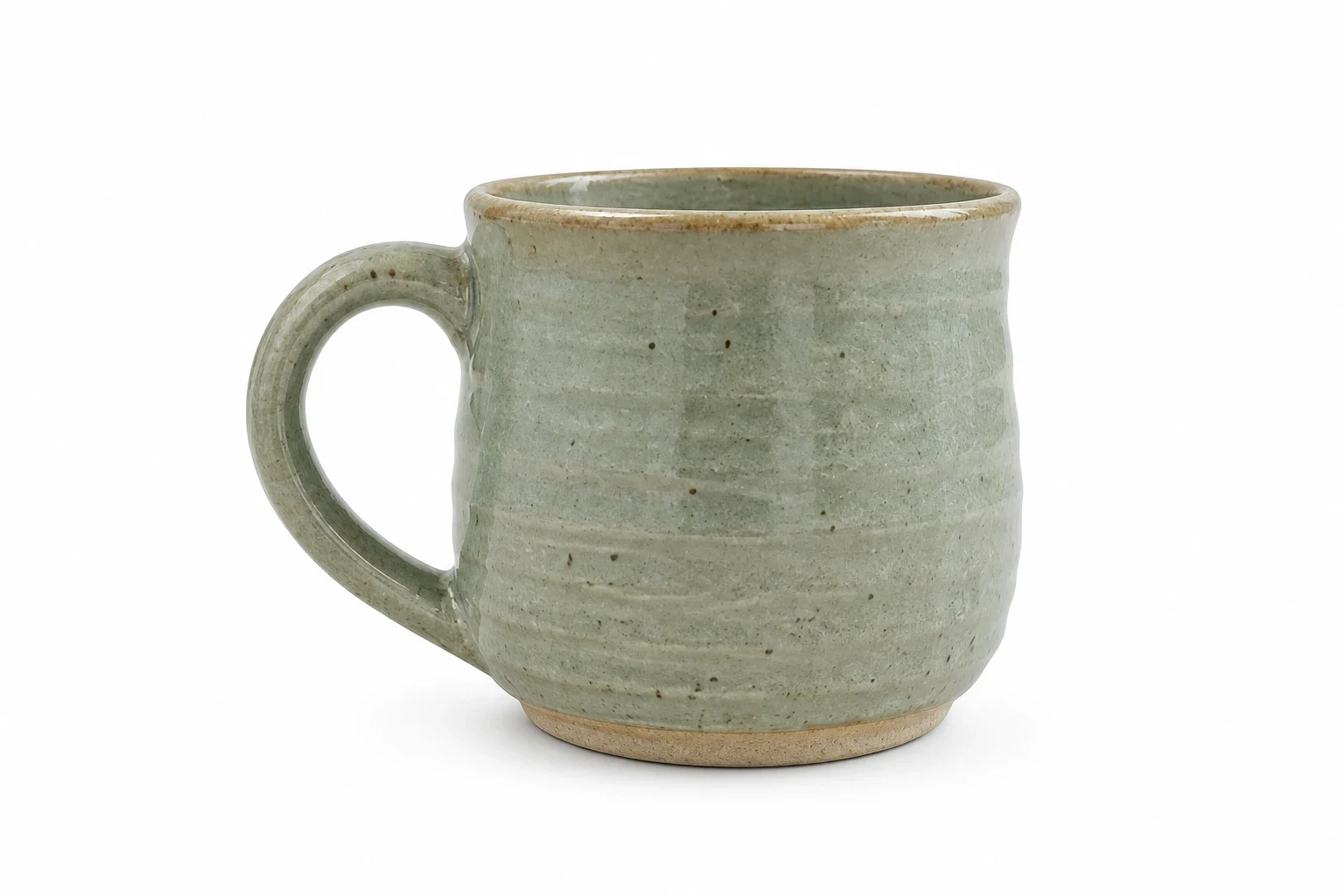 After
AfterModel and settings
openai/gpt-image-2 · Amazon white listing
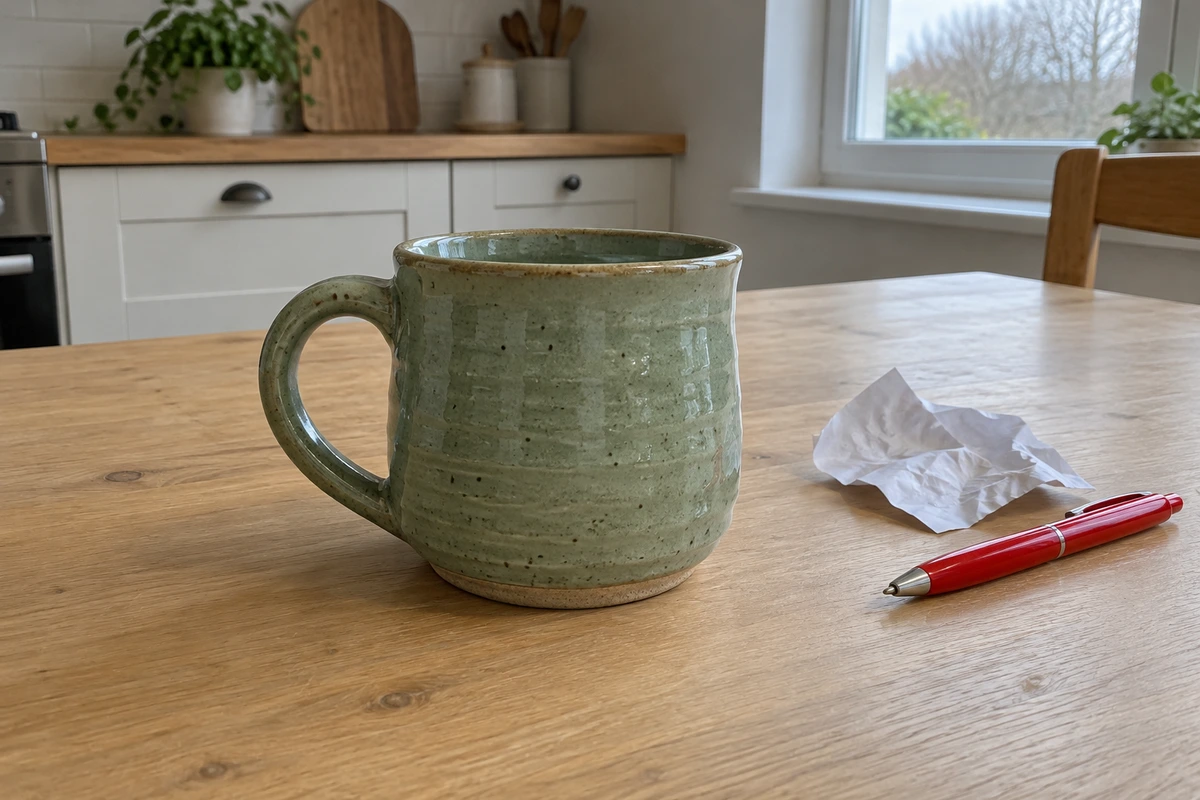 Before
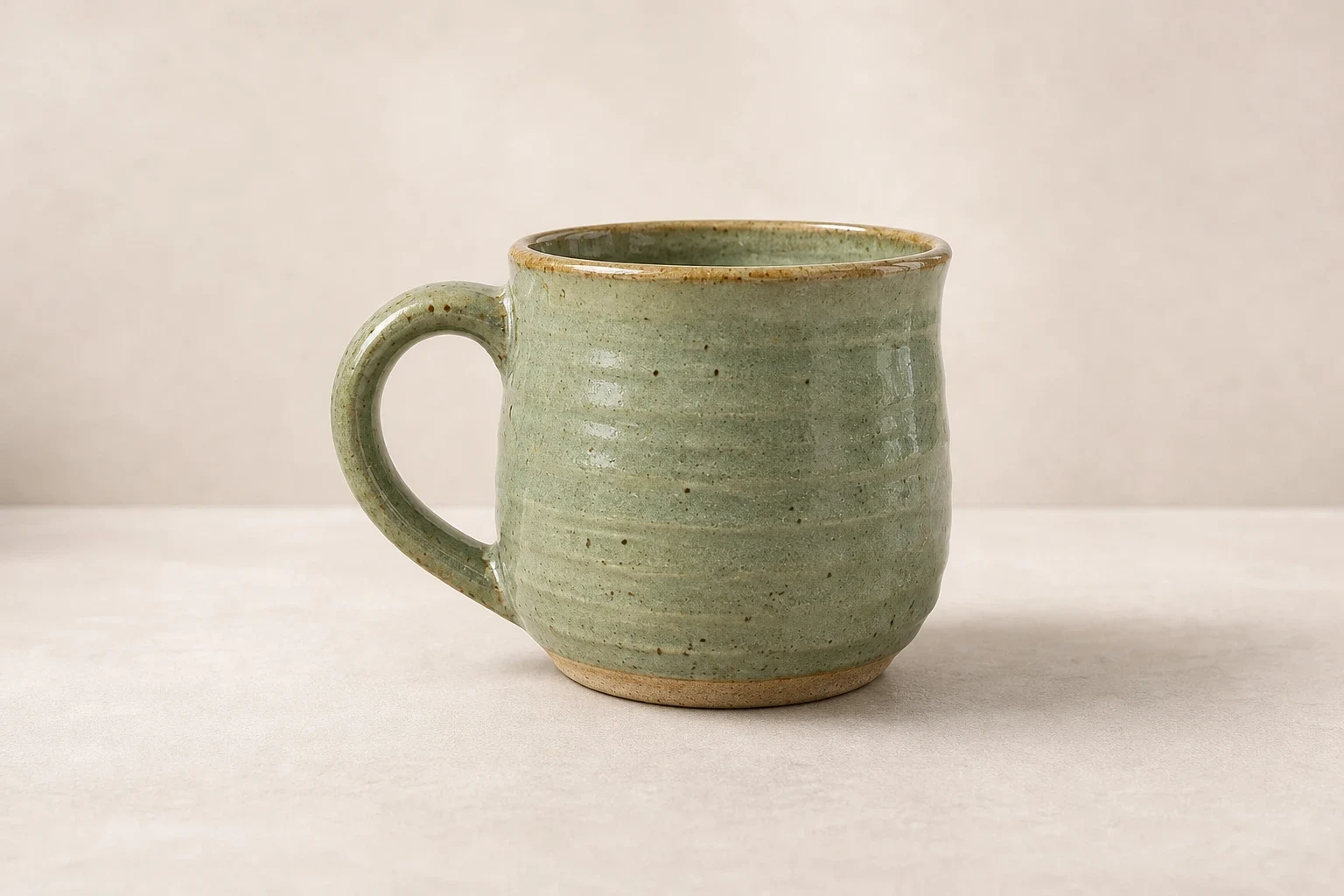 After
AfterModel and settings
openai/gpt-image-2 · Shopify storefront
What to check in the result
Check product color, packaging, edges, and label text before judging the background. A realistic shadow should touch the surface below the object and follow the same light direction as the scene. Look for doubled edges around handles and see-through areas that became opaque.
If the result needs another attempt
If props obscure the product, simplify the scene and ask for more empty space. If the model invents product details, change only the background with a clearer source. Use a transparent PNG cutout when you need exact separation for a layout rather than a newly generated scene. Review marketplace rules before publishing.
Generation does not start until you choose the tool's processing action. Availability, free allowances, and point estimates appear in the tool; review them before starting.
Try AI Product Background Generator