Practical guide · Updated 2026-10-29
How to create ecommerce product photos from one image
A product image should make the item easy to understand. Start with a clear photograph of the actual item, then use AI to explore a different setting or a cleaner presentation. The useful result keeps the product recognizable; a beautiful scene that changes its shape or label is a rejected draft.
Open AI Product Photo GeneratorBefore you start
Photograph the entire product in soft light, leaving a little space around the edges. Avoid heavy reflections and hands covering important details. For a reflective or transparent item, include enough of its edges to distinguish it from the background. Use a source image you own or have permission to edit.
Step by step
Upload the product photo
Open the product photo generator and upload one image. Sign in when prompted, then return to the tool. The upload alone does not start a generation.
Choose a scene that fits the listing
Use White marketplace listing for a simple catalog image, or Lifestyle kitchen when the setting helps explain how the product works. A scene should support the item rather than compete with it.
Adjust only what the job needs
The preset handles the initial setup. Choose Custom to describe your own scene. Customize holds the output count and other processing controls; the format buttons sit below the styles. Keep the first request focused on the setting so you can check the product accurately.
Review the estimate and generate
Check the displayed points estimate before choosing Generate product photos. Compare the outputs with the source, then download the version that represents the item accurately.
Before and after
AI-created source photos, processed with the tool's configured model. Results vary with the input.
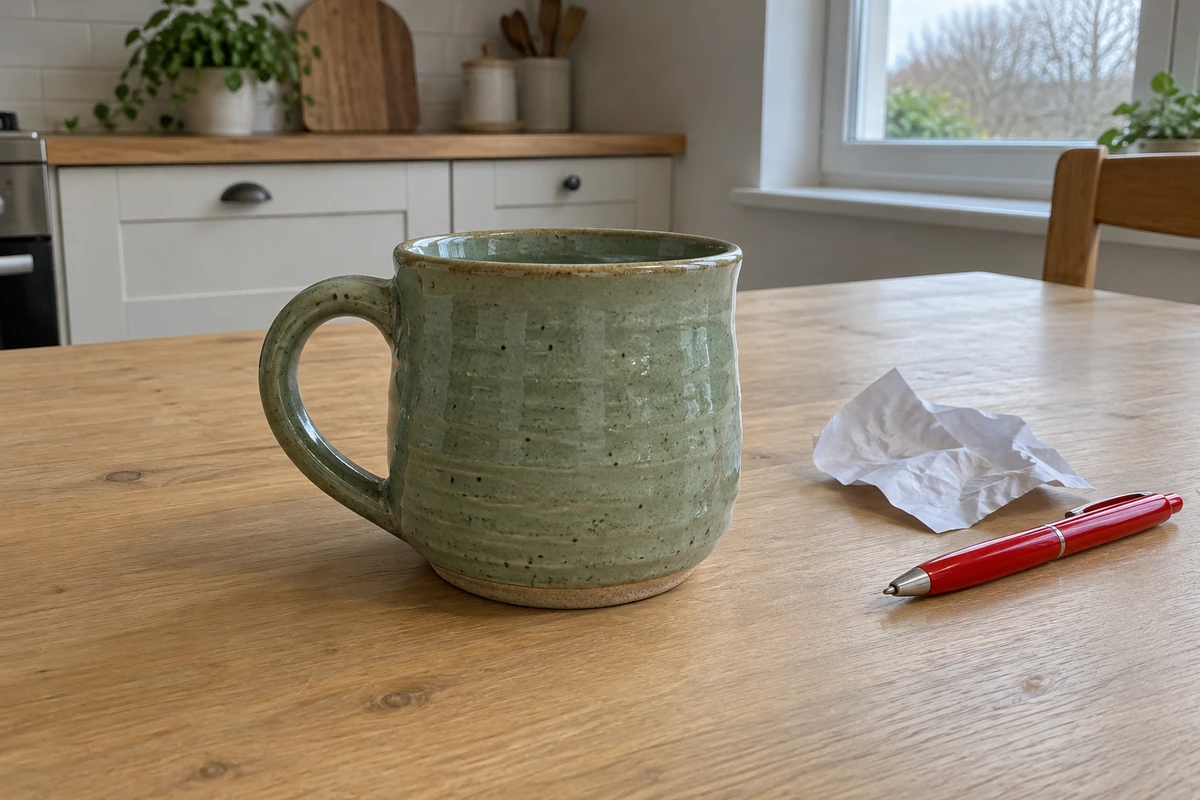 Before
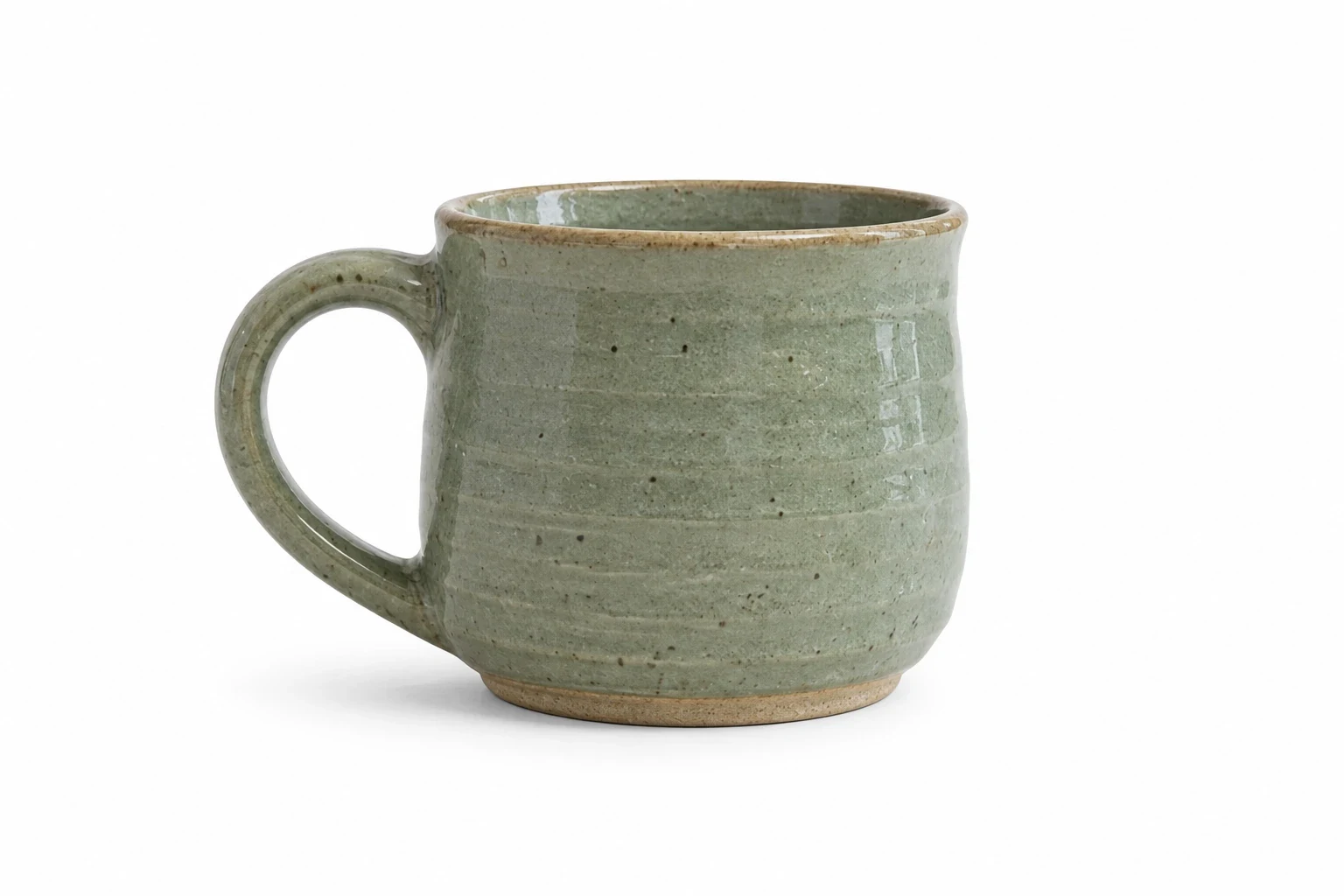 After
AfterModel and settings
openai/gpt-image-2 · White marketplace listing
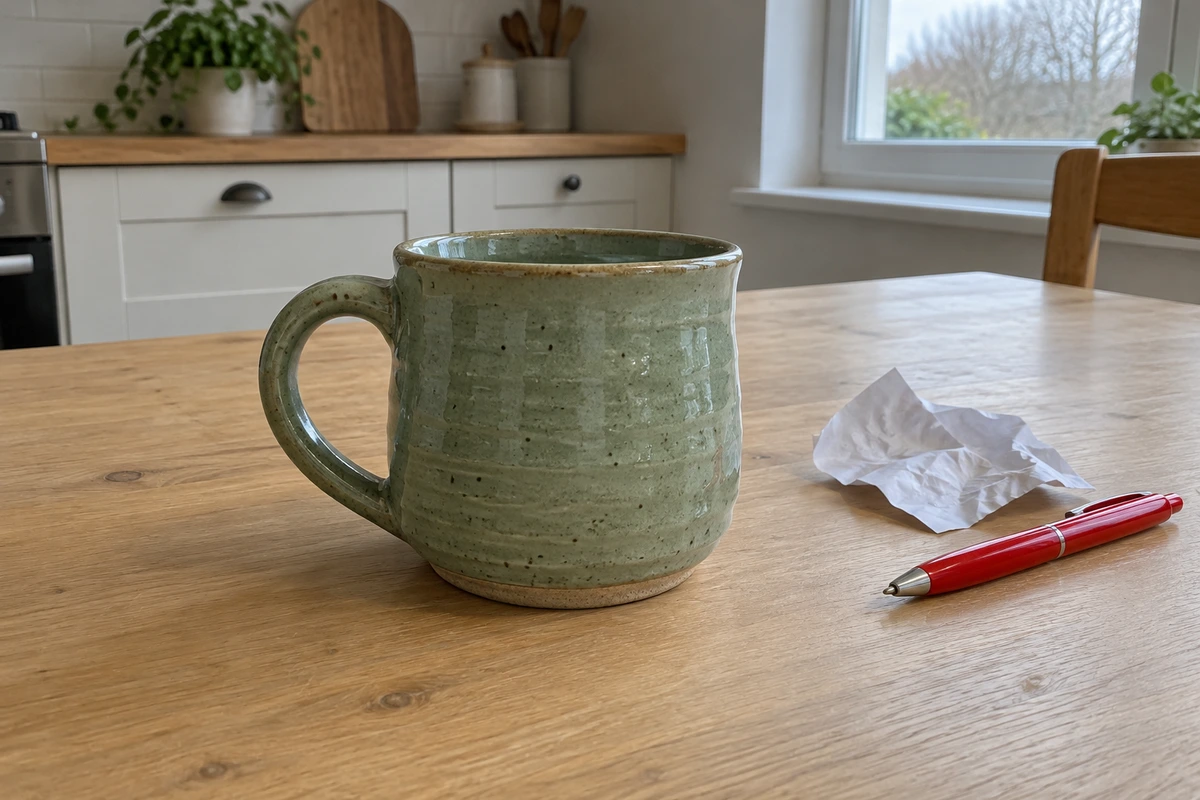 Before
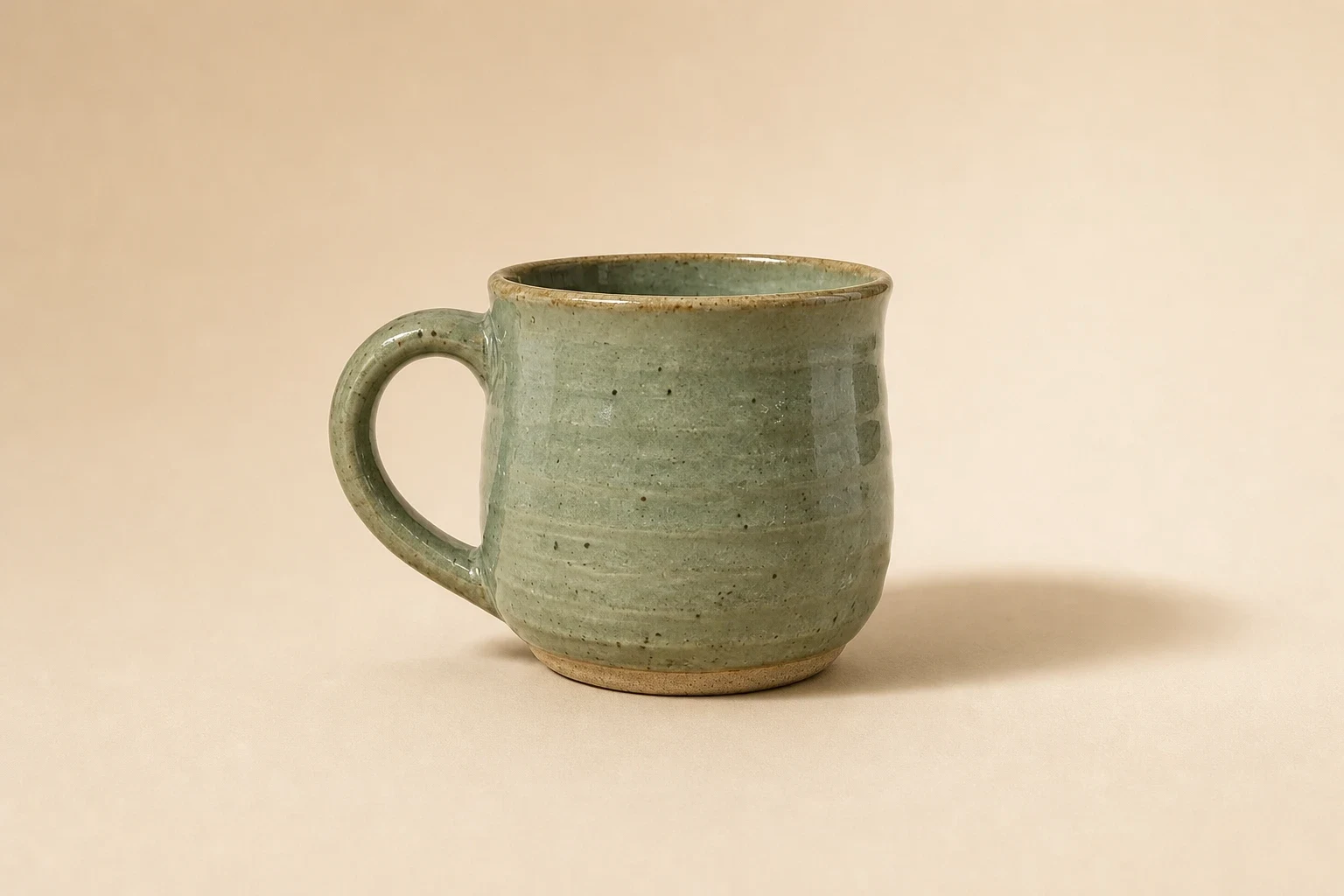 After
AfterModel and settings
openai/gpt-image-2 · Minimal studio shadow
What to check in the result
Look at the handle, seams, buttons, packaging, logos, and any text at full size. Check that the item has the same proportions and number of parts. For an online store, review the platform's current image requirements yourself; a marketplace preset is a starting composition, not an approval guarantee.
If the result needs another attempt
If the model changes the item, use a sharper source and simpler scene with fewer props. If the product feels pasted into the background, ask for consistent light direction and a contact shadow. Use the product background tool when the item is already right and you only need a new backdrop.
Generation does not start until you choose the tool's processing action. Availability, free allowances, and point estimates appear in the tool; review them before starting.
Try AI Product Photo Generator