ai photo enhancer
AI Photo Enhancer
Improve one photo with a Topaz model matched to the source, with optional face enhancement and 2× upscaling.
Tool summary
- Input
- Image upload required, up to 1 input image
- Model
- gpt-image-2
- Default aspect ratio
- 1:1
- Output
- Enhance photo
Photo enhancement without a creative prompt
This is a dedicated Topaz processing flow, not a generative edit. The controls select the enhancement model, optional face pass, and whether the result should also be enlarged 2×.
Enhancement and upscaling are separate choices
Leave 2× upscaling off to keep the original dimensions, or enable it when you also need a larger file. Use the image upscaler when 4× enlargement is your primary goal.
AI Photo Enhancer examples
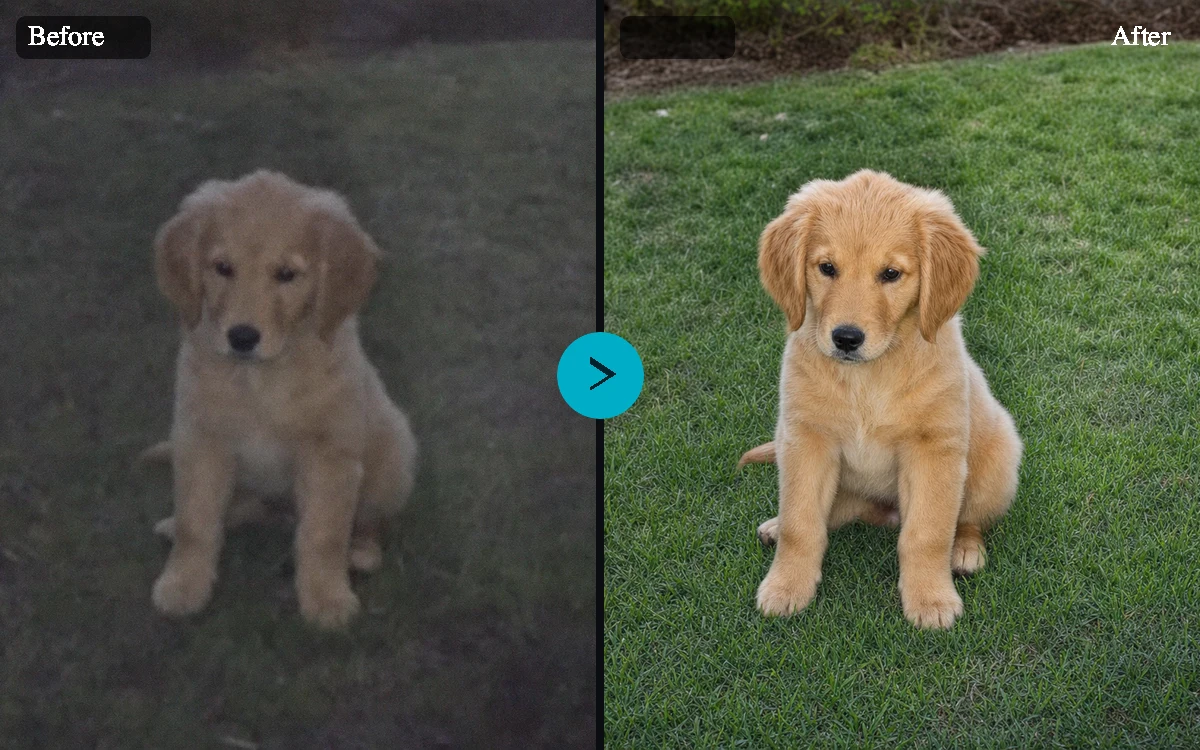
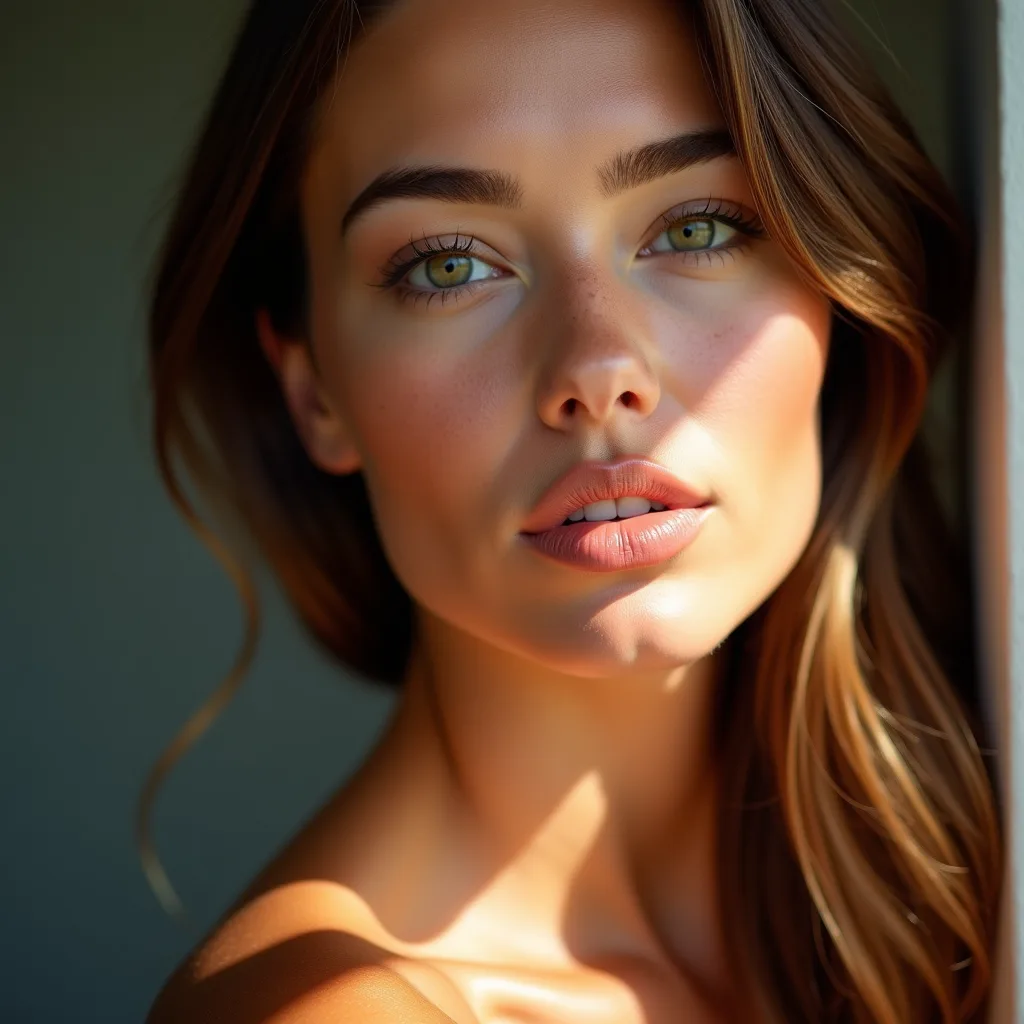

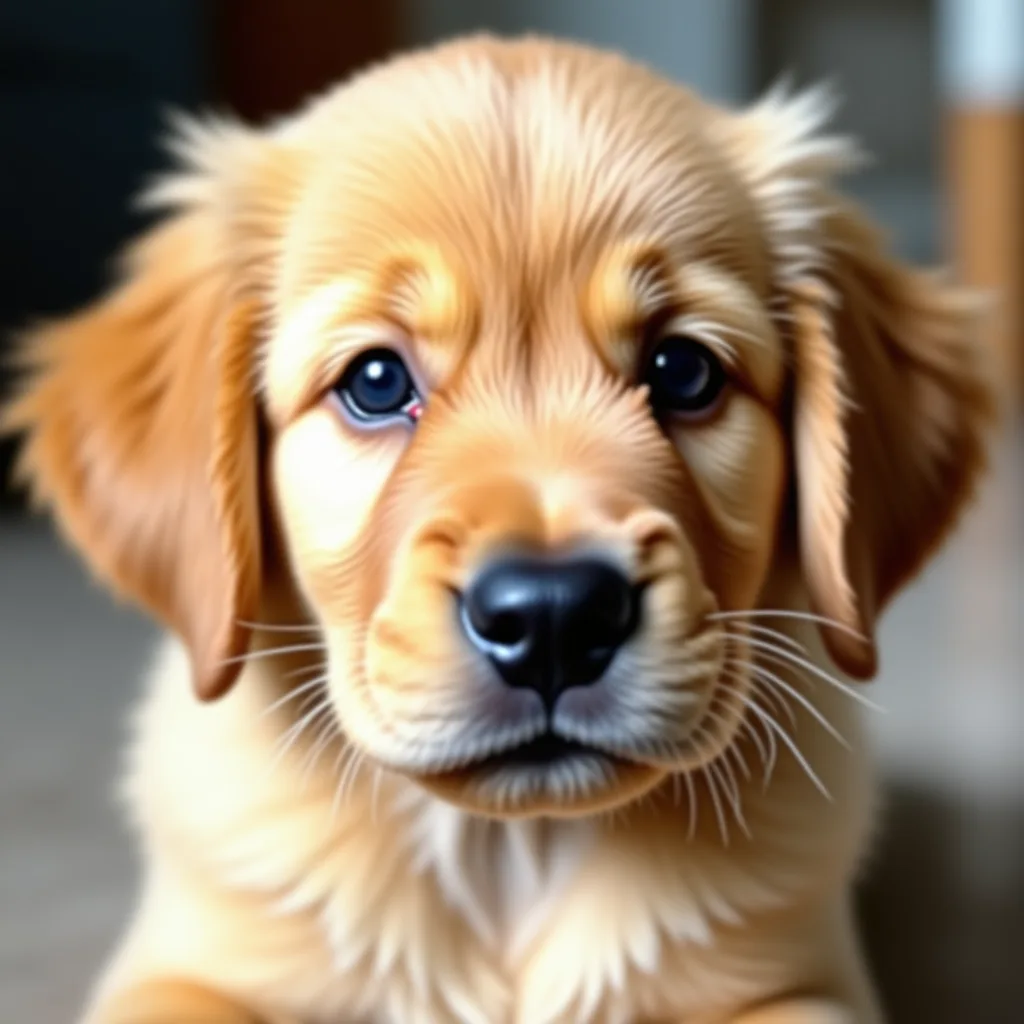
Example presets
- Everyday photoBalanced enhancement at the original dimensions.
- Detailed productHigh-fidelity enhancement for texture, packaging, and edges.
- Small portraitLow-resolution processing with a face-specific pass and 2× output.
- Graphic or renderEnhancement tuned for illustrations, renders, and CGI.
- Sign or letteringProcessing focused on text and letter shapes.
Controls and settings
- Topaz modelChoose from Standard photo, High fidelity, Low-resolution image, Digital art / CGI, Text and lettering.
- Also upscale 2×Default: disabled.
- Enhance visible facesDefault: disabled.
Tips for a better result
Start with the clearest source available, keep the main subject easy to identify, and choose settings that match the intended final size. Review the first output at full size before generating another variation, especially when the original contains small text, fine product edges, faces, or compressed detail.
Review enhanced details
Tool outputs stay private. Check faces, text, evidence, and product details before relying on an enhanced image.
Frequently asked questions
Which model should I choose?
Start with Standard Photo. Try High Fidelity for an already-detailed source, Low Resolution for a small or compressed file, CGI for digital art, and Text Refine for lettering.
Does enhancement change the image size?
Not by default. Enable Also upscale 2× to double both pixel dimensions.
Can it perfectly restore a blurry photo?
No. It can improve perceived clarity, but severe blur, compression, or missing detail cannot be recovered with guaranteed accuracy.