Practical guide · Updated 2026-10-29
How to improve photo detail without changing the composition
Photo enhancement tries to improve the appearance of an existing image while keeping its composition. Start by identifying the problem: compression, softness, or a small source. That helps you choose a model instead of applying the strongest setting and hoping it makes every image better.
Open AI Photo EnhancerBefore you start
Find the highest-quality original you can access. A photograph saved repeatedly through messaging apps may have lost detail that no model can recover accurately. Look at faces, lettering, and fine texture before processing so you know which parts need careful comparison afterward.
Step by step
Upload the photograph
Open the photo enhancer and choose one image. Sign in when prompted, then return to the tool.
Choose a source preset
Pick the preset that fits the image. Standard processing suits an ordinary photo, while low-resolution material and digital art benefit from different models.
Check enlargement and face processing
Open Customize to choose the Topaz model, optional upscaling, and face enhancement. Leave enlargement off if the image already has enough pixels. Face processing can alter identity-sensitive features, so enable it only when useful.
Process and compare at the same display size
Review the allowance or points estimate before starting. Compare the original and output at equal on-screen sizes as well as at 100%, so a larger preview does not masquerade as better detail.
Before and after
AI-created source photos, processed with the tool's configured model. Results vary with the input.
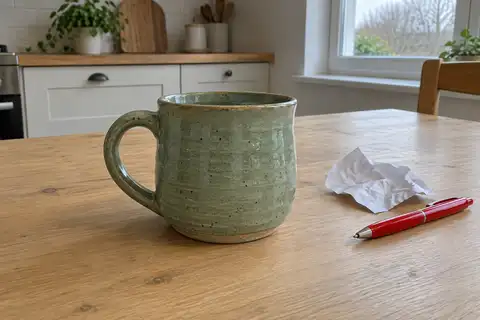 Before
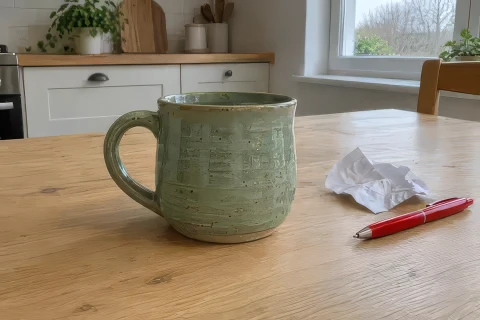 After
AfterModel and settings
topazlabs/image-upscale · Standard V2 · 480 × 320 → 480 × 320
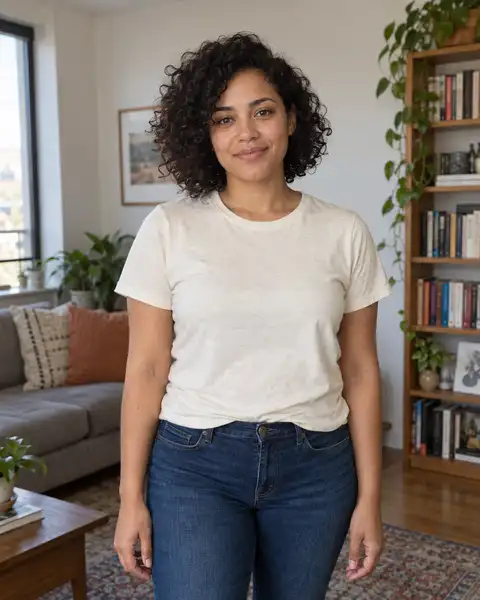 Before
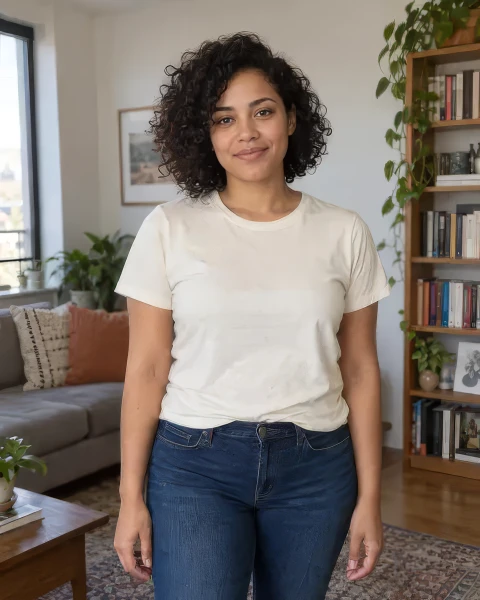 After
AfterModel and settings
topazlabs/image-upscale · High Fidelity V2 · 480 × 600 → 480 × 600 · Face enhancement
What to check in the result
Examine skin, hair, product labels, and textured surfaces. Watch for plastic-looking skin, oversharpened halos, and invented lettering. A result can appear cleaner at thumbnail size and less faithful when opened at full resolution. Prefer the version that suits the final use while preserving important details.
If the result needs another attempt
If the image looks overprocessed, turn face enhancement off and choose a more conservative model. If the source is tiny, use the upscaler to choose a specific 2× or 4× output. Neither enhancement nor enlargement guarantees restoration of details missing from the original photograph.
Generation does not start until you choose the tool's processing action. Availability, free allowances, and point estimates appear in the tool; review them before starting.
Try AI Photo Enhancer