melhorar qualidade da foto
Aprimorador de Fotos com IA
Melhore uma foto com um modelo Topaz adequado à imagem original, com melhoria de rostos e ampliação de 2× opcionais.
Resumo da ferramenta
- Entrada
- Envio de imagem obrigatório, até 1 imagem de entrada
- Modelo
- gpt-image-2
- Proporção padrão
- 1:1
- Resultado
- Melhorar foto
Melhoria de fotos sem prompt criativo
Este é um fluxo de processamento dedicado da Topaz, não uma edição generativa. Os controles escolhem o modelo de melhoria, a etapa opcional para rostos e se o resultado também deve ser ampliado em 2×.
Melhoria e ampliação são escolhas separadas
Deixe a ampliação de 2× desativada para manter as dimensões originais, ou ative quando também precisar de um arquivo maior. Use o ampliador de imagens quando ampliar em 4× for o seu objetivo principal.
Exemplos de Aprimorador de Fotos com IA
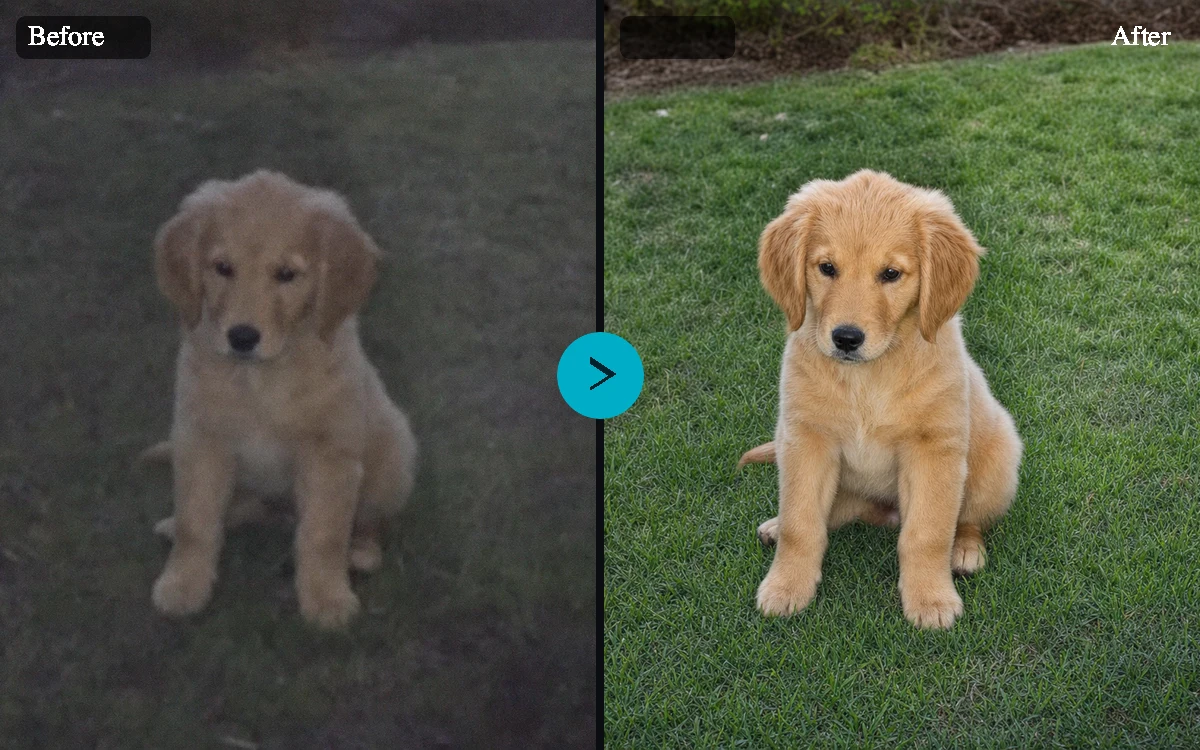
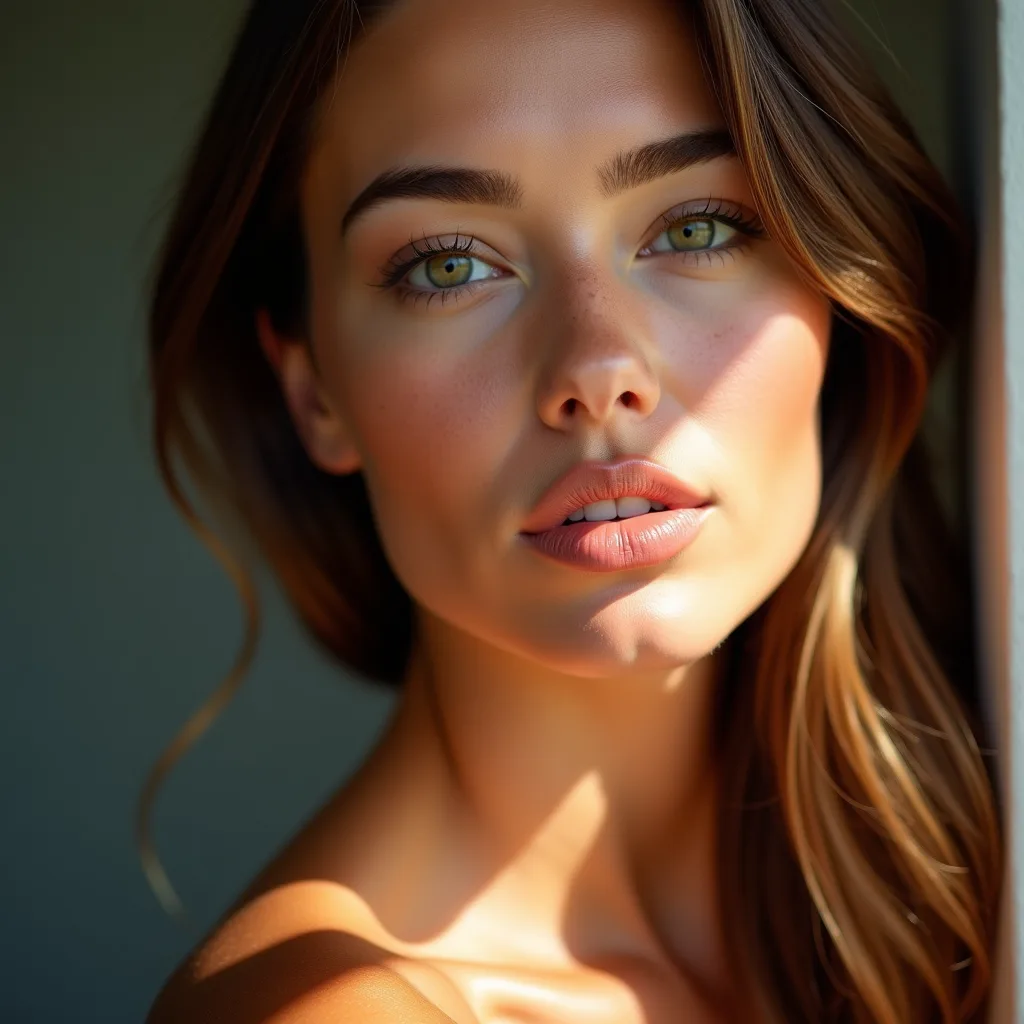

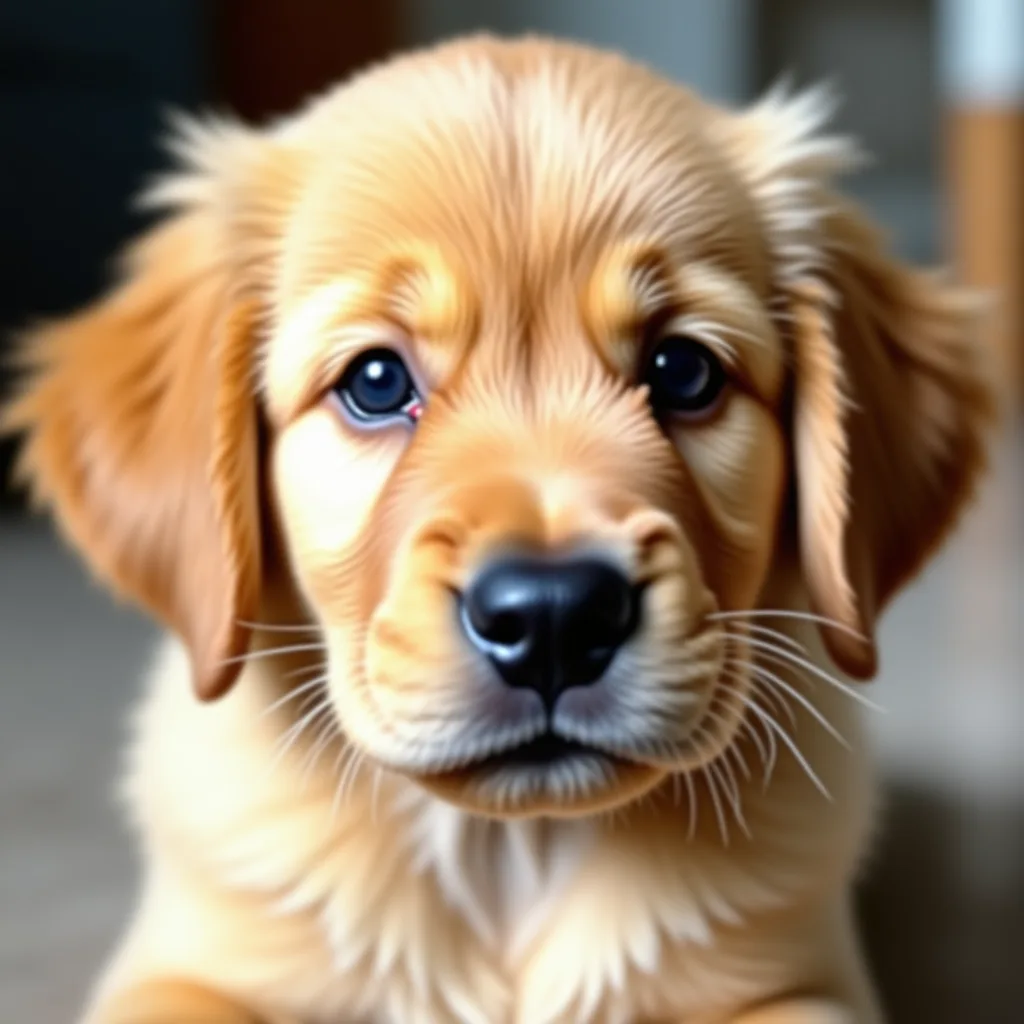
Predefinições de exemplo
- Foto do dia a diaMelhoria equilibrada nas dimensões originais.
- Produto detalhadoMelhoria em alta fidelidade para texturas, embalagens e bordas.
- Retrato pequenoProcessamento para baixa resolução, com etapa específica para rostos e resultado em 2×.
- Gráfico ou renderMelhoria ajustada para ilustrações, renders e CGI.
- Placa ou letreiroProcessamento focado em textos e no formato das letras.
Controles e configurações
- Modelo TopazEscolha entre Foto padrão, Alta fidelidade, Imagem em baixa resolução, Arte digital / CGI, Texto e letreiros.
- Também ampliar 2×Padrão: desativado.
- Melhorar rostos visíveisPadrão: desativado.
Dicas para um resultado melhor
Comece com a imagem original mais nítida que você tiver, mantenha o elemento principal fácil de identificar e escolha configurações que combinem com o tamanho final desejado. Revise o primeiro resultado em tamanho real antes de gerar outra variação, principalmente quando o original tiver textos pequenos, bordas finas de produtos, rostos ou detalhes comprimidos.
Revise os detalhes melhorados
Os resultados da ferramenta ficam privados. Confira rostos, textos, provas e detalhes do produto antes de confiar em uma imagem melhorada.
Perguntas frequentes
Qual modelo devo escolher?
Comece com Foto padrão. Experimente Alta fidelidade para uma imagem que já é detalhada, Imagem em baixa resolução para um arquivo pequeno ou comprimido, Arte digital / CGI para arte digital e Texto e letreiros para letras.
A melhoria muda o tamanho da imagem?
Por padrão, não. Ative “Também ampliar 2×” para dobrar as duas dimensões em pixels.
Ela consegue restaurar perfeitamente uma foto borrada?
Não. Ela pode melhorar a nitidez percebida, mas desfoque intenso, compressão ou detalhes ausentes não podem ser recuperados com precisão garantida.