AI 이미지 확장
AI 이미지 확장
업로드한 이미지의 가장자리를 새 캔버스 크기로 넓히면서 원본 피사체, 조명, 스타일, 구도는 그대로 유지해요.
도구 요약
- 입력
- 이미지 업로드 필수, 입력 이미지 최대 1장
- 모델
- seedream4.5
- 기본 화면 비율
- 16:9
- 출력
- 이미지 확장
늘어짐 없이 잘린 사진 넓히기
AI 이미지 확장은 억지로 늘린 리사이즈가 아니라 더 넓은 캔버스가 필요한 사진을 위해 만들었어요. 사진을 올리고 목표 화면 비율을 고르면, 도구가 모델에 원본 피사체, 조명, 질감, 구도는 보존하면서 가장자리에 새 디테일을 아웃페인팅하도록 지시해요.
SNS 게시물, 광고, 썸네일에 맞게 사진 크기 조정
이미지 한 장이 여러 형식에 쓰여야 할 때가 많아요. 정사각형 마켓 썸네일, 4:5 피드 게시물, 9:16 스토리, 16:9 영상 커버, 초광폭 웹사이트 메인 배너까지요. 중요한 부분을 잘라 내는 대신 필요한 형식에 맞게 배경을 넓혀 보세요.
확장된 캔버스에 들어갈 내용 직접 정하기
선택 입력인 프롬프트로 새로 생성되는 공간을 안내하세요. 더 넓은 하늘, 더 넓은 스튜디오 바닥, 헤드라인 문구를 넣을 여백, 이어지는 벽 질감, 자연스러운 풍경 배경 등을 요청할 수 있어요. 원본 사진이 흔들리지 않도록 프롬프트는 새 캔버스 영역에만 집중해서 쓰세요.
제품 사진과 크리에이티브 캠페인을 위한 아웃페인팅
제품 팀은 꽉 찬 카탈로그 컷을 메인 배너, 광고 레이아웃, 스토어 이미지로 바꿀 수 있어요. 크리에이터는 인물 사진, 여행 사진, 아트워크를 원본을 알아볼 수 있게 유지하면서 플랫폼별 크롭에 맞게 다시 구성할 수 있어요.
AI 이미지 확장은 이렇게 작동해요
이미지 한 장을 올리고 목표 크기를 고른 뒤, 원하면 새 공간을 안내할 짧은 프롬프트를 더하세요. 결과물은 선택한 화면 비율에 맞춰지고, 사진을 늘이는 대신 자연스러운 주변 디테일로 채워져요.
더 좋은 확장 결과를 위한 팁
선명한 이미지로 시작하고, 생성 전에 최종 플랫폼 크기를 정하고, 현재 가장자리 바깥에 들어갈 내용만 설명하세요. 원본 사진은 고정된 채 그대로 유지되니 주요 피사체를 새로 디자인해 달라는 프롬프트는 피하세요.
AI 이미지 확장 예시
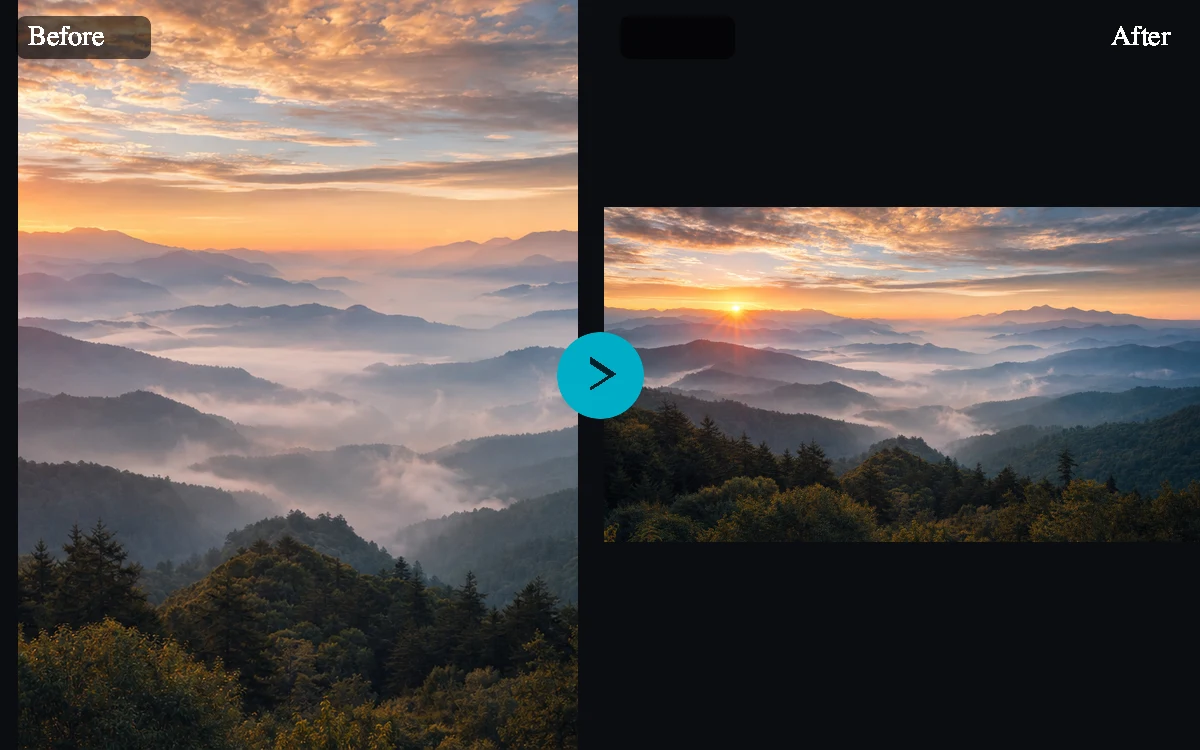
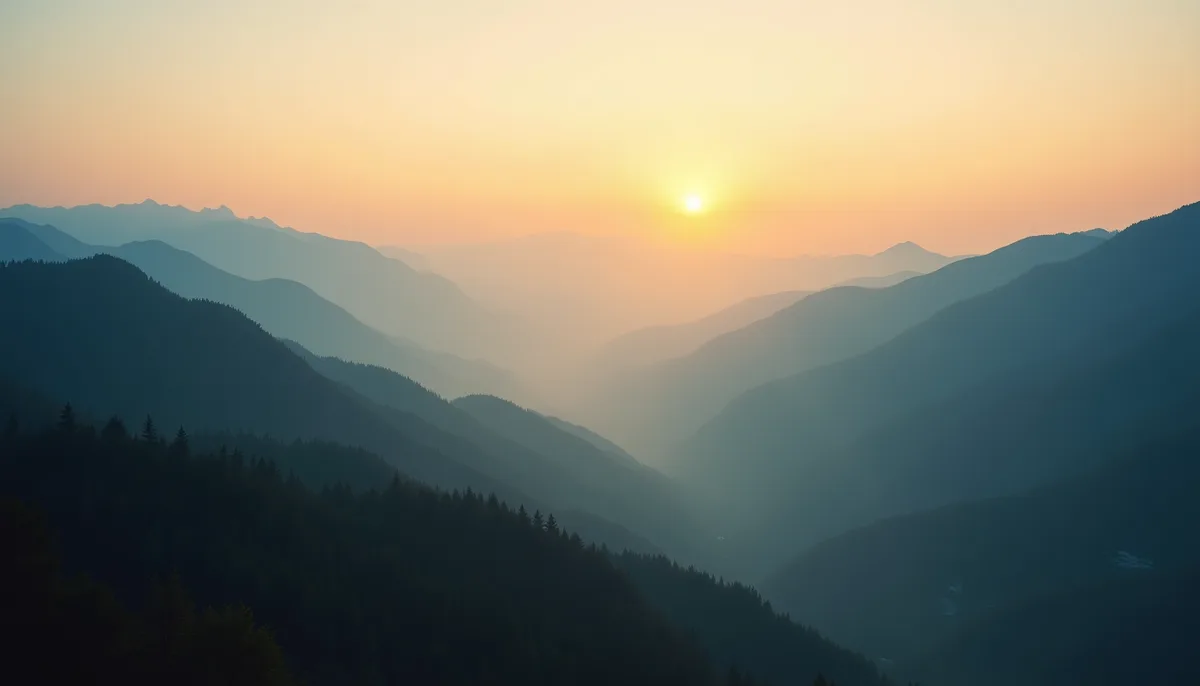
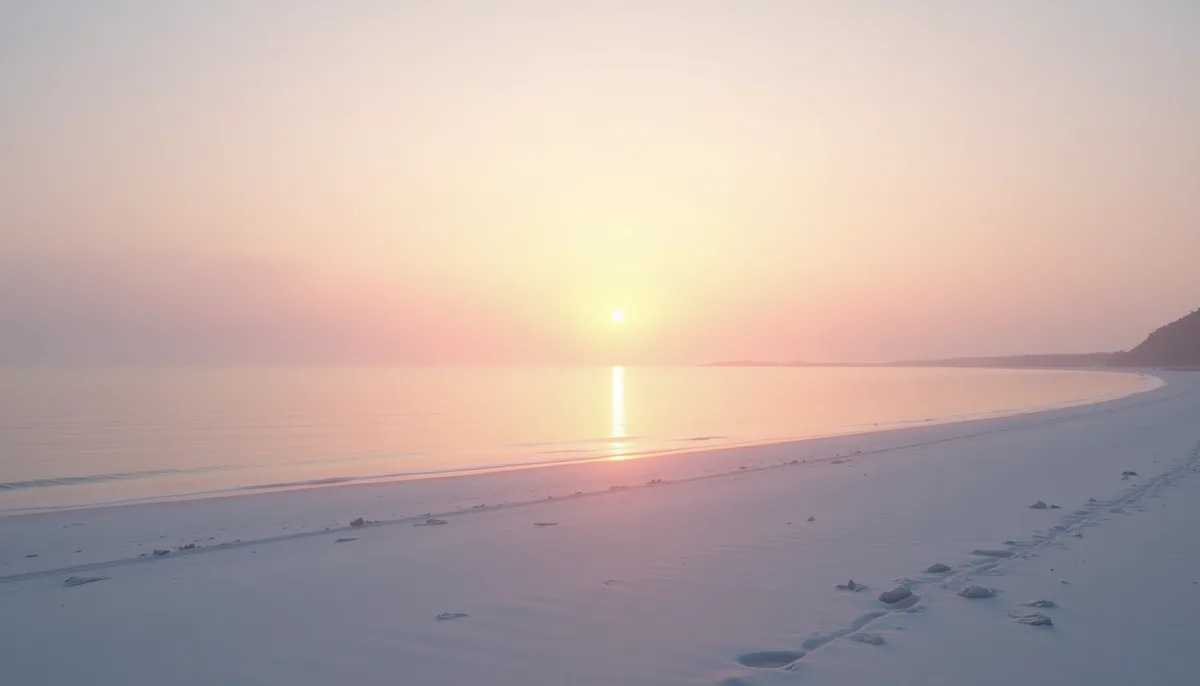
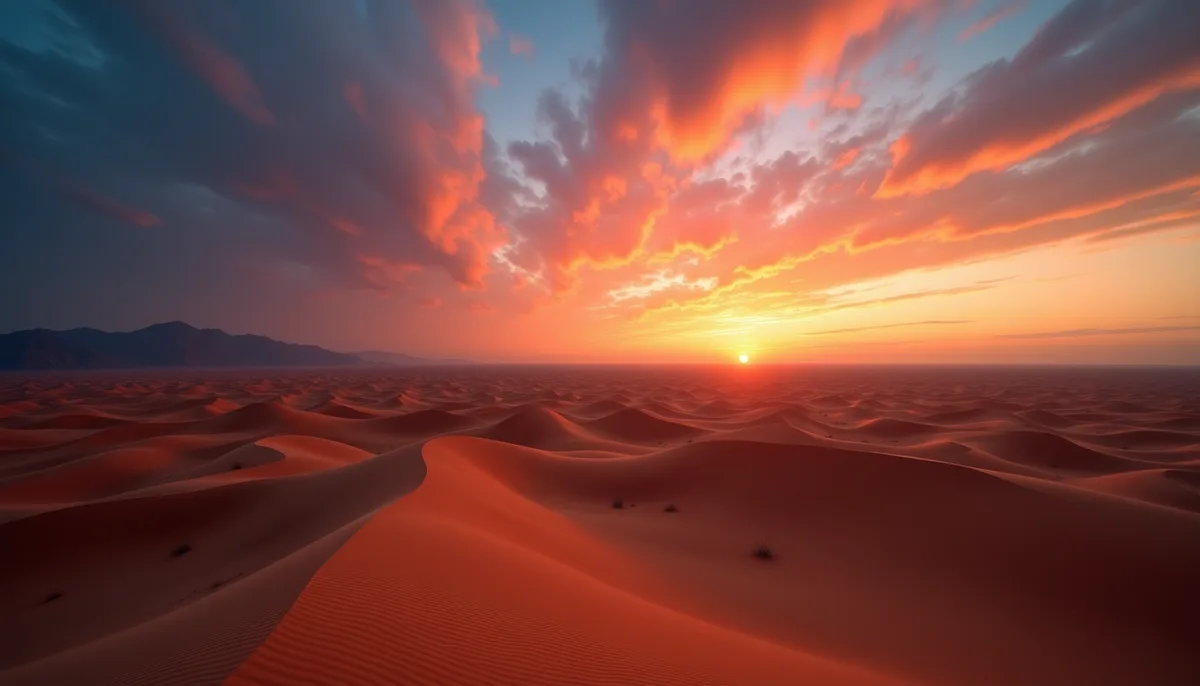
프리셋 예시
- 세로로 만들기스토리, 릴스, 쇼츠, TikTok용 9:16 세로 프레임을 채워요.
- 가로로 넓히기YouTube 썸네일, 커버, 배너용 16:9 가로 프레임을 채워요.
- 정사각형으로 만들기피드, 프로필, 마켓 상품 등록용 1:1 프레임을 균형 있게 채워요.
컨트롤과 설정
- 목표 크기지원 비율: 1:1, 4:5, 9:16, 16:9, 21:9. 기본값: 16:9.
- 결과물 수1~4개 생성할 수 있어요. 기본값: 1.
더 좋은 결과를 위한 팁
가장 선명한 원본으로 시작하고, 주요 피사체가 쉽게 구분되도록 하며, 최종 용도의 크기에 맞는 설정을 고르세요. 다른 버전을 생성하기 전에 첫 결과물을 원본 크기로 확인하세요. 특히 원본에 작은 글자, 섬세한 제품 가장자리, 얼굴, 압축된 디테일이 있다면 더욱 그래요.
이미지 확장은 책임감 있게
편집 권한이 있는 이미지만 업로드하세요. 아웃페인팅으로 뉴스 사건, 신원, 제품 상태, 사실관계에 대해 보는 사람을 오도하지 마세요.
자주 묻는 질문
AI 이미지 확장이란 무엇인가요?
AI 이미지 확장은 업로드한 사진을 더 크거나 다른 비율의 캔버스로 넓혀 주는 도구예요. 픽셀을 늘이는 대신 원본 이미지에 어울리는 주변 디테일을 새로 생성해요.
언크롭과 이미지 확장은 같은 건가요?
같은 핵심 작업을 가리키는 말이에요. 언크롭은 현재 이미지 가장자리 바깥 공간을 복원하거나 새로 만들어 내는 것이고, 이미지 확장이나 아웃페인팅은 캔버스를 새 화면 비율로 넓히는 거예요.
원본 이미지가 늘어나지는 않나요?
프롬프트는 업로드한 이미지가 늘어나거나 왜곡되지 않도록 설계됐어요. 모델에 원본 내용은 보존하고 확장된 영역에만 새 디테일을 생성하도록 요청해요.
어떤 화면 비율을 고를 수 있나요?
SNS, 쇼핑몰, 썸네일, 배너 작업에 자주 쓰는 1:1 정사각형, 4:5 세로형, 9:16 버티컬, 16:9 가로형, 21:9 와이드 배너 중에서 목표 크기를 고를 수 있어요.
새 공간에 들어갈 내용을 설명할 수 있나요?
네. 더 넓은 하늘, 더 넓은 스튜디오 배경, 이어지는 거리 풍경, 헤드라인 문구용 빈 공간처럼 새로 생성될 영역에 대한 짧은 프롬프트를 추가하세요.
원본 사진이 바뀌나요?
아니요. 업로드한 사진은 새 프레임 안에 고정된 채 그대로 유지되고 주변 영역만 생성돼요. 그래서 인물, 제품, 로고, 중요한 구도 디테일이 그대로 남아요.
AI 아웃페인팅에는 어떤 이미지가 가장 잘 되나요?
가장자리 맥락이 잘 보이는 선명한 사진이 대체로 가장 좋아요. 조명이 일정하고, 배경이 단순하고, 원근감이 자연스럽고, 피사체 가장자리가 깔끔한 이미지일수록 모델이 확장된 캔버스를 채울 단서를 더 많이 얻어요.
제품 사진에도 AI 이미지 확장을 쓸 수 있나요?
네. 제품 사진을 배너, 마켓용 크롭, 광고 형식으로 확장할 수 있어요. 제품 자체를 알아볼 수 있도록 프롬프트는 배경이나 바닥에 집중해서 쓰세요.
전문 이미지 편집기를 대신할 수 있나요?
아니요. 이 페이지는 빠른 AI 아웃페인팅과 화면 비율 재구성을 위한 도구예요. 세밀한 리터칭, 마스킹, 픽셀 단위 보정에는 여전히 전용 편집기가 필요할 수 있어요.