Practical guide · Updated 2026-10-29
How to try a different outfit in a photo
A virtual outfit edit helps you explore color and styling in an existing photograph. It does not measure the garment or predict its real fit. Use a clear photo of an adult who has agreed to the edit, and judge the result as a visual idea rather than a sizing recommendation.
Open AI Clothes ChangerBefore you start
Choose a photograph where the torso and relevant clothing are visible, with arms away from the body when possible. Heavy occlusion makes sleeves and hands harder to reconstruct. Keep the subject's face visible so you can check whether the model preserves their identity.
Step by step
Upload the person photo
Open the clothes changer and add the image in the required Person photo slot. Complete sign-in when prompted.
Choose a style or reference outfit
For a preset edit, pick an outfit style. If you have a particular garment in mind, upload it in the optional Outfit reference slot. With a reference present, style selection is disabled so it does not compete with the reference.
Add only necessary direction
Choose Custom to describe an outfit in your own words. If you upload an outfit reference, the optional details field lets you refine that reference. Keep the first request focused on the clothing.
Generate after checking the estimate
Review the displayed estimate and start the edit explicitly. Compare the person and garment with the source images before saving a variation.
Before and after
AI-created source photos, processed with the tool's configured model. Results vary with the input.
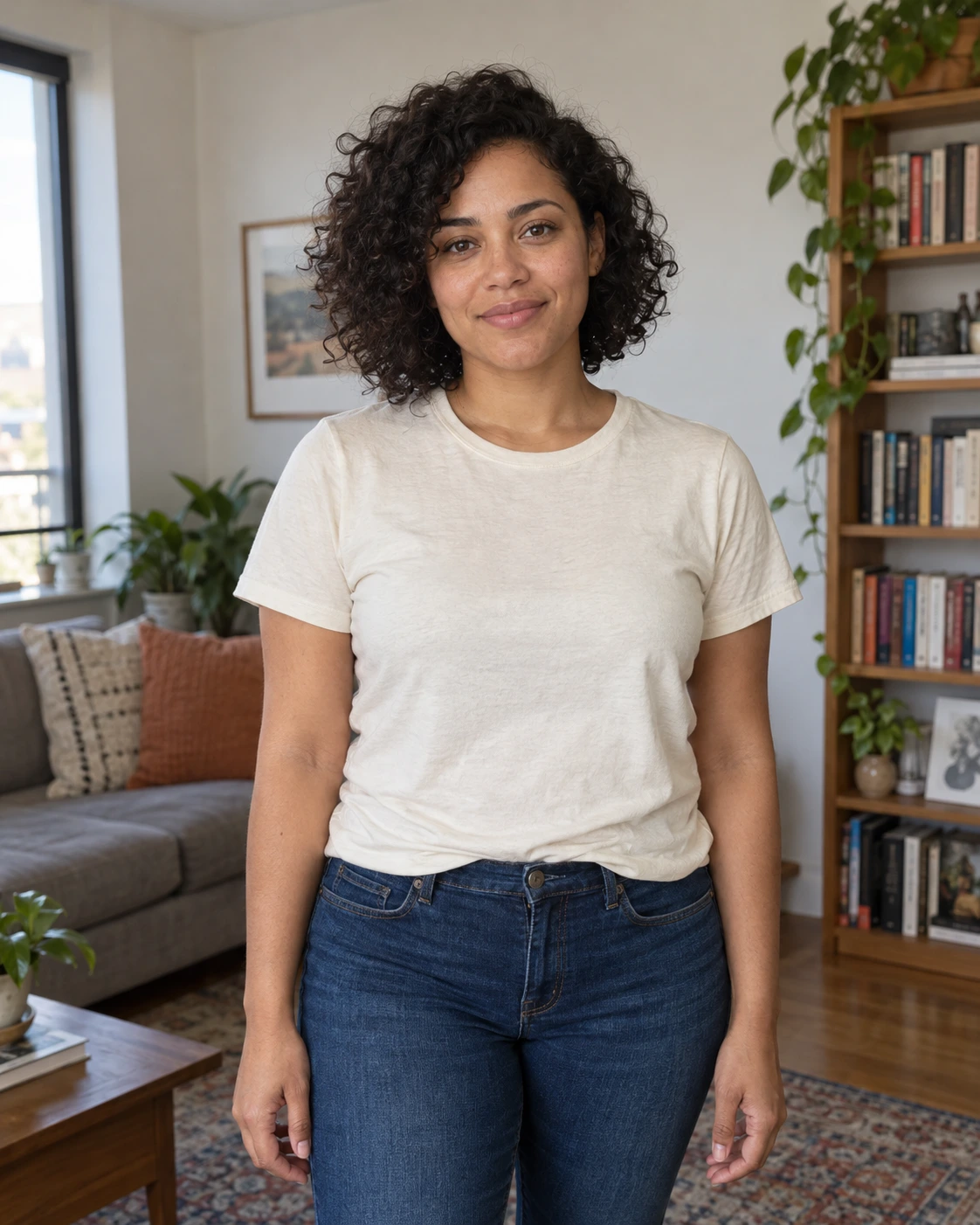 Before
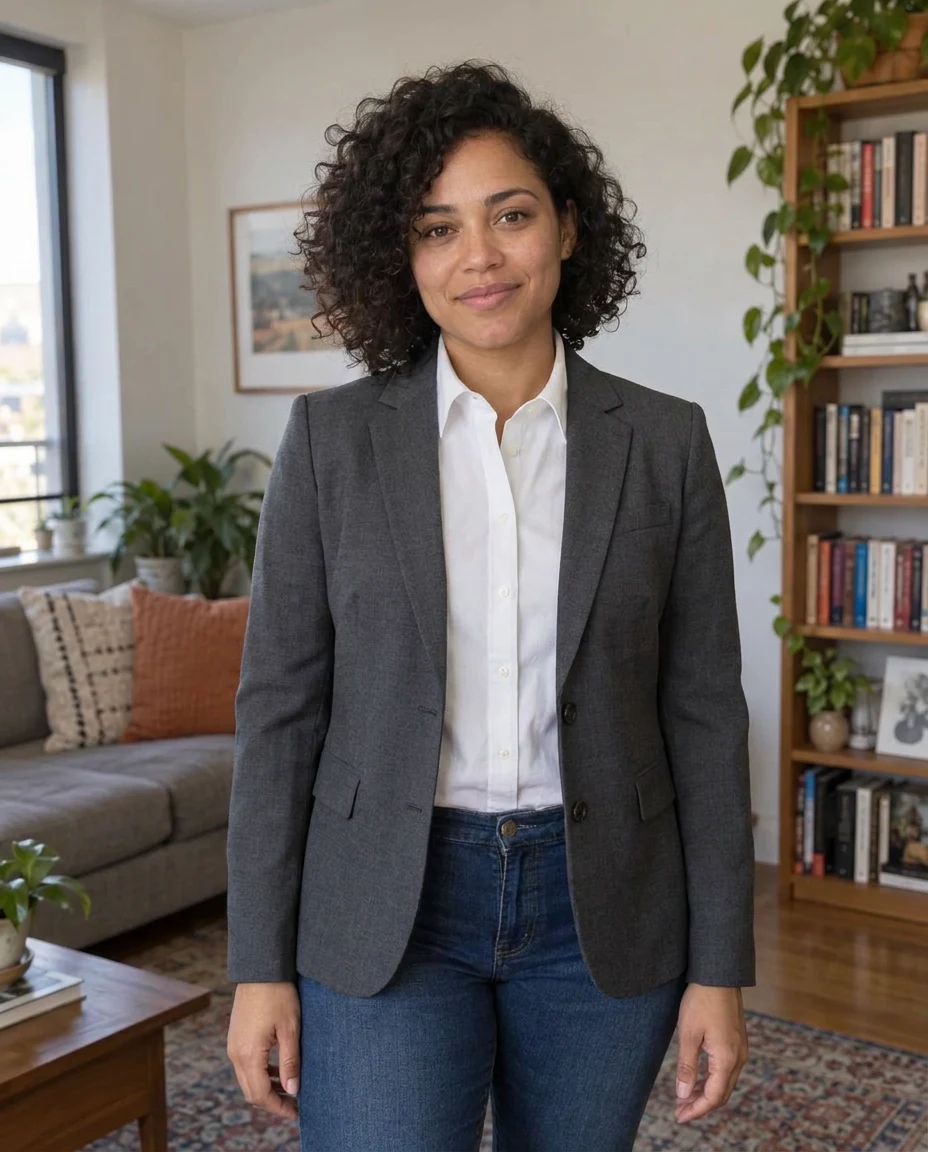 After
AfterModel and settings
google/nano-banana-pro · Business headshot
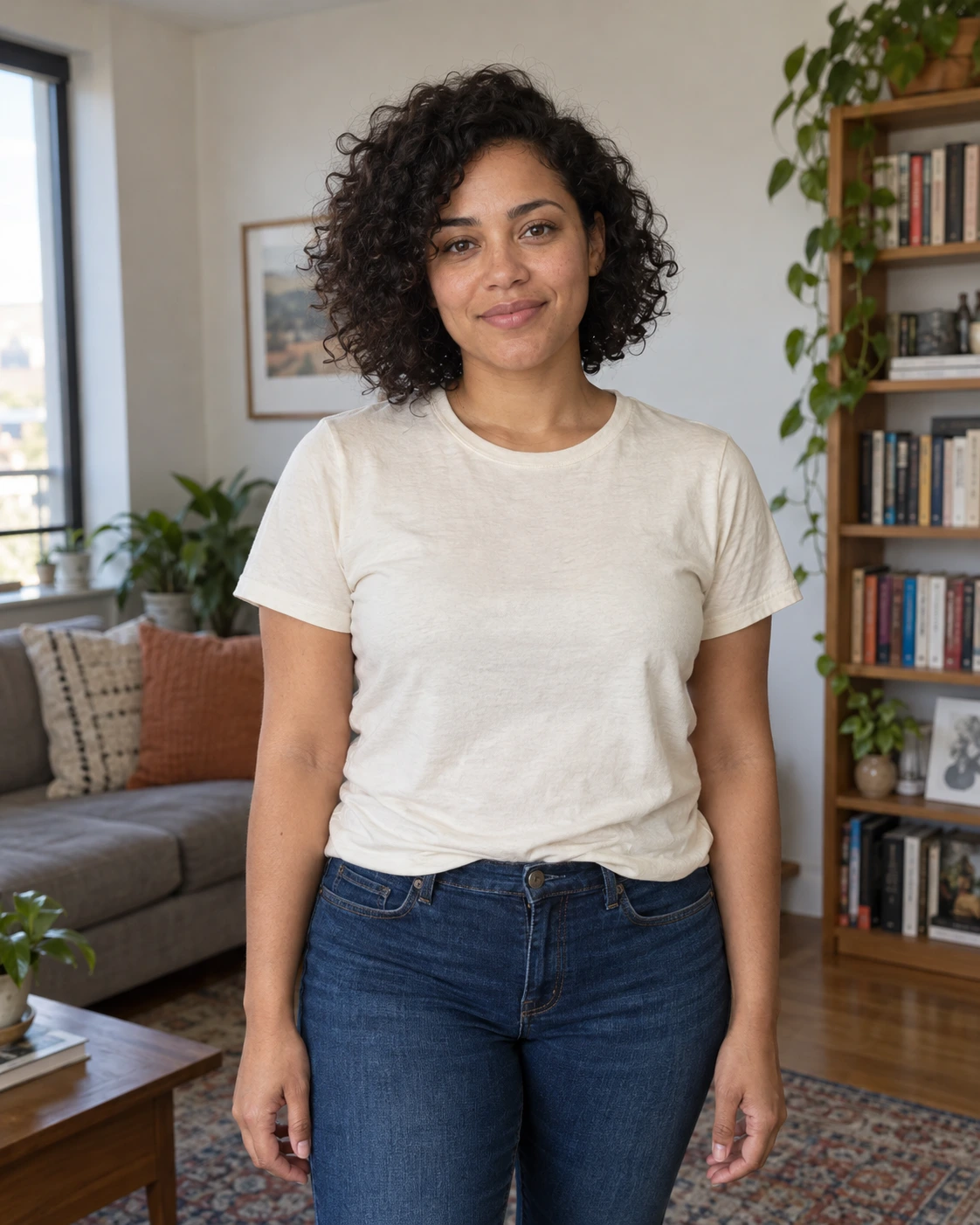 Before
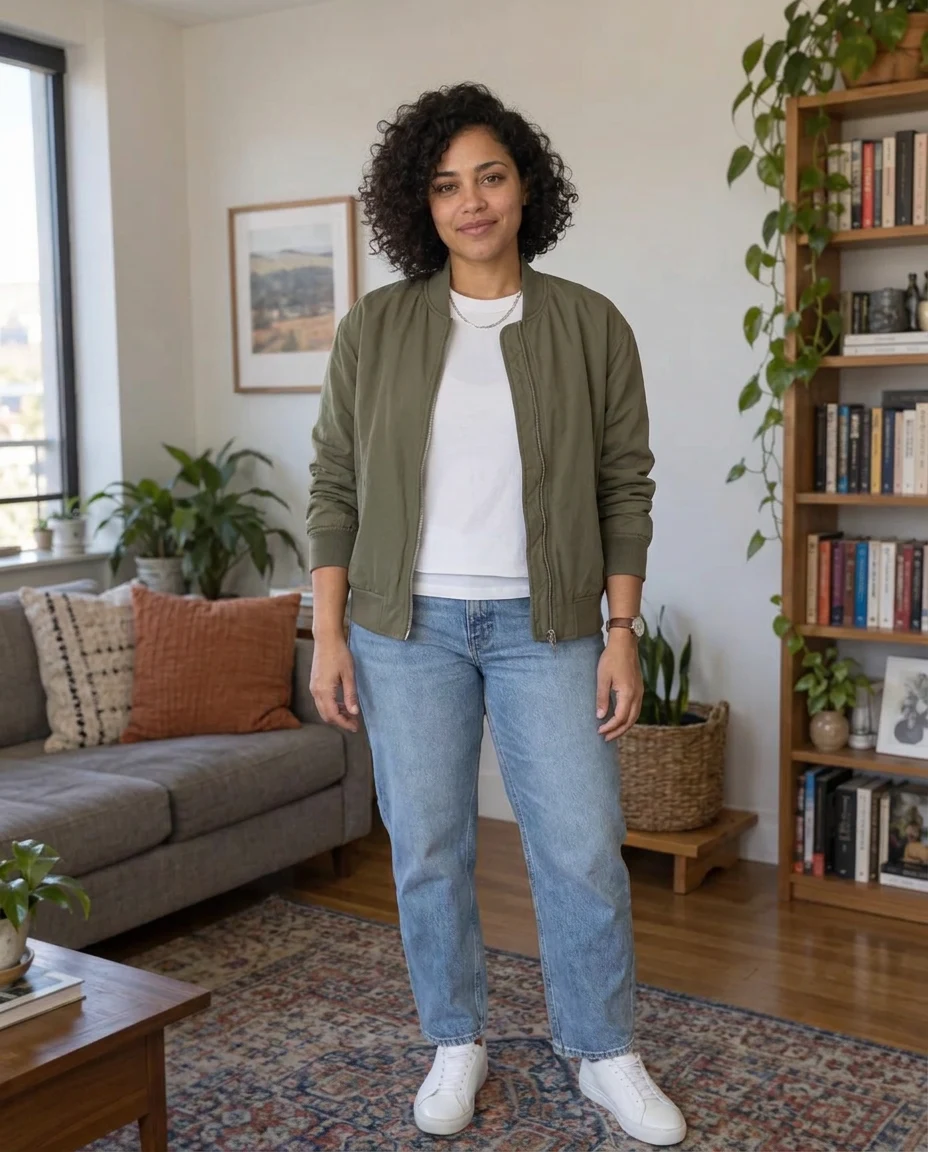 After
AfterModel and settings
google/nano-banana-pro · Casual creator
What to check in the result
Check the face, hair, hands, body proportions, and the boundary between sleeves and skin. Look at seams, buttons, repeated fabric patterns, and accessories. An attractive generated outfit may still differ from the actual reference garment, especially around logos and small details.
If the result needs another attempt
If the garment shape changes, use a clearer reference with fewer obstructions. If the person changes, try a simpler outfit and a better-lit photo. For a professional profile picture, the headshot tool gives more focused portrait presets; for a cleaner setting alone, use the background changer.
Generation does not start until you choose the tool's processing action. Availability, free allowances, and point estimates appear in the tool; review them before starting.
Try AI Clothes Changer