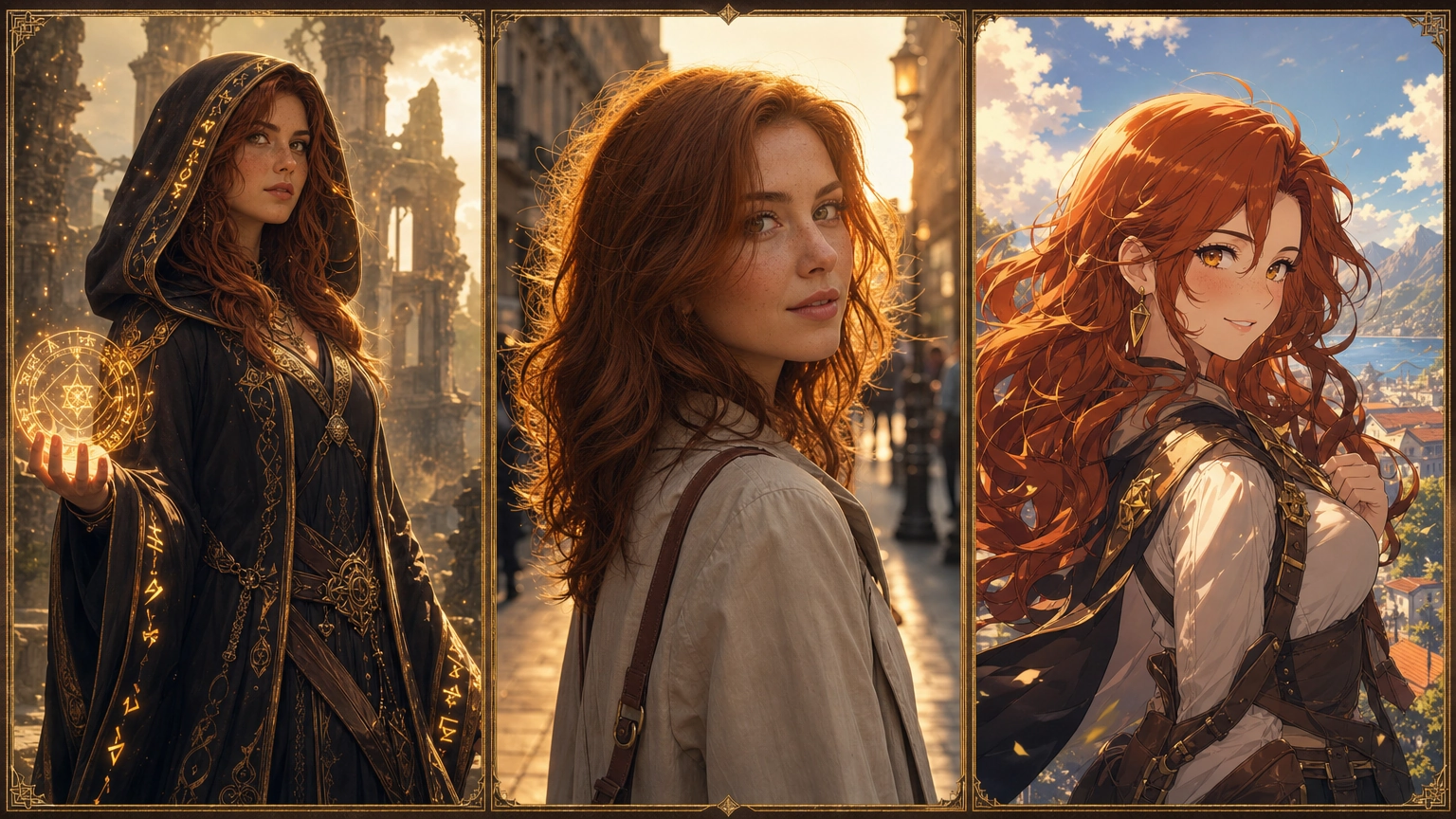
Dark fantasy AI art looks dark when you control three things: one light source, a muted palette with a single accent color, and visible decay or wear on every surface. Skip any of those and you get a fantasy image that's just... bright and generic, not actually dark. Here's how to make dark fantasy AI art step by step, with prompts and real examples you can copy.
What Is the Dark Fantasy Art Style Called?
"Dark fantasy" isn't one fixed look. It splits into a few related styles, and knowing which one you're after makes your prompts more precise.
Dark fantasy vs. grimdark
Dark fantasy is about mood: shadow, dread, a sense that something's wrong. Grimdark goes further, into brutal, morally bleak territory built around violence and despair rather than atmosphere. Most people searching "dark fantasy AI art" want the moodier, more atmospheric version.
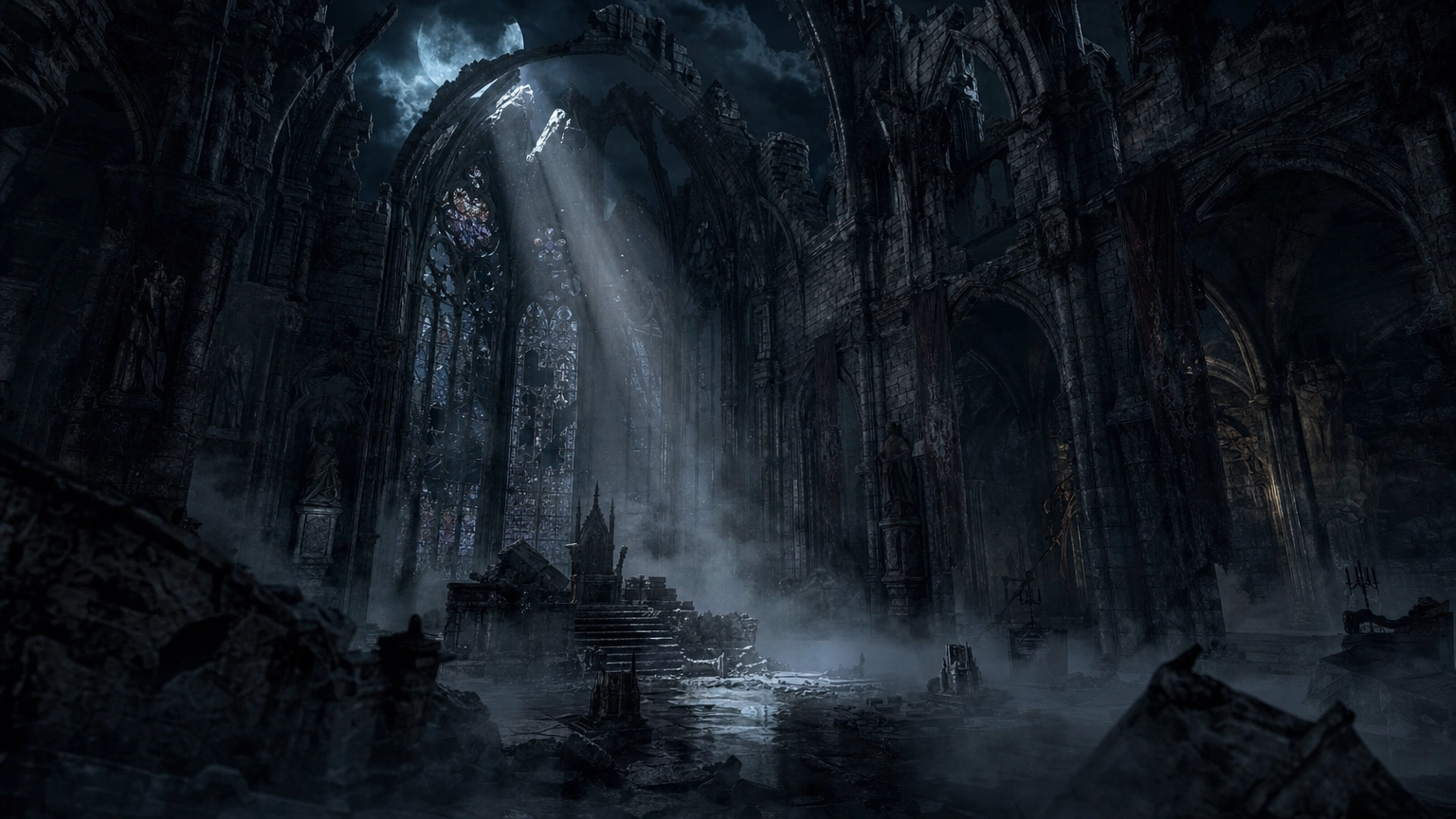
Gothic fantasy
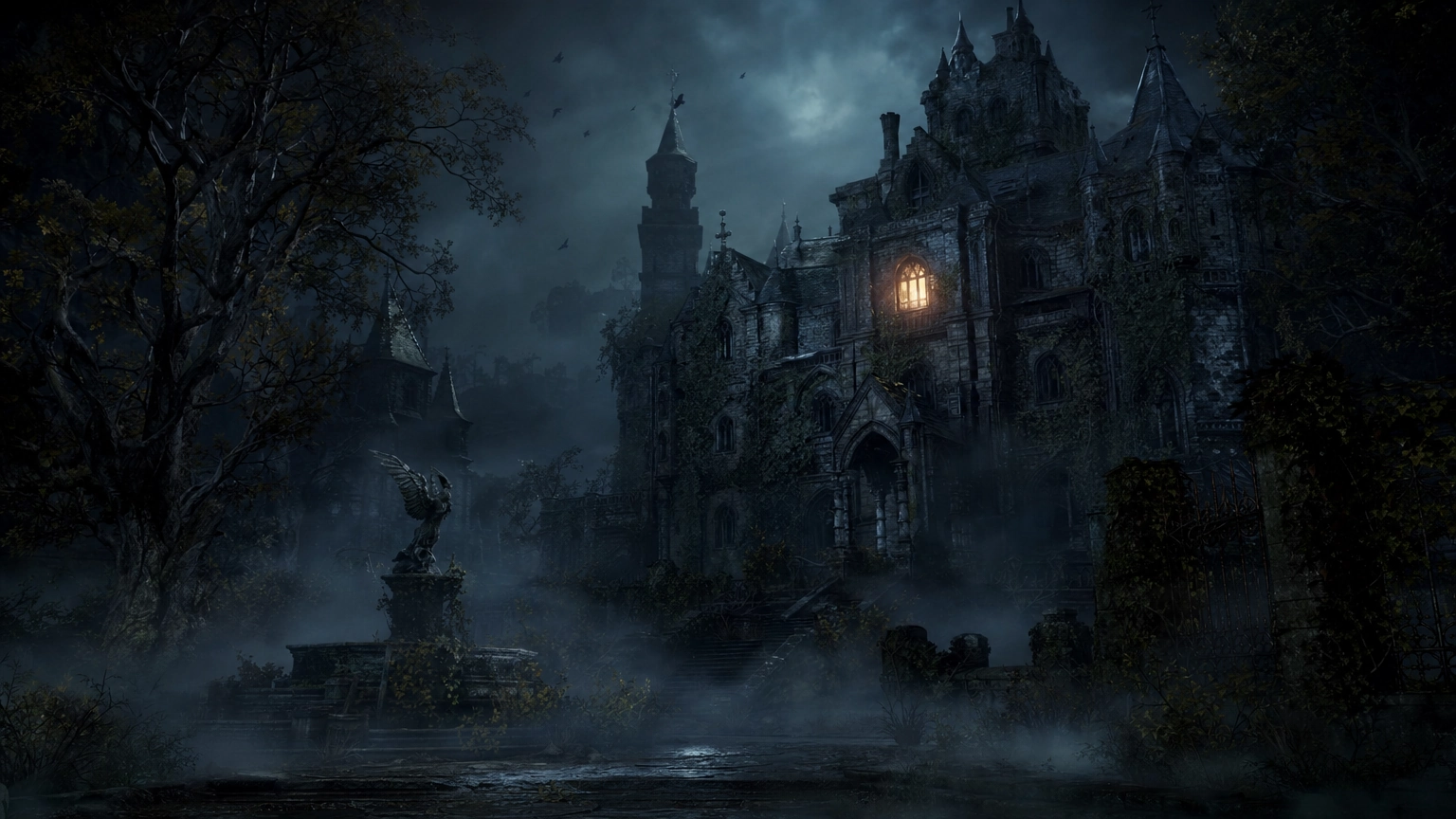
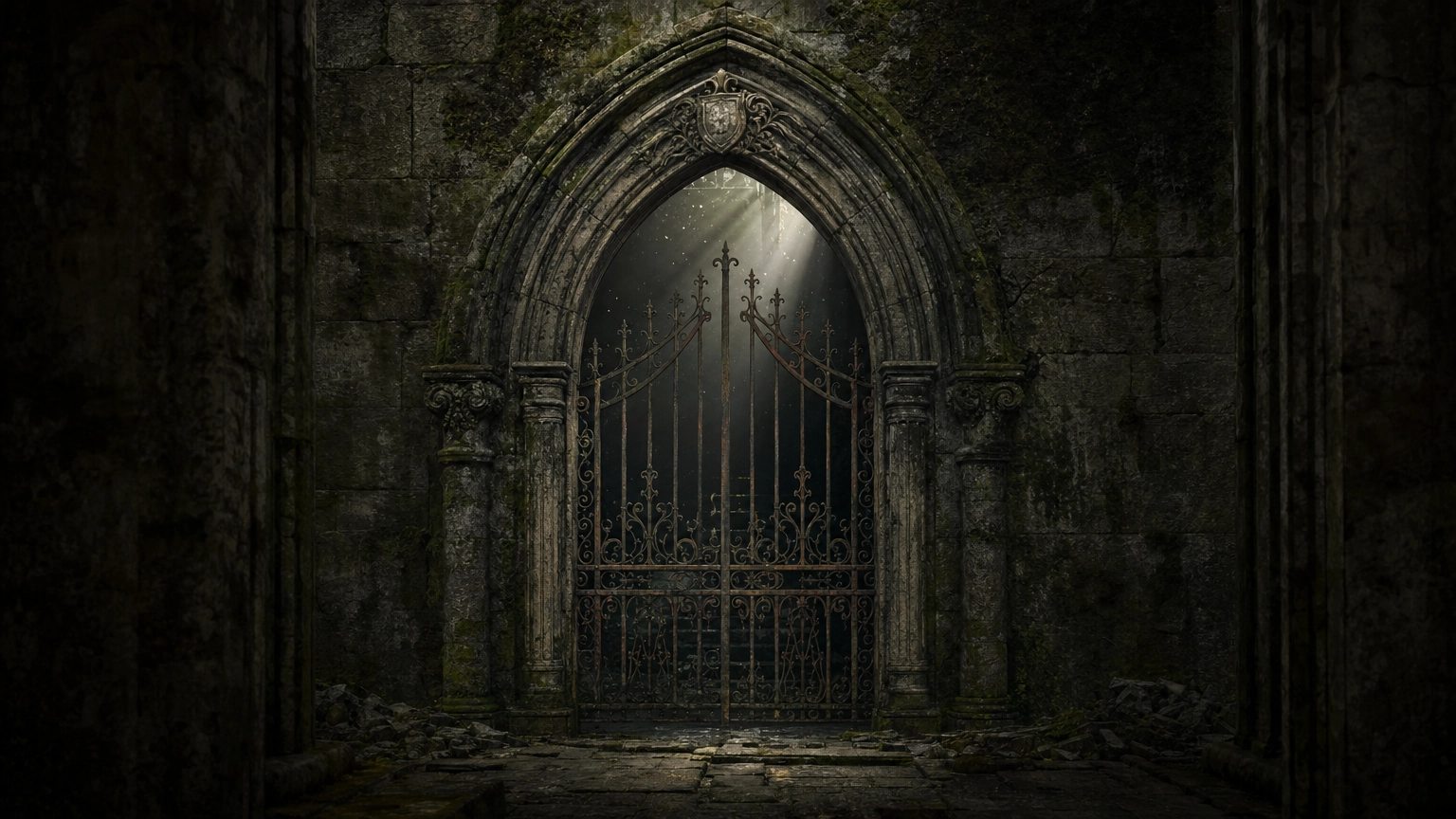
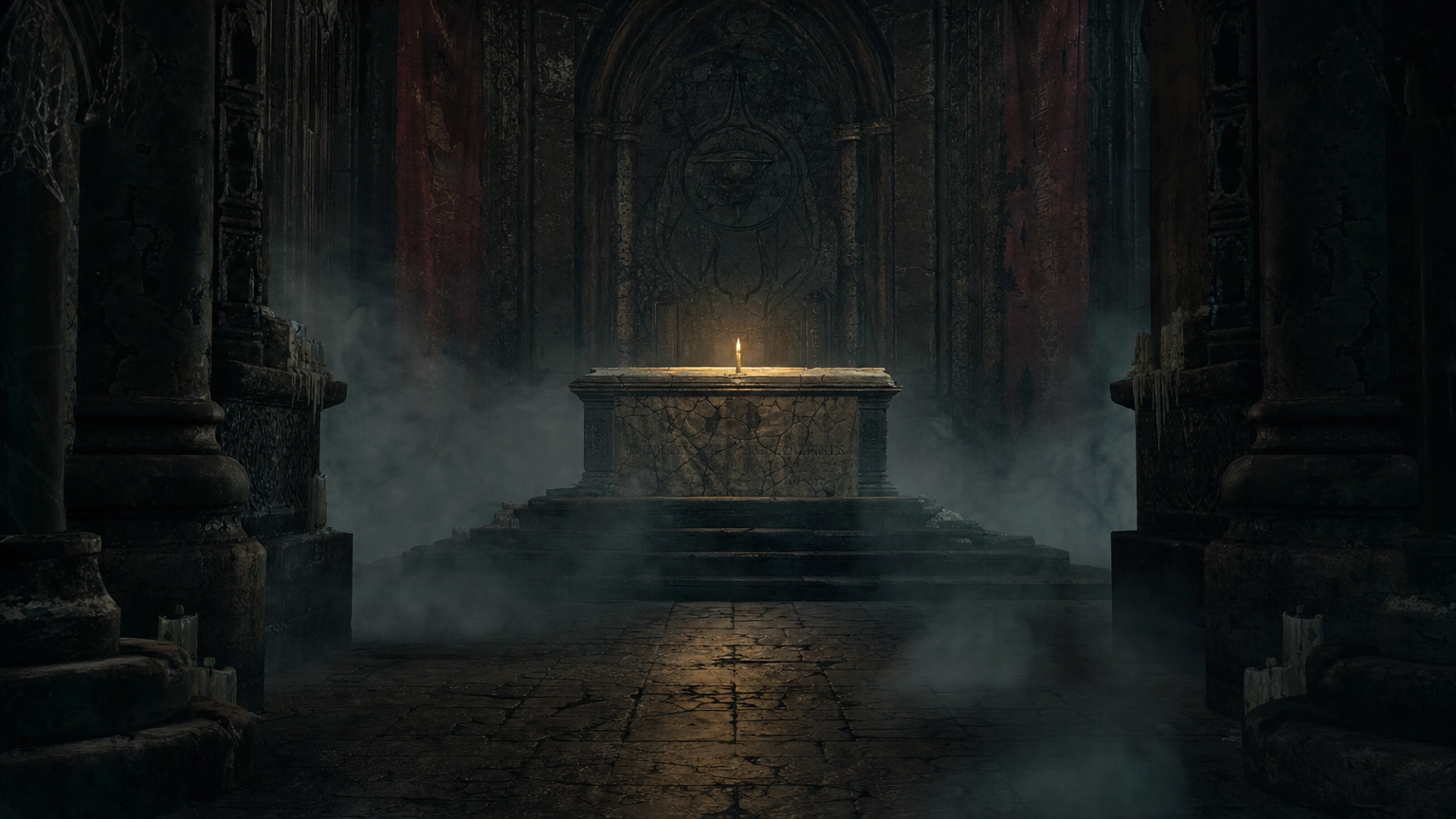
Ruined cathedrals, crumbling manors, fog, and low candlelight. Think Victorian-era decay rather than open battle. Strong shadows and a single warm light source define the look.
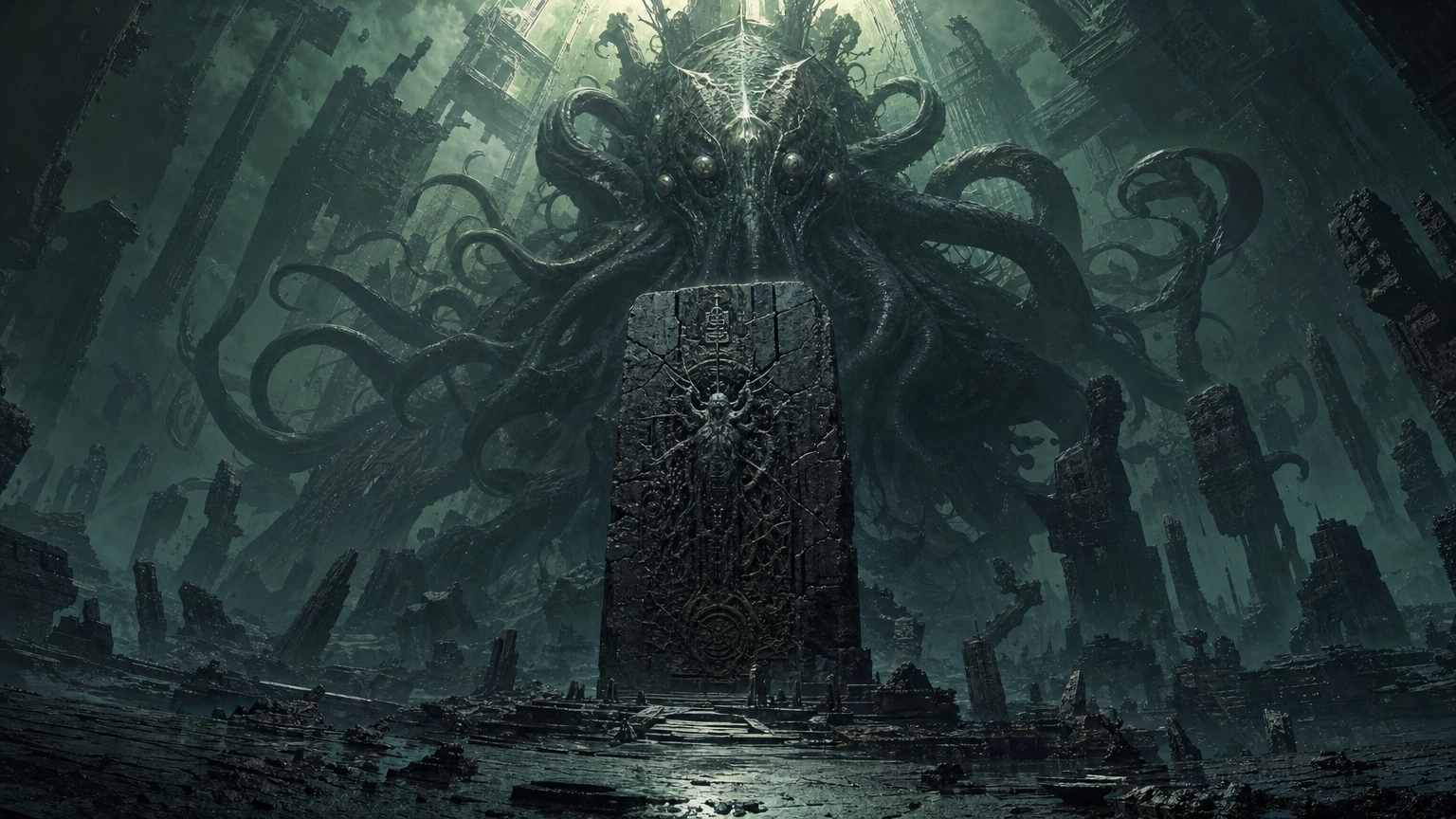
Eldritch and cosmic horror
Scale and wrongness instead of castles. Impossible geometry, creatures too large or too alien to make sense, skies that don't behave like skies.
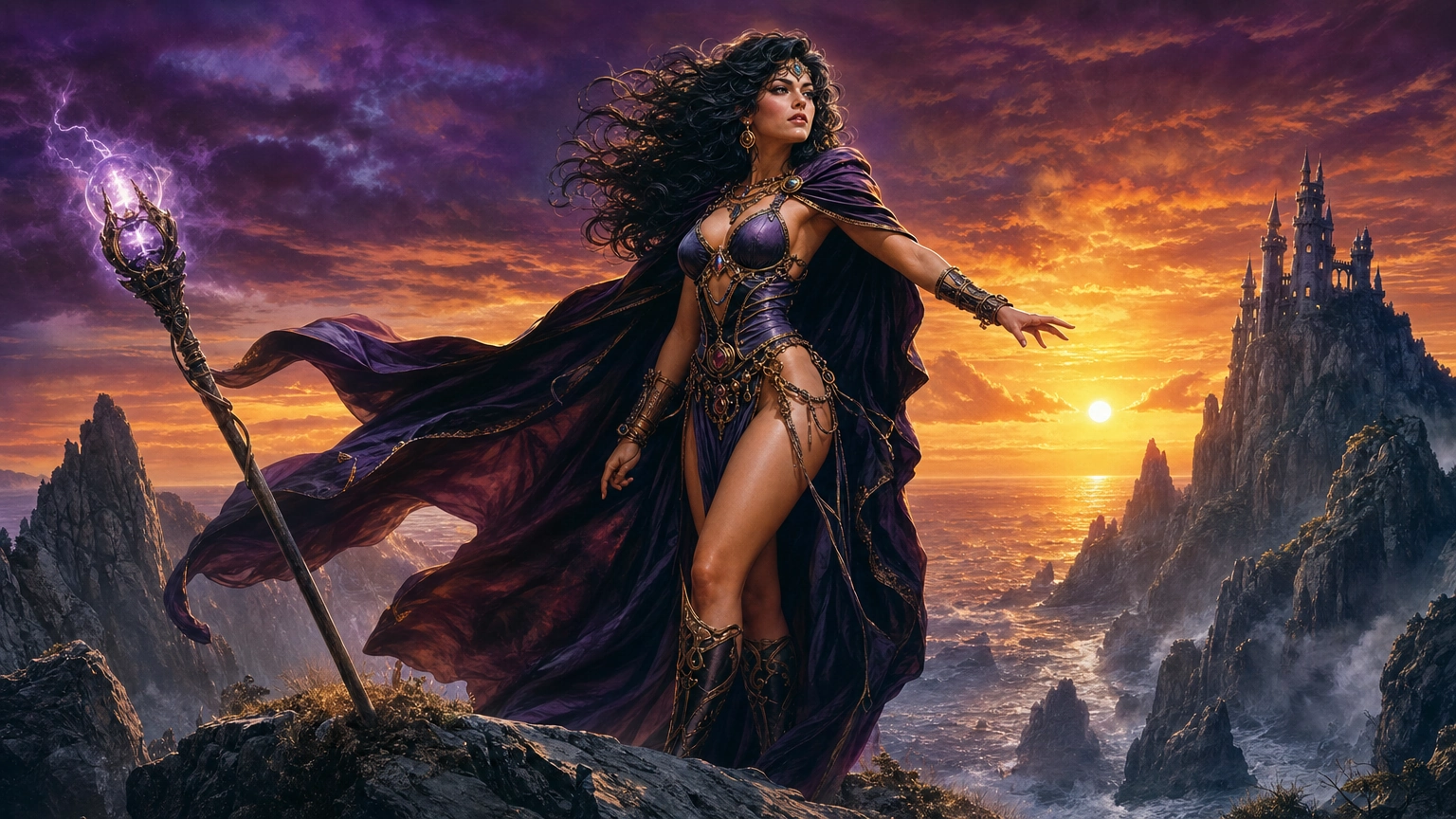
The 80s dark fantasy look
A distinct retro style tied to 80s fantasy film posters and album covers, airbrushed, painterly, saturated in a way modern dark fantasy usually isn't. Worth its own prompt later in this post.
How to Make Dark Fantasy AI Art, Step by Step
Dark fantasy AI art comes down to five prompt elements: subject, style, lighting, mood, and technical specs. Get those right and the "dark" part follows naturally.
Step 1: Pick your subject
Environment, character, or creature. Be specific, not "a warrior" but "a scarred knight in dented black armor." The more detail you give the subject, the less generic the result.
Step 2: Choose one light source
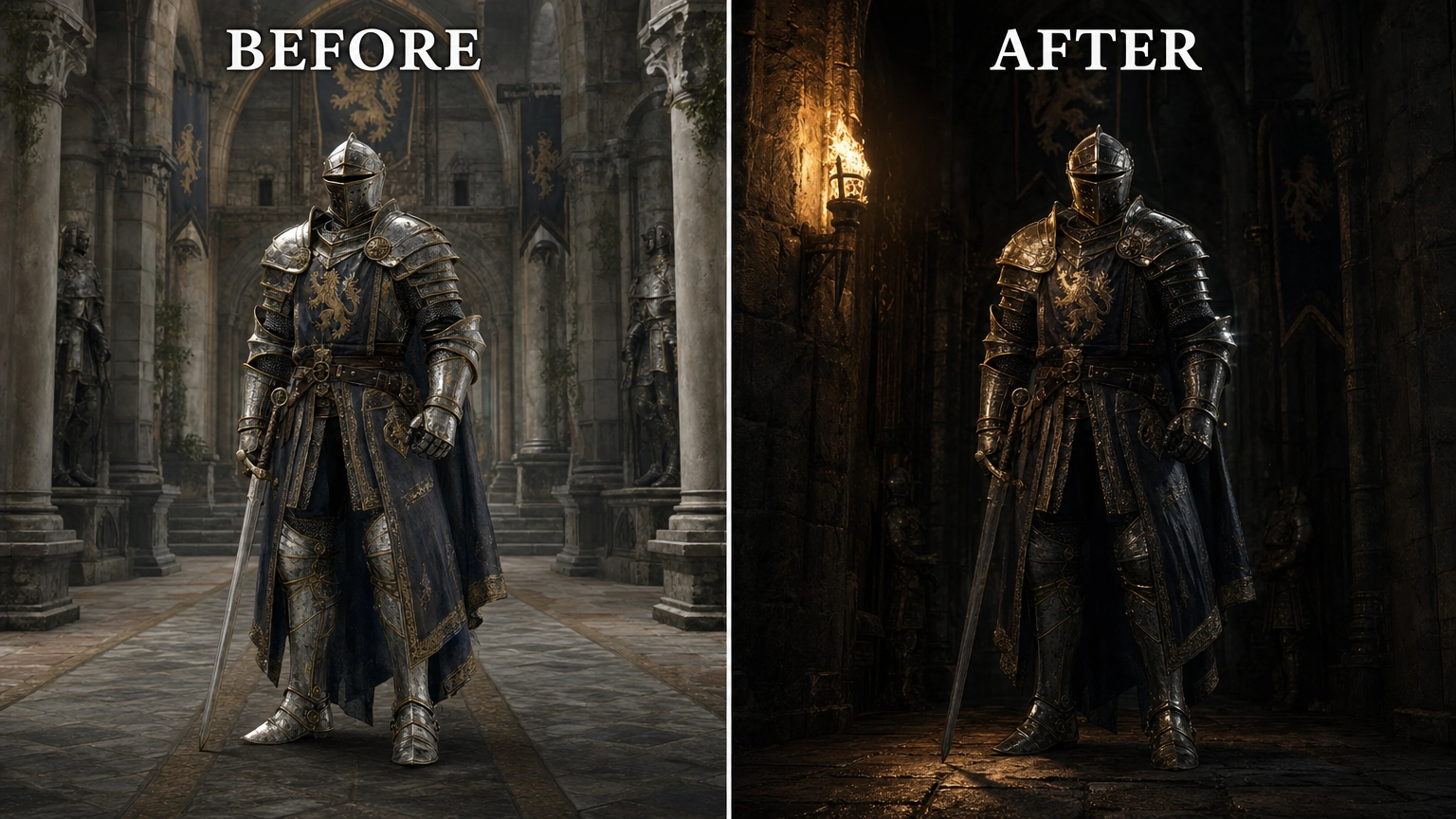
This is the single biggest lever for making something look dark instead of just dim. Pick one: a candle, a shaft of moonlight, a distant fire. Name it directly in the prompt. Multiple competing light sources flatten the mood and wash out shadow.
Step 3: Set a muted palette with one accent color
Desaturated base tones (charcoal, deep green, dull rust) plus a single accent (a glowing rune, a red banner, one lit window). Too many saturated colors reads as fantasy-bright, not dark fantasy.
Step 4: Add decay and texture
Rust, cracked stone, moss, torn fabric, tarnished metal. This is what separates a polished fantasy render from something that actually feels dark and lived-in.
Step 5: Set the aspect ratio and framing
Match the format to where the image is going, wide for environments, portrait for characters, square for social. Fiddl.art's models let you pick aspect ratio directly in the prompt or settings step.
Step 6: Change one thing per pass
If the first result isn't dark enough, don't rewrite the whole prompt. Change the light source or the palette note, one variable at a time, so you know what actually moved the result. Fiddl.art's Iterate tool keeps your previous image as a reference while you adjust, so you're refining instead of starting over.
A faster path: describe it in plain language
If you'd rather not write a structured prompt yourself, Fiddl.art's AI Assistant takes a plain-language description, asks a couple of follow-up questions, then builds the full prompt (subject, lighting, mood, style) and recommends a model for you. You review the prompt and price before anything generates.
What Are Some Good AI Prompts for Dark Fantasy?
These dark fantasy AI prompts follow a simple structure: subject, style, lighting, mood, technical specs. Swap the bracketed details to make it your own.
Environment prompts
A ruined gothic cathedral at midnight, cracked stained glass, single shaft of moonlight through a broken roof, thick fog pooling on the floor, dark fantasy concept art, ultra-detailed
A crumbling stone bridge over a black ravine, one lantern swinging in the wind, storm clouds overhead, muted grey-green palette, cinematic dark fantasy, highly detailed
Character prompts
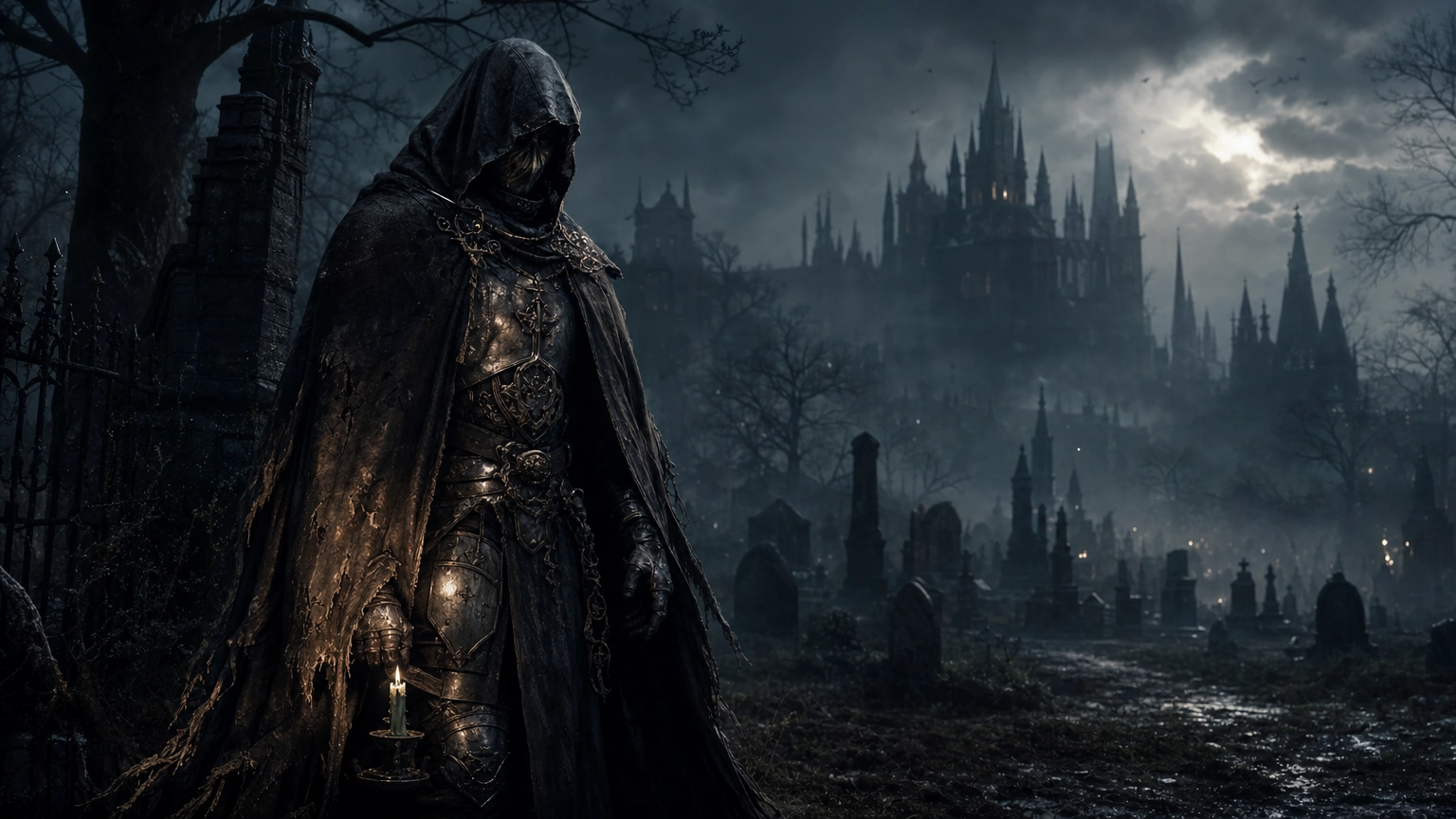
A cloaked figure standing at the edge of a graveyard, tarnished silver armor beneath the cloak, single candle held low, deep shadows, dark fantasy character concept art, ultra-detailed
An exiled sorceress with cracked pale skin and glowing violet eyes, torn dark robes, standing before a dying fire, dramatic side lighting, dark fantasy portrait, highly detailed
Creature prompts
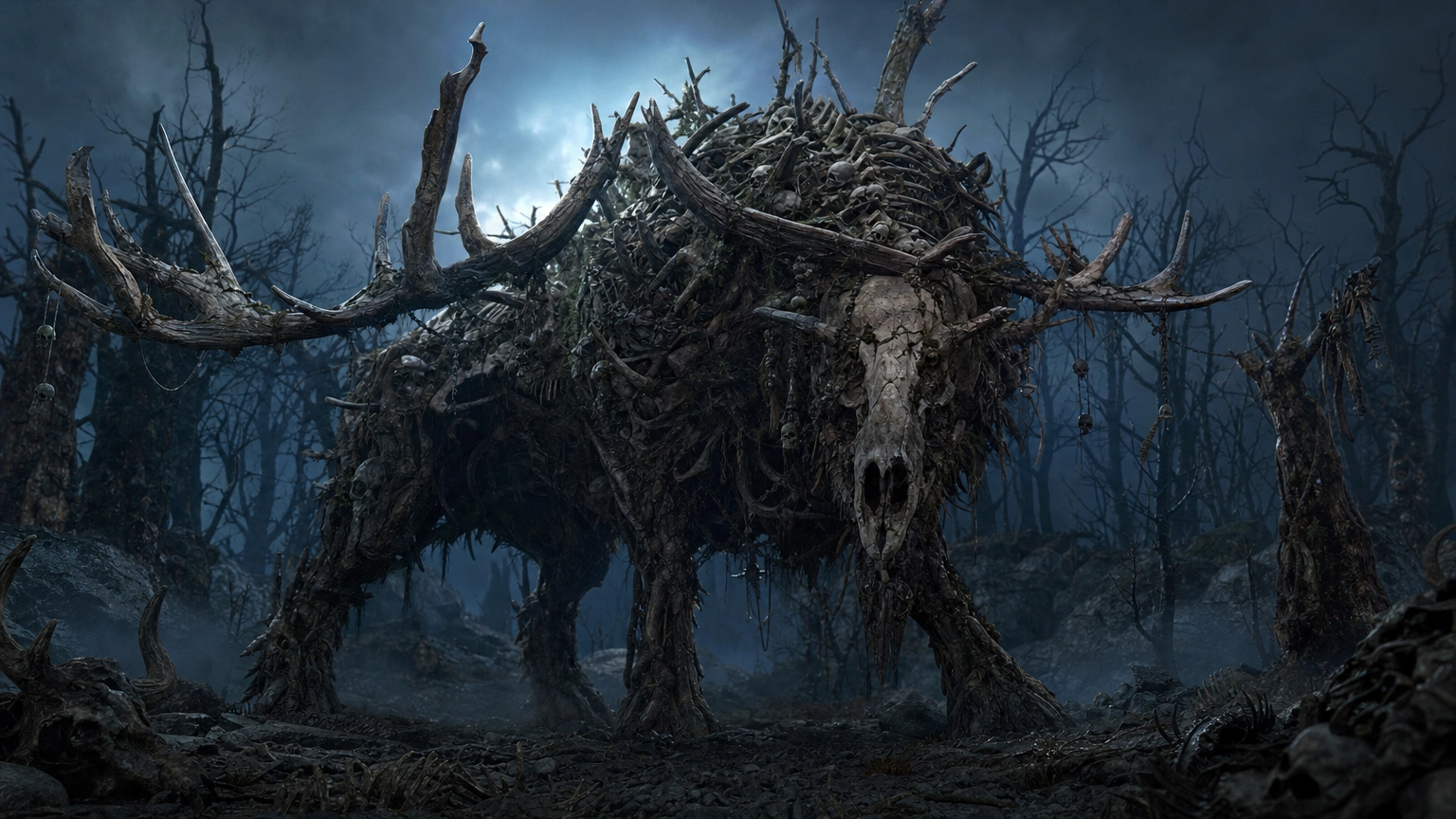
A massive antlered beast made of bone and rotted bark, standing in a dead forest, faint blue light behind it, dark fantasy creature design, cinematic, ultra-detailed
A cracked stone gargoyle stirring to life on a rain-soaked rooftop, single streetlamp glow below, dark fantasy, dramatic lighting, highly detailed
An 80s dark fantasy prompt
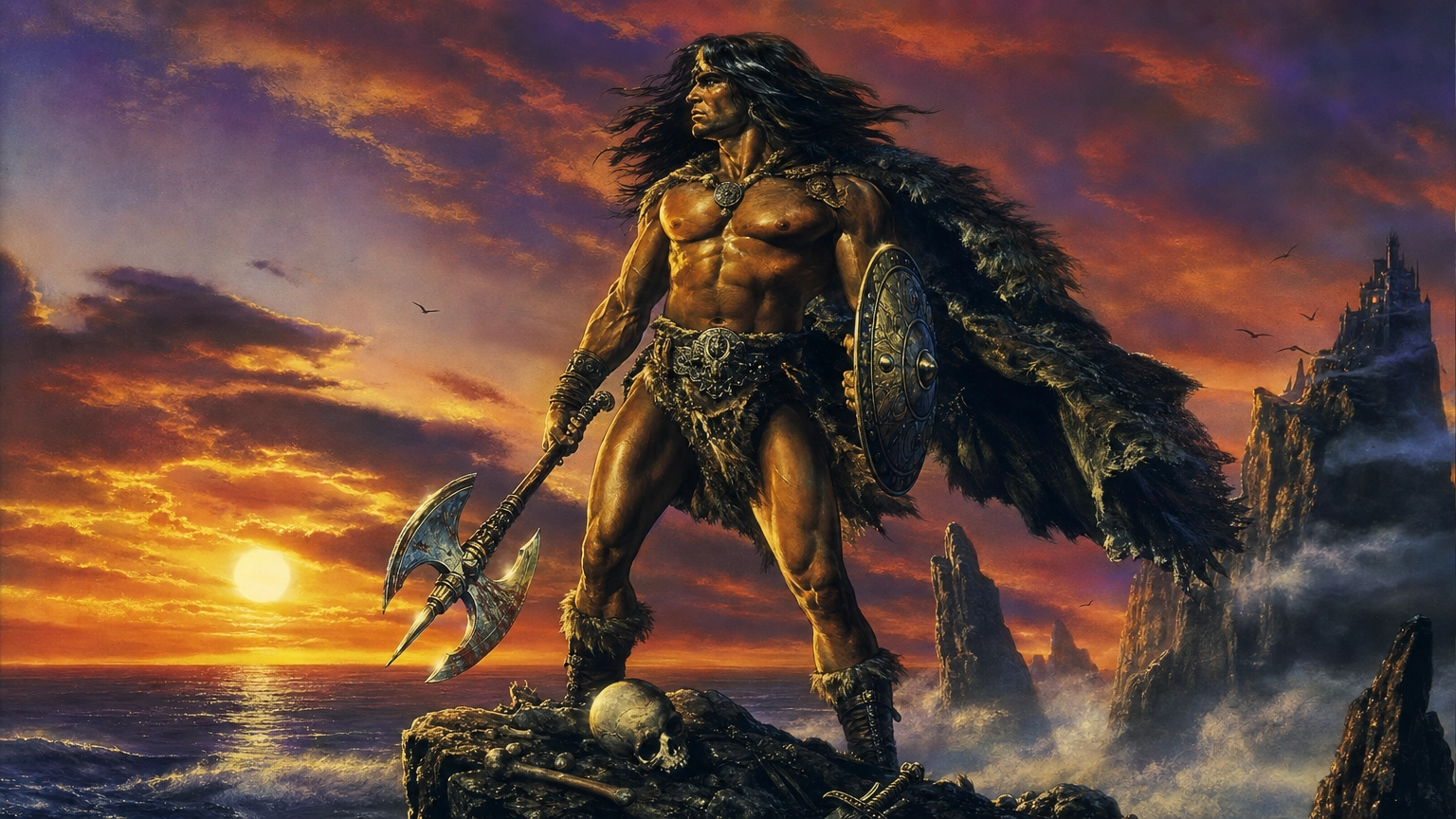
A barbarian warrior on a windswept cliff at dusk, painterly airbrushed style, saturated orange and purple sky, dramatic rim lighting, 1980s fantasy album cover art, highly detailed
The reusable formula
[Subject with specific detail] + [one named light source] + [muted palette, one accent color] + [decay or texture detail] + dark fantasy, ultra-detailed
For more prompt structures and examples across other styles, see our full AI image prompt library.
Why Your Dark Fantasy AI Art Looks Grey, Bright, or Generic
If your result comes out flat, washed out, or just not dark enough, it's usually one of these fixes, not a completely new prompt.
Words that pull the image brighter or flatter
Generic style words like "fantasy art" or "digital painting" without any lighting or mood detail default toward a bright, polished look. Vague prompts produce vague, mid-tone results.
Name the light source directly
"Dramatic lighting" alone isn't specific enough. Say what's making the light: one candle, one shaft of moonlight, one distant fire. A named, single source does more to darken an image than any number of mood adjectives.
Add material states, not just objects
"A stone wall" is neutral. "A cracked, moss-covered stone wall" pushes the image toward decay and atmosphere. Apply this to every surface in the prompt, not just the main subject.
Use negative prompts to cut what's fighting the mood
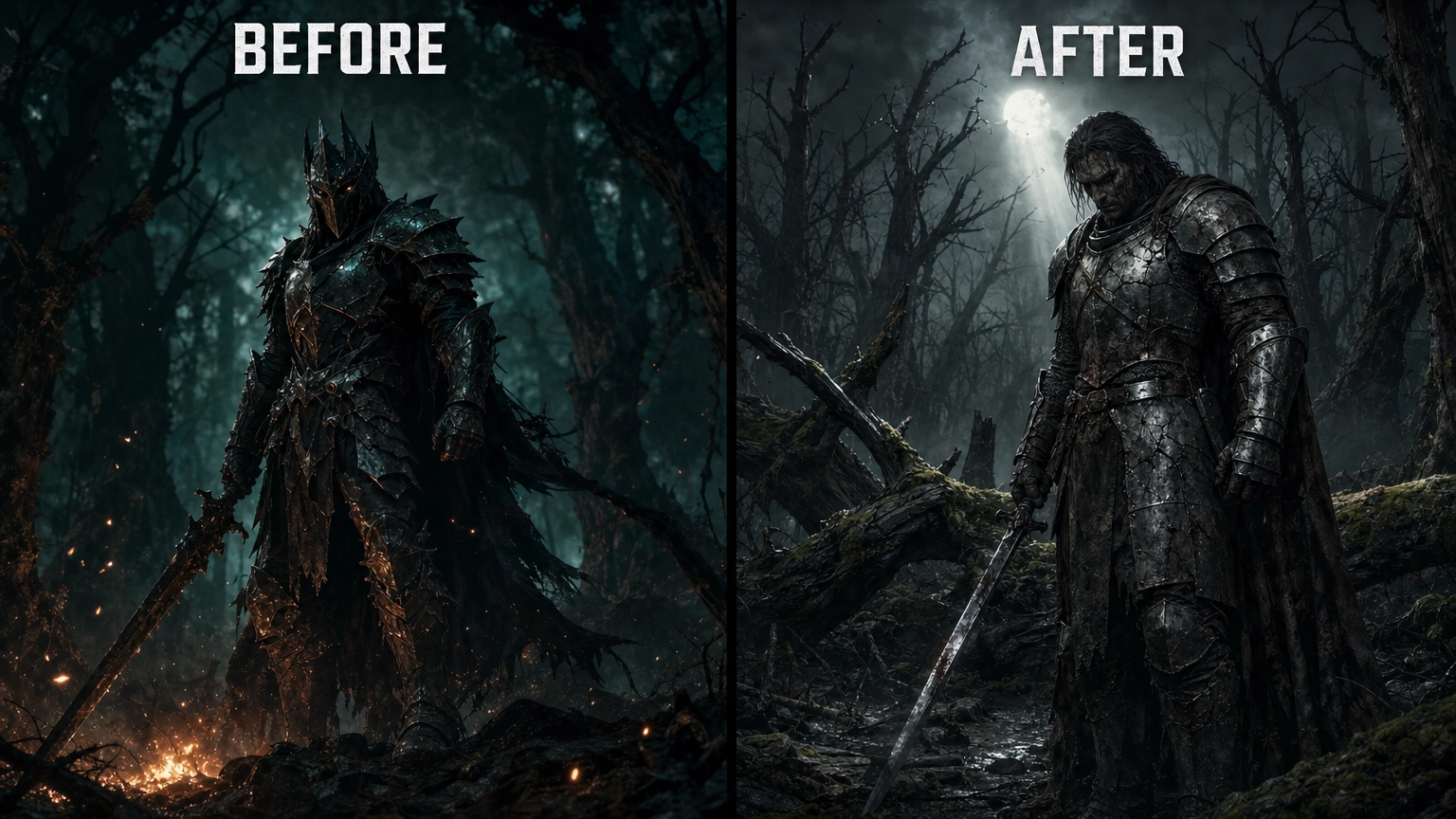
Excluding terms like flat lighting, oversaturation, and washed out colors helps keep a bright default from creeping back in.
Iterate instead of restarting
If a result is close but too bright, don't rewrite the whole prompt. Use Fiddl.art's Iterate to keep the image as reference and ask for one specific change: darker lighting, deeper shadow, a change in palette.
Gothic Textures and Materials That Sell the Look
Texture is what makes a dark fantasy scene feel real instead of rendered. A few materials do most of the work.
Weathered stone
Cracked, moss-grown, water-stained. Use it on walls, floors, statues, anything structural. Specify the wear: "crumbling," "moss-covered," "water-streaked."
Wrought iron and tarnished metal
Gates, candelabras, armor, weapons. Add rust, tarnish, or pitting rather than describing clean metal, this is what separates a gothic scene from a generic fantasy one.
Stained glass
Cracked or intact, colored light through stained glass is a strong way to introduce your one accent color without adding a second light source.
Aged wood and torn fabric
Rotted beams, warped doors, frayed banners, torn cloaks. Decay on soft materials sells the atmosphere as much as stone does.
Fog, dust, and haze
Not a material on a surface, but a texture in the air. A single layer of ground fog or floating dust catching the light adds depth without extra objects in the scene.
How to use this in a prompt
Pick 2 to 3 of these per prompt, not all five, overloading a prompt with too many textures competes for attention and can muddy the result. Pair one texture detail with your named light source: "moss-covered stone wall lit by a single shaft of moonlight" does more work than five separate texture words listed with no light to interact with.
How Are Dark Fantasy AI Videos Made?
The same dark fantasy image you generate can become a short video, using the same prompt principles: one light source, muted palette, visible decay.
Start from a still image
Generate your dark fantasy scene first, then use it as the starting point for video. This keeps the composition, lighting, and mood you already dialed in, rather than starting the motion generation from scratch.
Ask for a video version through the AI Assistant
Inside Fiddl.art's AI Assistant, you can describe your idea directly or ask it to turn an existing image into a video. It recommends a model along with duration, audio, and visibility settings, and shows you the plan before anything generates.
Video models available
Fiddl.art's video generation includes Seedance 2.0, Seedance 2.5, Veo 3.1, and Kling 2.6, alongside 30+ models in total across image and video.
Keep the motion simple
For a dark fantasy scene, subtle motion tends to hold the mood better than fast or complex movement: drifting fog, a flickering candle, slow camera movement across a ruined hall. If you're not sure how to describe the motion you want, you can just ask the AI Assistant directly, tell it what you're picturing and it'll build the prompt and pick the settings for you.
Which Model Should You Use?
Fiddl.art gives access to 30+ models across image and video. A few are worth knowing by name for dark fantasy work specifically.
For image generation
GPT-Image 2, Nano Banana Pro, Nano Banana 2, Seedream 4.5, Seedream 5 Pro, and Flux 2 Pro are among Fiddl.art's current image models. If you're not sure which fits your scene, the AI Assistant recommends one based on your prompt, and you can ask it to generate preview comparisons across multiple models before committing.
For video generation
Seedance 2.0, Seedance 2.5, Veo 3.1, and Kling 2.6 handle video generation on Fiddl.art.
For character consistency
If you're building a recurring dark fantasy character across multiple scenes, Fiddl.art's Forge tool lets you train a custom model so the same character stays consistent from one generation to the next.
Don't want to pick at all?
Describe your scene to the AI Assistant and it recommends the model and settings for you, no need to know the model names going in.
A flat-rate way to try the top models
Fiddl.art also offers a flat-rate option covering five of its top models: Seedream 5 Pro, GPT-Image 2, and Nano Banana 2 for images, plus Veo 3.1 and Seedance 2.5 for video. Each is $35, pay once, no subscription, and includes a 129-page creator guide.
This piece draws on ideas explored more broadly in our AI artwork guide, including how to avoid generic-looking output.
FAQ
How to create dark fantasy?
Pick a specific subject, add one named light source, a muted palette with a single accent color, and visible decay or wear. That combination is what separates dark fantasy from generic fantasy art.
What is the dark fantasy art style called?
It covers a few related styles: gothic fantasy (candlelight, ruins, decay), grimdark (bleaker, more violent), and eldritch or cosmic horror (scale and wrongness over architecture). Most searches for "dark fantasy" mean the atmospheric, gothic-leaning version.
What are some good AI prompts for dark fantasy?
Follow the formula: subject with specific detail, one named light source, muted palette with one accent color, a decay or texture detail, plus "dark fantasy, ultra-detailed." See the prompt section above for ready-to-use examples across environments, characters, and creatures.
How are dark fantasy AI videos made?
Generate your dark fantasy image first, then ask Fiddl.art's AI Assistant to turn it into a video. It recommends a model (Seedance 2.0, Seedance 2.5, Veo 3.1, or Kling 2.6) along with duration, audio, and visibility settings, and shows you the plan before anything generates.
How do I make dark fantasy AI art for free?
Fiddl.art gives new users 60 free credits that never expire, plus ongoing missions that reward more, no subscription required to start. See our free AI image generator comparison for more on how the free credits and pay-as-you-go pricing work