ai image upscaler

AI Image Upscaler

Upload one image, choose 2x or 4x scaling, and prepare a higher-resolution version that keeps the original composition, colors, and subject intact.

Upscale image

Tool summary

Input
Image upload required, up to 1 input image
Model
gpt-image-2
Default aspect ratio
1:1
Output
Upscale image

Upscale images without changing the picture

A good AI image upscaler makes the same image larger, not a new creative render. This tool increases the resolution of your uploaded image, with controls for scale and detail handling so product photos, portraits, artwork, and social assets stay recognizable.

Choose 2x or 4x output dimensions

Use 2x when the source image is already moderately large or when you want a conservative download. Use 4x when the original is small and you need a much larger result. You'll see the original width and height alongside the new width and height before you download, so you always know the actual output size.

Preserve exact content or sharpen details

Preserve exact image mode favors faithful reconstruction for logos, packaging, text, scans, and artwork. Sharpen details mode adds moderate clarity for low-resolution photos while avoiding overprocessed faces, haloing, fake texture, and any change to the scene.

Upload a photo and upscale it directly

Upload a local file and upscale it on the spot. You get back a larger version of the same image along with its new dimensions, ready to download.

Clear expectations for 4K searches

People often search for upscale image 4K, but 4K depends on the source size and selected scale. Rather than promising a fixed 4K file, this tool calculates and shows you the real dimensions of your result.

Useful for ecommerce, print prep, and social reuse

Higher-resolution versions help when a product shot needs a larger listing image, a creator wants to reuse a small social graphic, or a team needs a cleaner asset for print review. The result should remain the same image with more pixels and clearer edges.

AI Image Upscaler examples

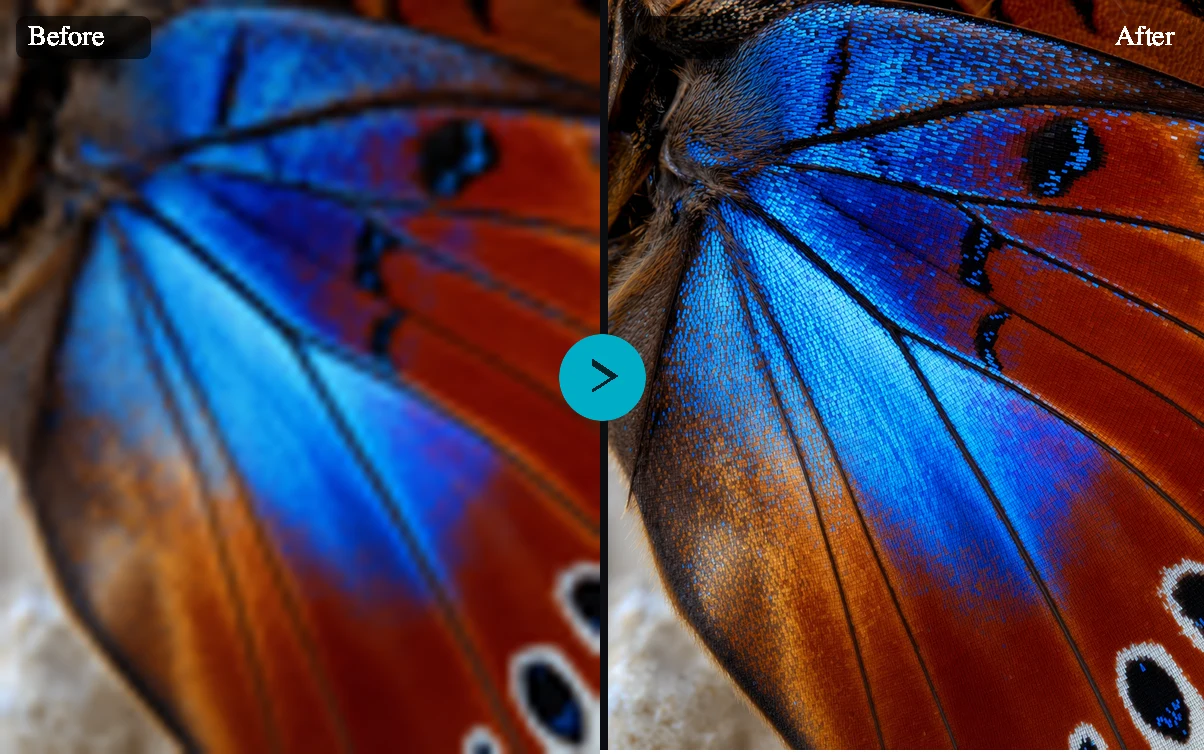
AI Image Upscaler example 1
AI Image Upscaler preview
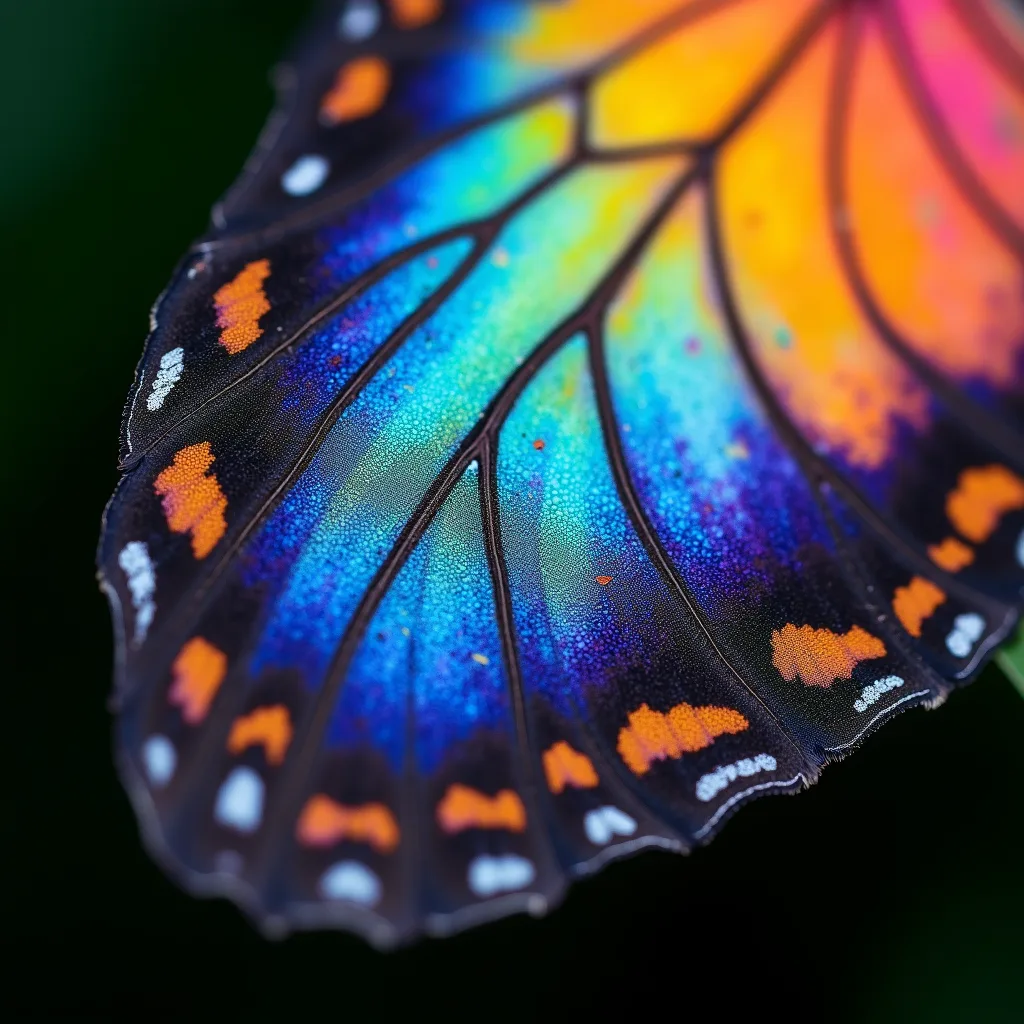
AI Image Upscaler example 2
AI Image Upscaler sample output
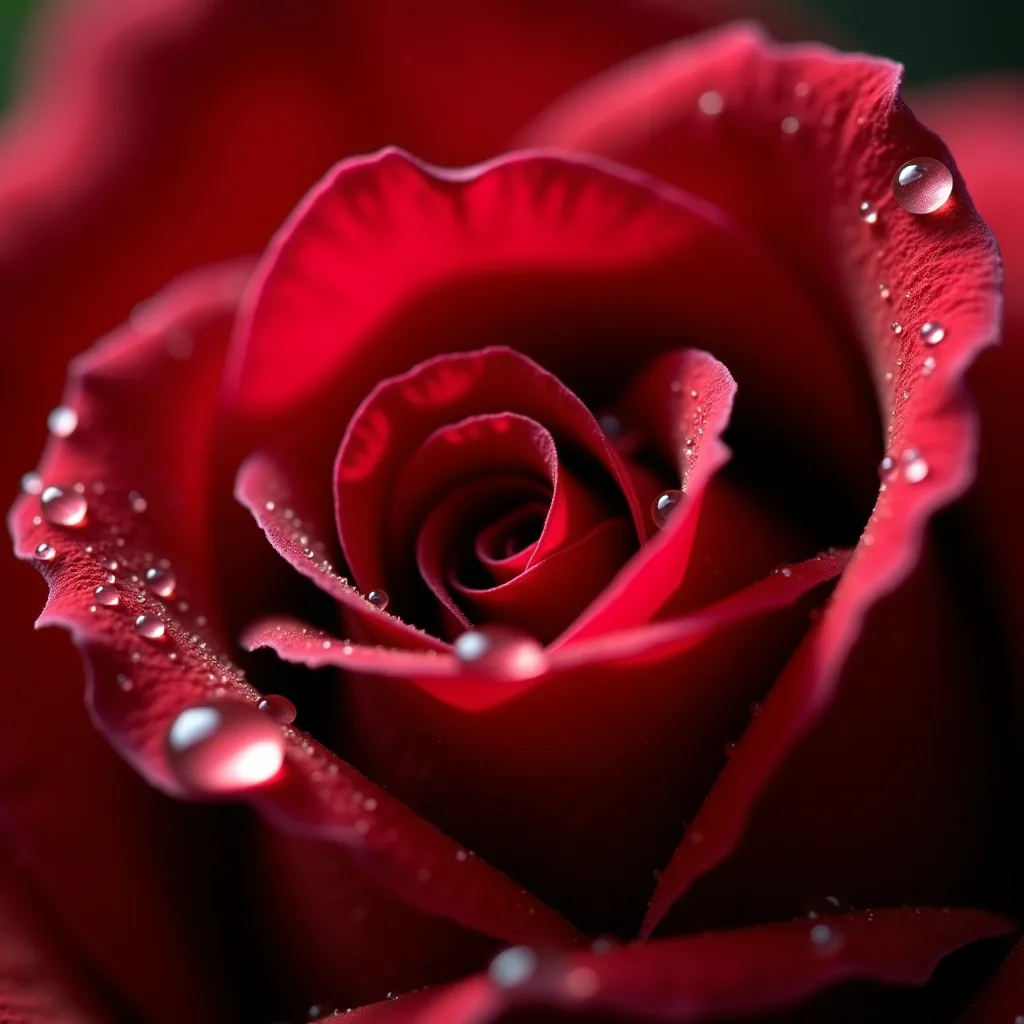
AI Image Upscaler example 3
AI Image Upscaler sample output
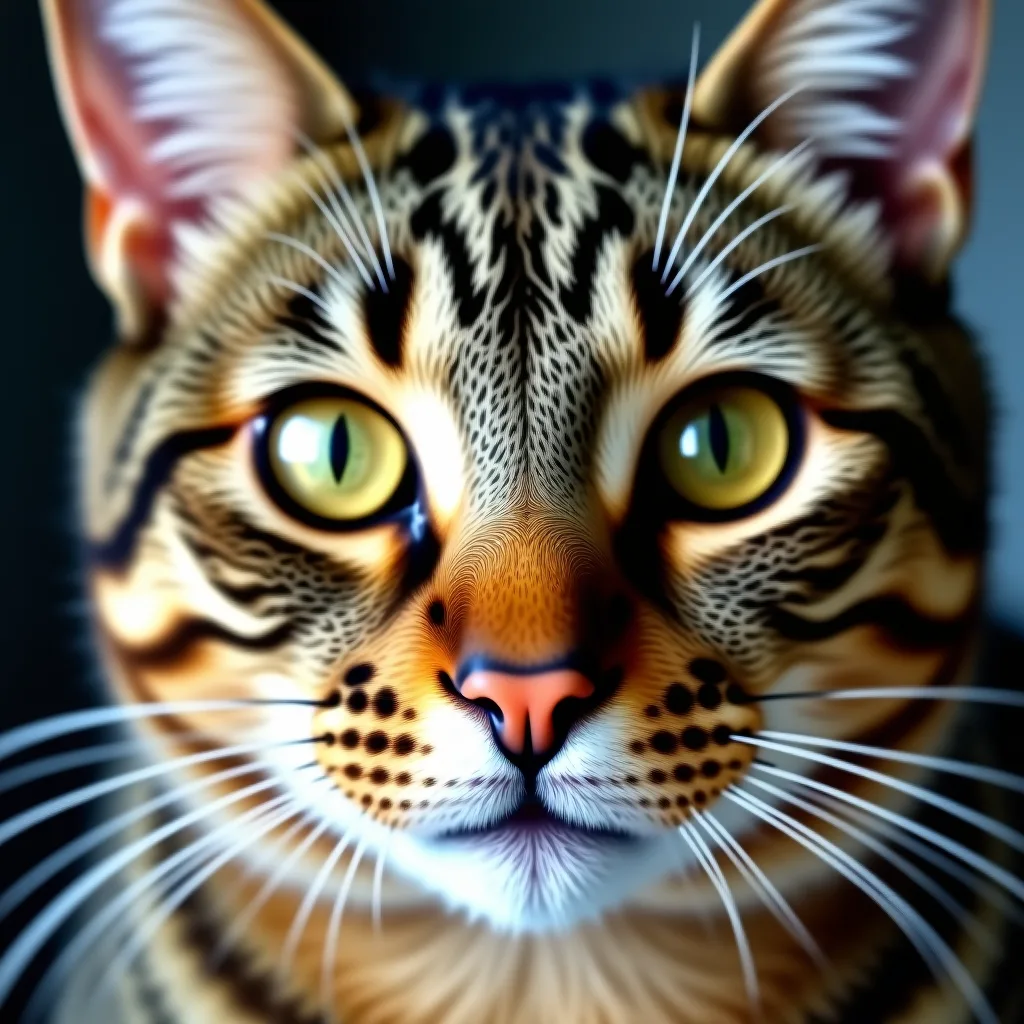
AI Image Upscaler example 4
AI Image Upscaler sample output

Example presets

  • Product detail 4xUpscale this product photo for a larger listing image while keeping labels, logos, edges, color, and packaging details intact.
  • Portrait 2x cleanIncrease portrait resolution with natural skin texture and no identity changes.
  • Social crop 4x sharpenUpscale a small social image and add moderate detail sharpening without changing the scene.
  • Scan or archive 2xUpscale a scan, illustration, or archive image while preserving paper texture, linework, and original color.

Controls and settings

  • ScaleChoose from 2x, 4x.
  • EnhancementChoose from Preserve exact image, Sharpen details.
  • Face enhancementEnable face enhancement only if the backend provider supports it for this endpoint; otherwise ignore this option and preserve faces without a separate face pass.
  • OutputsGenerate 1 to 1 variants. Default: 1.

Use image upscaling responsibly

Only upload images you own or have permission to process. Do not upscale private, copyrighted, identity, document, or product images in ways that mislead viewers about authenticity, condition, or provenance.

Frequently asked questions

Does the AI Image Upscaler create a new image?

No. The upscaler increases resolution while preserving the uploaded image. It does not add new objects, change the subject, replace the background, or restyle the picture.

Can I upscale an uploaded image by 4x?

Yes. You can choose 2x or 4x scale, and you'll get back your enlarged image along with its actual output dimensions.

Will the output always be 4K?

No. Actual dimensions depend on the original width and height, the selected scale, and processing limits. You'll see the original and new dimensions instead of a promised fixed 4K result.

Is face enhancement available?

Face enhancement is available when supported for your image. When it is, you can turn it on to keep faces looking natural as the image is enlarged.

Is this different from the AI Photo Enhancer?

Yes. The upscaler focuses on increasing pixel dimensions. A photo enhancer can target exposure, color, noise, blur, or general restoration even when the final size does not change much.

Do I need to log in to upscale an image?

You can browse the page and choose your upload and settings freely, but you'll need to sign in before your image is processed.

What file details should the result show?

Your result shows the original dimensions, the new dimensions, the file format, and download status. If any dimensions can't be read, you'll see that clearly noted.